RayONE Platform:
Cloud.ray.life
The Ray cloud controller is the platform from which all Ray products are managed and with this is in mind, unlike most vendors who build their cloud controllers to manage only 1 product (ex. Access Points),
The Ray ONE platform was built to manage all Ray products from a single pane of glass. i.e., Ray Access Points, Ray Switches and Ray Edge Gateways & NGFW/UTM’s.
The Ray cloud Controller can be accessed using the following link cloud.ray.life
On clicking the above link, you will be redirected to the ray cloud controller.
the ray platform requires an email id and an unregistered ray device for first time signup.
An existing Ray account holder can still provide you with access to their Ray cloud controller even without you having/possessing a Ray device of your own. by creating for you an account as a user giving you access to manage his devices on his behalf.
We will look at this process later on in another article.
To Sign up for a Ray account and get access to the RayONE Cloud controller for managing all your Ray Products,
-Open your web browser and type in cloud.ray.life
-Your browser will open the Ray cloud controller page, click on the create account as highlighted below:
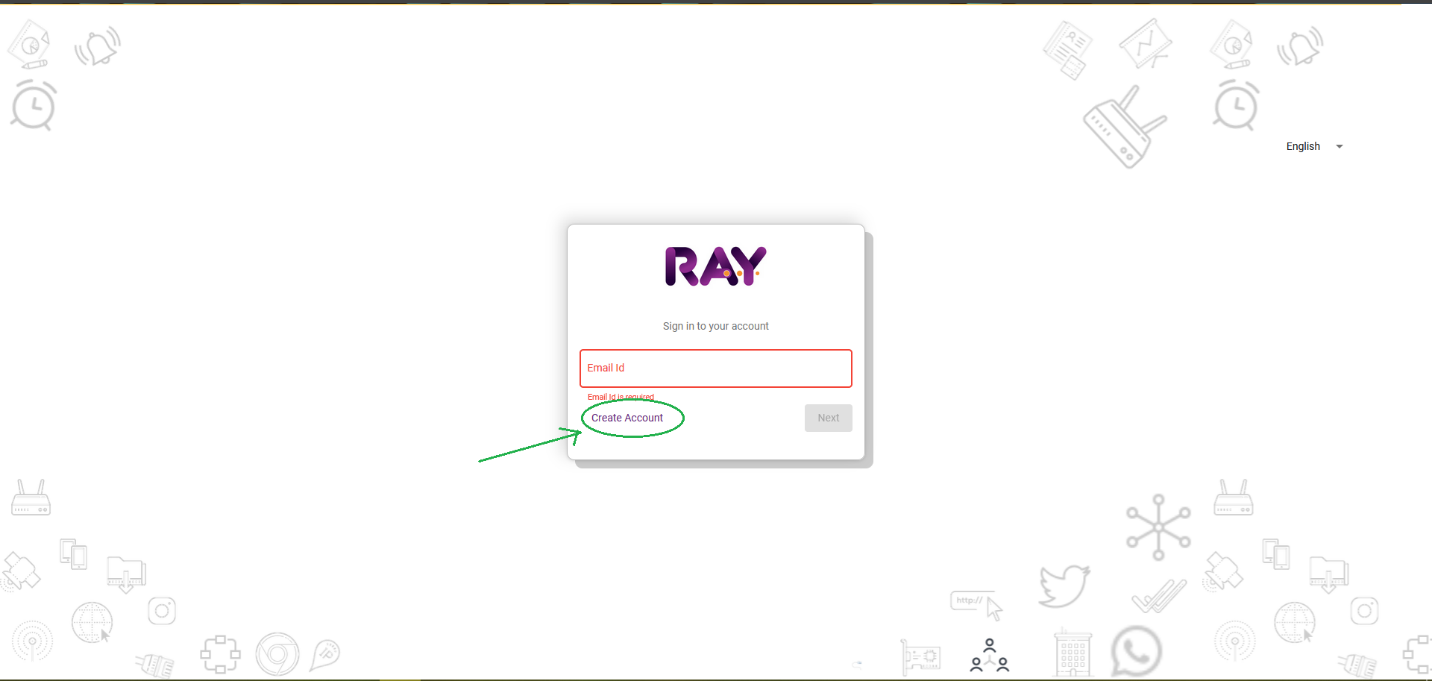
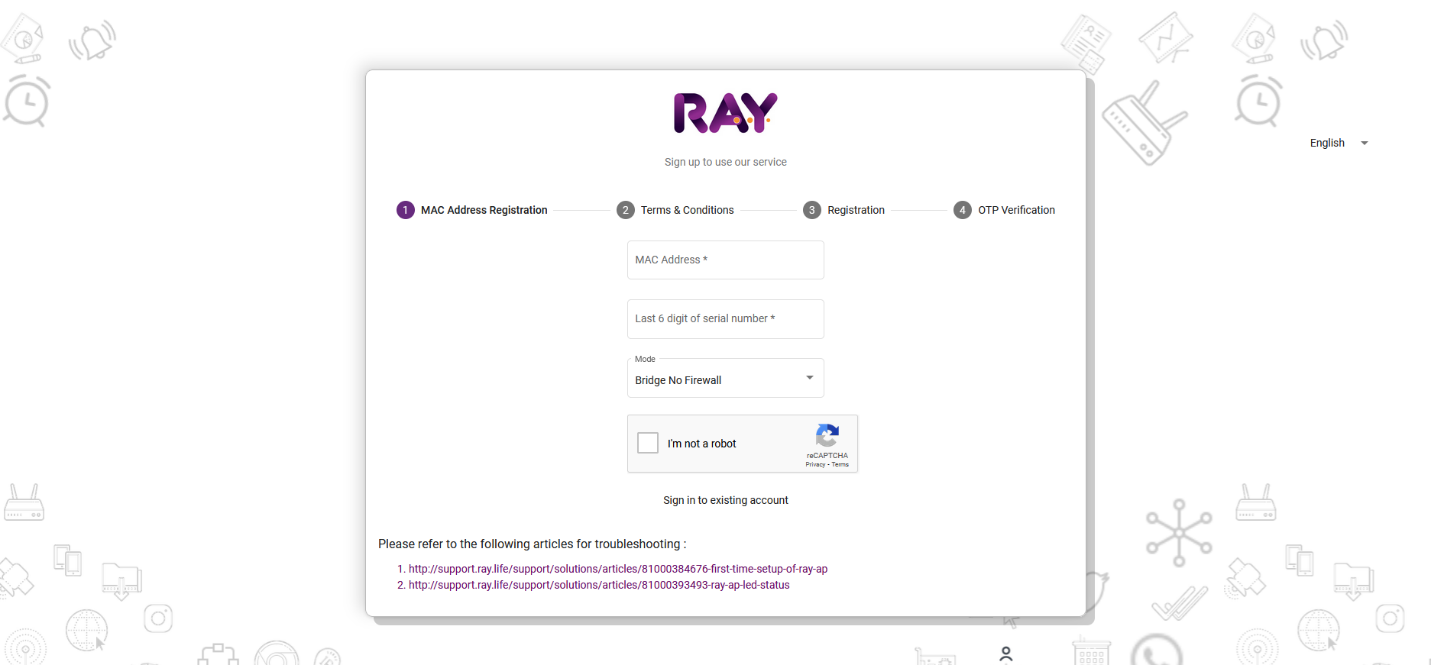
On clicking the create account button, a pop window will be presented asking you for the following details:
- The MAC address* The MAC of your Ray Device is a 48 bits HEX character. Ray Pte. Ltd OUI is (28:B7:7C:E0:XX:XX) This can be found printed at the back of your Ray Access Point or Ray Appliance.. it can also be found printed on the packaging that came with your Ray device.
- Last 6 Digits of Serial Number* The last 6 digits of are your Serial Number are also printed in the same location at the back of your Ray Access Point and on the Packaging that came with the Access Point.
- Mode* The mode is the operating mode you want to install the Ray Access point in. Refer to the article Ray AP Modes (Gateway / Bridge / Client) to learn more about the different Ray AP operating modes.
Finally click on the security check box to verify you are not a Robot and proceed to register your Personal details in the next page such as email address and phone number. etc.
On completion of registering you details, Read and Accept the Ray Pte.Ltd Terms and conditions agreement. And you will be sent a One Time Password (OTP) to the email address you just registered your account with.
Note: If you can’t find the email containing the OTP in your email inbox, please check your email spam folder or Junk folder. (It was most likely Falsely identified as spam email)
The Registration Page for the Ray Cloud Controller can be seen below:
It’s Important to make sure that you only perform the Ray account creation steps only after connecting your Ray device to the internet and it has finished booting and has full access to the internet.
You Can verify that the Ray Access Point has full internet access and can connect to the Ray Cloud controller by observing the Ray AP LED Light status indicators on the Access Point.
You should look for the following LED light indications below:
(For the Ray R6 Models (R6A/R6B/R6E) and the Ray Vega, A static BLUE Led light means the device has internet Access and can connect to the Ray controller and is ready to be registered.
On the Ray Cygnus, A static TURQUOISE Led Light means the Ray AP has successfully connected to the internet and is ready to be registered to the cloud.
look at this article: Ray AP LED & Status to understand what the different Ray LED Light Status mean.
If you have a Firewall in your network, Make sure you provide full internet access rights to the Ray access Point by permitting (Whitelisting its MAC Address)
and the Following URL’s and Ports are open
*hubcloud.ray.life tcp 443.
*mqttcloud.ray.life tcp 8884.
How Ray Appliance communicates with the Ray cloud controller:
The RayONE platform is Ray’s Cloud based service that runs all the complex computing, protocols and services that Ray Appliances support and are capable of allowing Ray Appliances to perform for beyond what traditional appliances from most of the other vendors can support.
By making use AI (Artificial Intelligence, Cloud Computing and Machine Learning) the RayONE Platform offloads the CPU intensive processes such as device fingerprinting and Identification, Performance Monitoring, RF and RRM tuning to the cloud allowing the Inbuilt Ray Appliance Hardware Resources Such as the Memory and CPU to be freed and used on processes and protocols such as Frame and Packet Forwarding, Bridging and Routing and Wireless Network Communication.
The Ray Wireless Controller is available as a multi-Region always on cloud on AWS/Azure/Google Cloud with High Availability.
The Ray Wireless Controller is also available as an On-Premise Solution that can be installed as a Virtual Machine (VM).
|
NOTE: For customers who want to have the Ray wireless controller to be installed as an On-Premise Solution, They shall be responsible for providing a minimum but not limited to the following requirements :-
|
RAY COMMUNICATION AND TRANSPORT PROTOCOL: #
RayONE uses a lightweight network protocol called MQTT (MQ Telemetry Transport) to communicate between the cloud and the Ray hardware devices.
MQTT (MQ Telemetry Transport) is a lightweight open messaging protocol that provides resource-constrained network clients with a simple way to distribute telemetry information in low-bandwidth environments.
MQTT was designed to work well with devices with limited resources and networks with limited bandwidth using TCP/IP as its transport making it reliable and highly scalable.
Below are the URLs and protocols that are required and need to be permitted by the network’s Firewall / Gateway in order for the Ray access points to establish connectivity and reach the
RayONE Cloud Platform:
- hubcloud.ray.life on tcp port 443:
Ray uses HTTPS during the registration step and it is necessary for restarts. We do not recommend blocking HTTPS after registration because you never know when you will have to re-register or restart your application.
- mqttcloud.ray.life on tcp port 8884:
Ray uses MQTT protocol for communication between the Access Point & the controller.
MQTT is an open OASIS and ISO standard lightweight, publish-subscribe network protocol that transports messages between devices.
We ask the port you open to be whitelisted for all outgoing traffic.
Some firewalls and proxies terminate non-SSL connections which will interfere with the application’s ability to connect to Ray Controller.
Adding AP to RAY controller
HOW TO ADD RAY ACCESS POINTS OR EDGE DEVICES TO THE CLOUD.
Step 1. Login to Cloud Controller using your username & password on https://cloud.ray.life
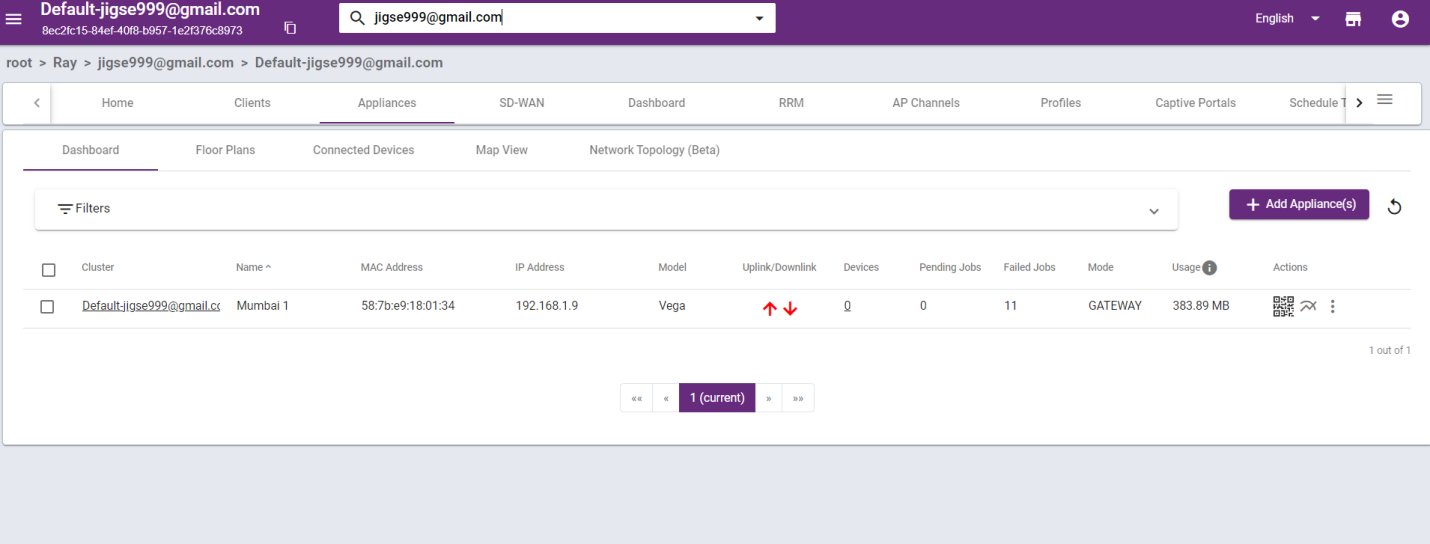
After go to appliances menu tab as shown in image above and Then Add appliances
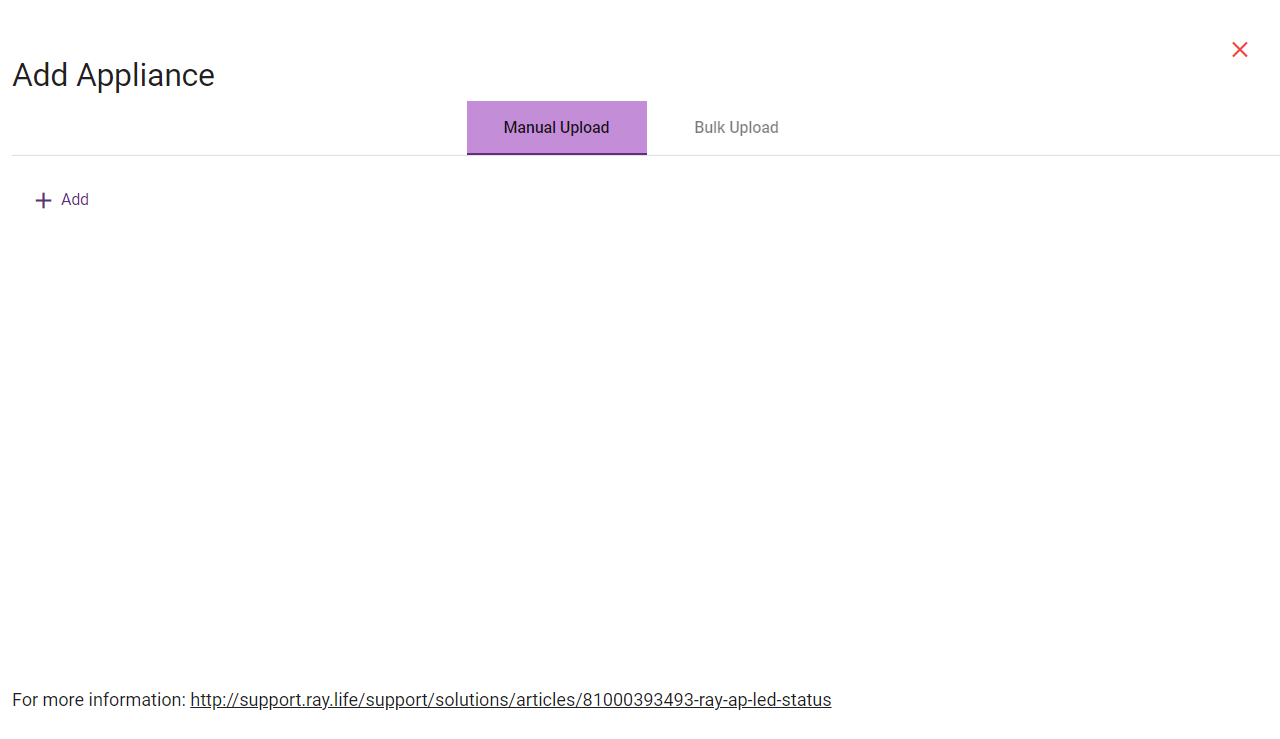
Then press add button to manually add device.
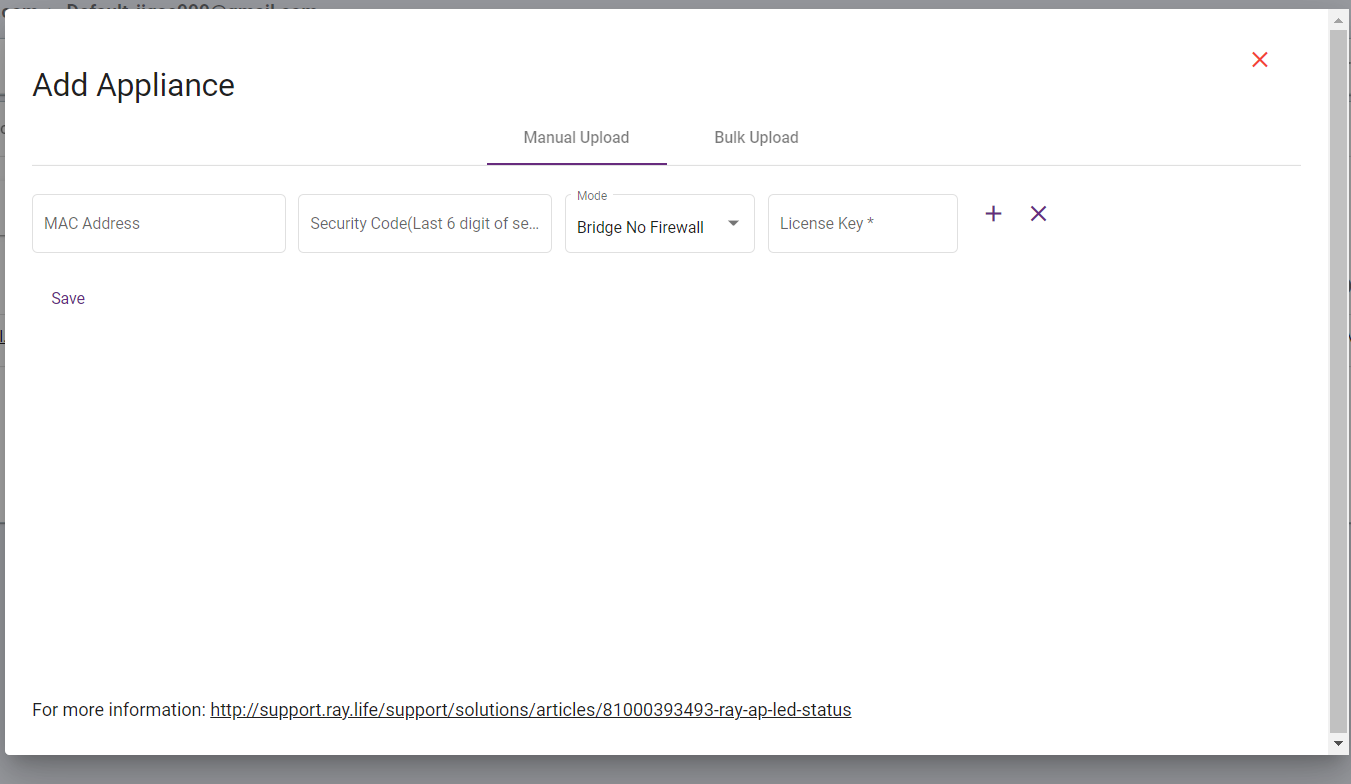
1-Then input details of your new Ray Access point such as the Ray AP MAC address,
2-The (Security Code) which is the last 6 digits of the serial number of your Ray AP. (The last 6 digits of the Serial Number of the AP can be found printed under the Ray AP or on the Packaging that came with your Ray Appliance)
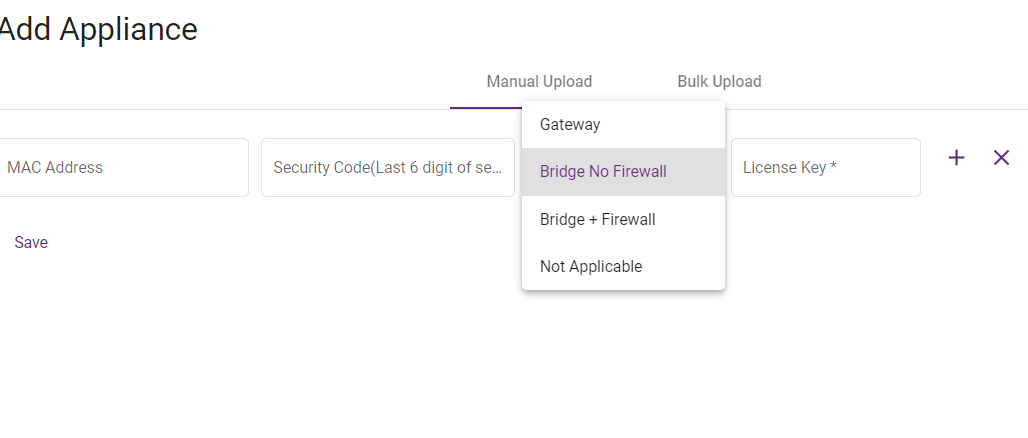
3- The mode can be selected per customer requirements (it can either be Gateway/Bridge No FW/ Bridge + FW) refer to Ray AP Modes (Gateway / Bridge / Client)
4- Lastly enter the license key to activate the product. The license key will be provided by your Ray Reseller/Supplier where you purchased your appliance from.
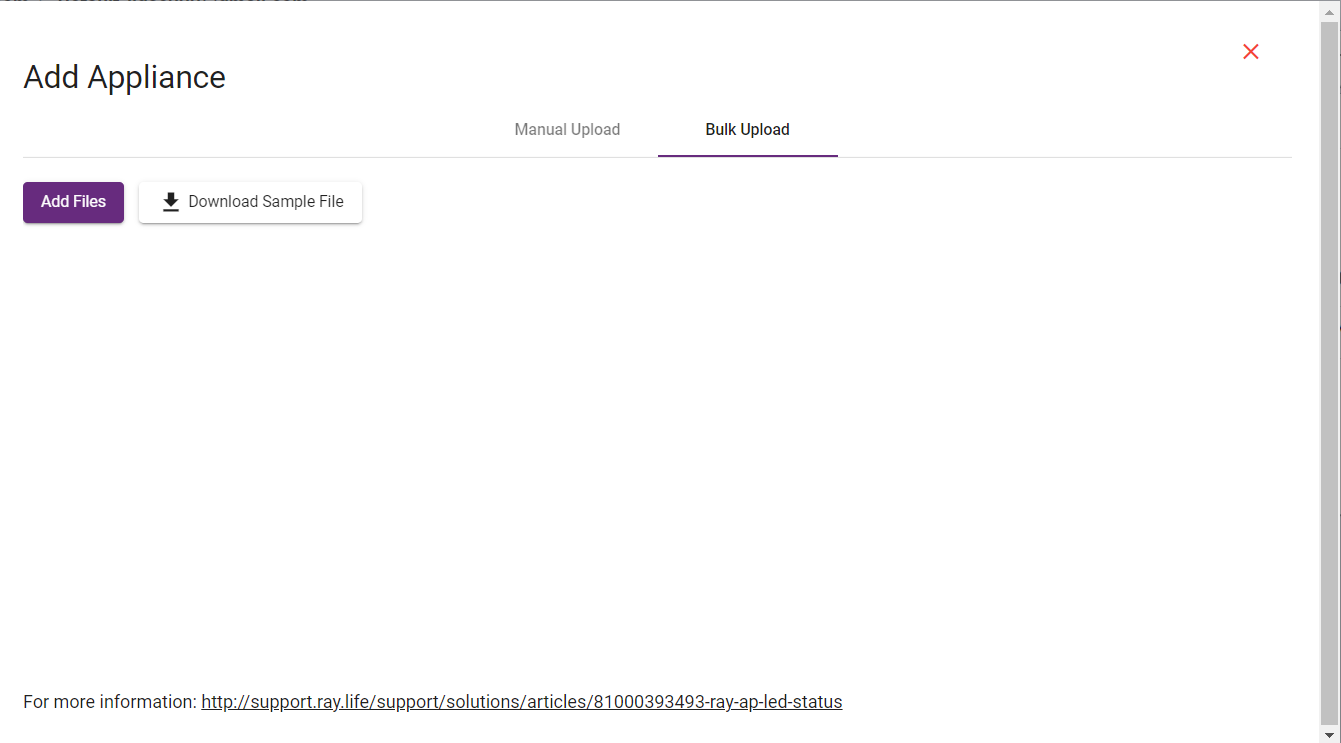
Other option we can add multiple device simultaneously with given format.
#
RAY AP’s LED & STATUS #
Ray AP requires the AP to be connected to the Internet before it is set up.
For RAY AP MODELS R6A-C & R6-B-C AP:
|
LED Status |
Status |
Resolution |
|
No Light |
No Power. |
Please check the power delivery via PoE or a compatible DC power supply. |
|
Red LED |
No IP Address Received |
The AP is not able to receive IP- addresses from the network. If you have a VLAN, Static IP, or PPPoE Network, Please refer to the below article. |
|
Green LED |
No Access to the Ray Cloud |
The AP is not able to reach the Ray cloud. There could be a firewall blocking access to the cloud. Please refer to the below article. https://support.ray.life/en/support/solutions/articles/81000144888-network-requirements |
|
Blue LED |
All Okay. |
RAY AP LED LIGHTS STATUS INDICATIONS AND MEANING:
FOR RAY AP Model Vega:
|
LED Status |
Status |
Resolution |
|
No Light |
No Power. |
Please check the power delivery via PoE or a compatible DC power supply. |
|
Fast Blinking Blue LED |
No IP Address Received |
The AP is not able to receive IP- addresses from the network. If you have a VLAN, Static IP, or PPPoE Network, Please refer to the below article. |
|
Slow Blinking LED |
No Access to the Ray Cloud |
The AP is not able to reach the Ray cloud. There could be a firewall blocking access to the cloud. Please refer to the below article. https://support.ray.life/en/support/solutions/articles/81000144888-network-requirements |
|
Stable Blue LED |
All Okay. |
Network Requirements:
Ray Access Point is a cloud controlled Wireless Network Device and uses Amazon Web Services (AWS) for the cloud controller.
Ray has certain network requirements for connecting to Ray cloud servers.
If your business cannot do the below, we unfortunately cannot support your cloud setup.
If you have done the below and you are still unable to send messages,
please contact us Ray Support
Ray requires a long-lived TCP connection. Occasional requests will be made so the connection does not stay idle. However, you will have to ensure that your firewall, router, security, etc. does not terminate long-lived TCP connections.
The following are the network requirements for Ray connectivity and cloud access:
- Ports
- Protocols
- Domains
- IP Addresses
Ports:
Incoming Traffic ports:
Your business’s firewall can still protect from incoming traffic as normal with no need for any special ports to be opened.
Outgoing Traffic ports:
There are two ports used for outgoing traffic and need to be permitted for Ray traffic to be successful.
8884 (mqttcloud.ray.life)
443 (hubcloud.ray.life)
They are not listening or used for incoming traffic.
Protocols:
The Ray Access Point uses 3 types of protocols:
MQTT (TCP)
HTTPS (TCP)
PING (ICMP)
Ray uses MQTT protocol for communication between the Access Point & the controller.
MQTT is an open OASIS and ISO standard lightweight, publish-subscribe network protocol that transports messages between devices.
We ask the port you open to be whitelisted for all outgoing traffic.
Some firewalls and proxies terminate non-SSL connections which will interfere with the application’s ability to connect to Ray Controller.
Ray uses HTTPS during the registration step and it is necessary for restarts. We do not recommend blocking HTTPS after registration because you never know when you will have to re-register or restart your application.
Ray uses Ping protocol as one of the steps in Network Performance Test.
Domains:
Whitelisting can be done by hostname rather than IP address. Ray requires connectivity to
ray.life
s3.amazonaws.com
NTP Servers servers:
time1.google.com
time2.google.com
time3.google.com
Firewalls:
Depending on your firewall and how it functions, just whitelisting the hostnames may not work and you will need to whitelist all IP addresses instead.
Examples of firewall behavior that will not work with just hostname whitelisting are:
Firewalls that run a DNS query (against the DNS configured in your data center) and use the resulting IPs in the whitelist; Firewalls that look for outbound DNS queries from machines in the data center and use IP addresses that are seen in the response to the whitelist; Firewalls that look for hostnames in the HTTP/HTTPS handshake.
In the event that your firewall exhibits one of these behaviors please proceed to use IP whitelisting.
IP Address:
Ray uses the below range of IP addresses for its servers.
Please contact Ray Support team to get the list of IP Addresses.
You can try to allow all of the IP addresses. However, it is best to just allow all outgoing traffic and connections from the above ports.
#
Static IP / PPPoE / VLAN Settings Per Access Point: #
By default, the AP receives the IP via DHCP.
But in your setup, if the IP is received via either of the below,
- PPPOE
- Static IP
- VLAN (If set for that particular device).
then you can follow the below steps.
Before Setting up the AP: #
Step 1. In case your Ray AP is not receiving the IP via DHCP, it should be broadcasting the SSID RayXXXXXXXXXXXX (of WiFiXXXXXXXXXXXX) where XXXXXXXXXXXX is your MAC Address of the AP and also the password of the SSID. Please login in the RayXXXXXXXXXXXX SSID.
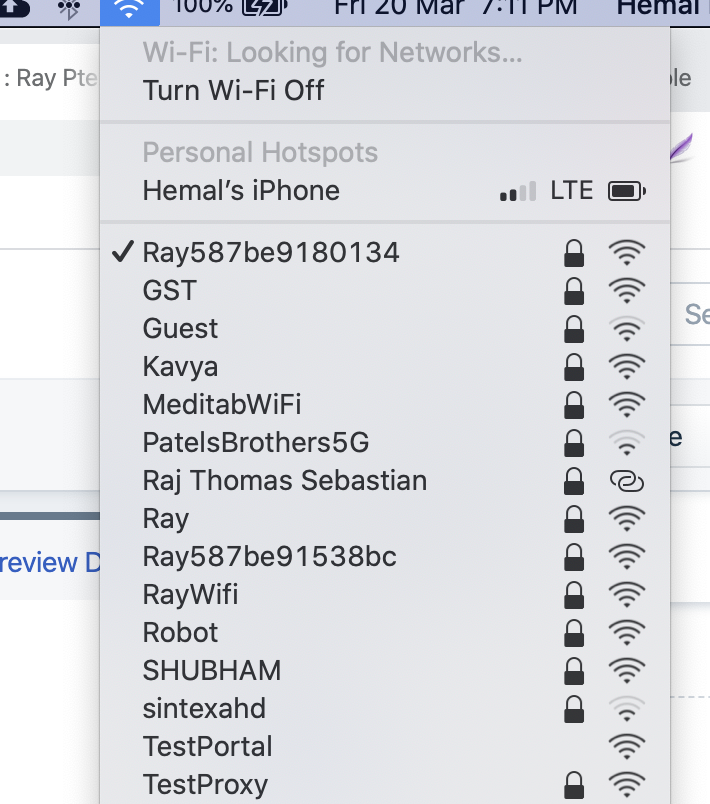
Step 2. Go to your browser and type http://192.168.33.33/
Step 3. Click on Configure WAN Settings.
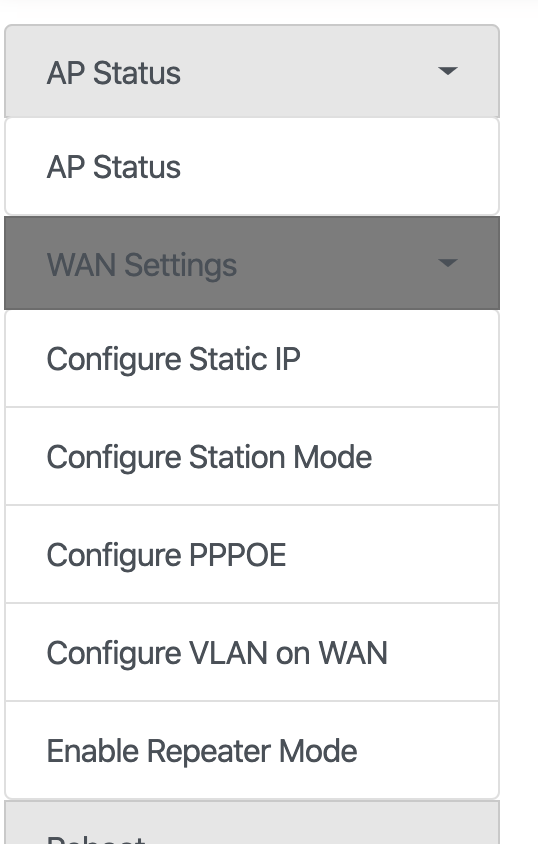
Step 4. Click Create Network Interface
For VLAN
You can set the VLAN id and VLAN Tag.
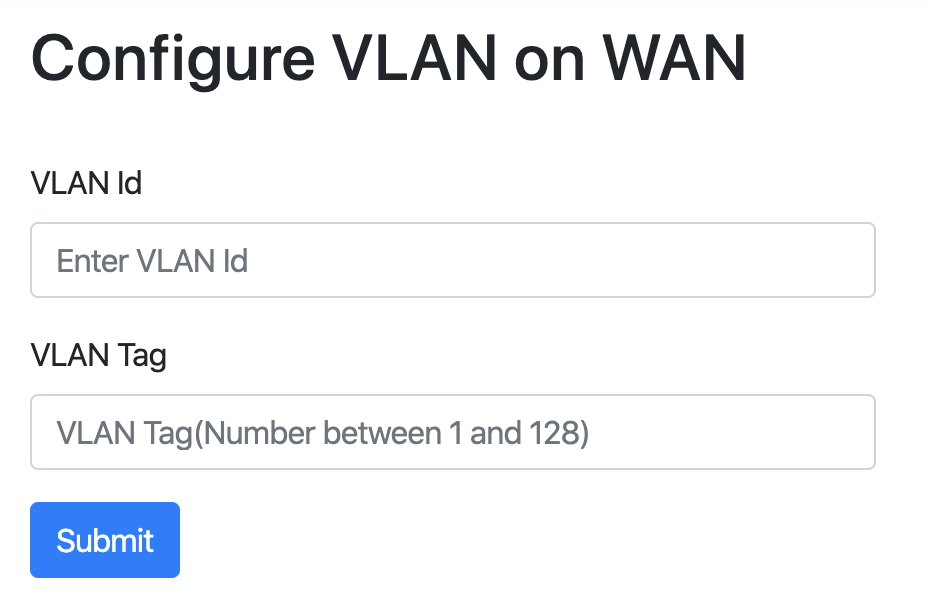
For PPPoE
You can mention the Username & Password.
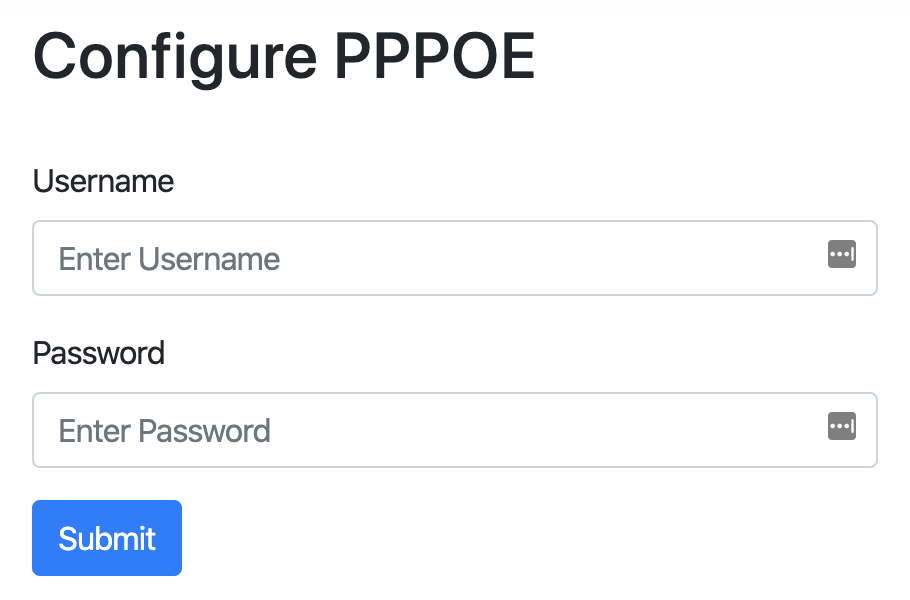
For Static IP
You can mention the below details and press Submit.
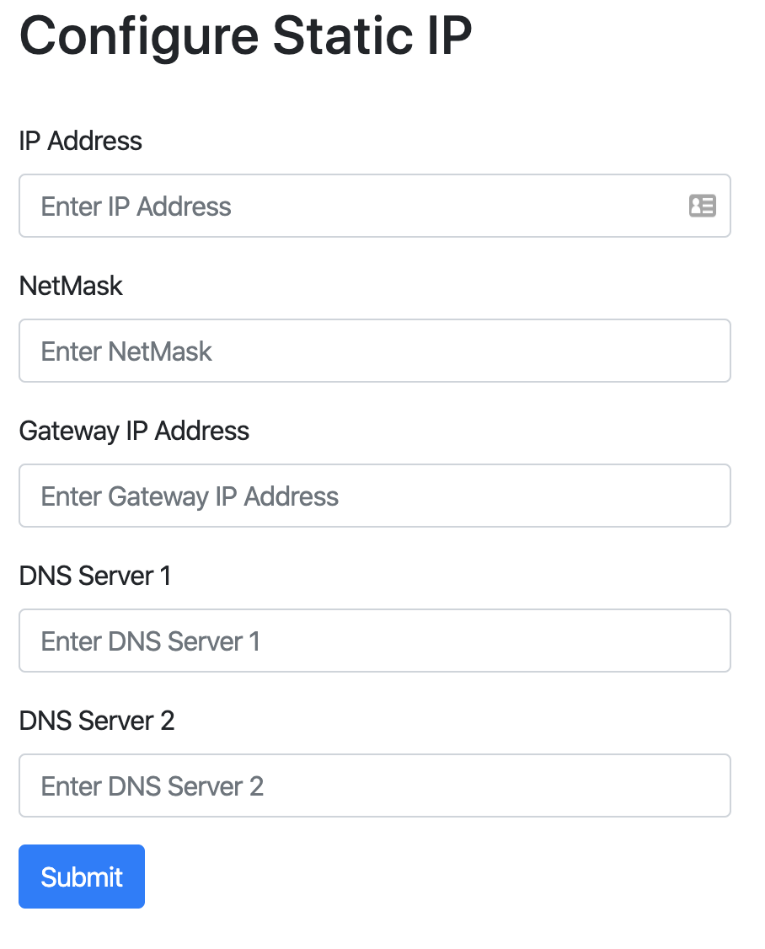
Press Submit.
License activation process #
HOW TO ACTIVATE LICNESE.
FIRST LOGIN INTO CLOUR.RAY USING USERNAME AND PASSWORD.
THEN ENTER NAME OF USER OR CLUSTER NAME . THEN SEARCH
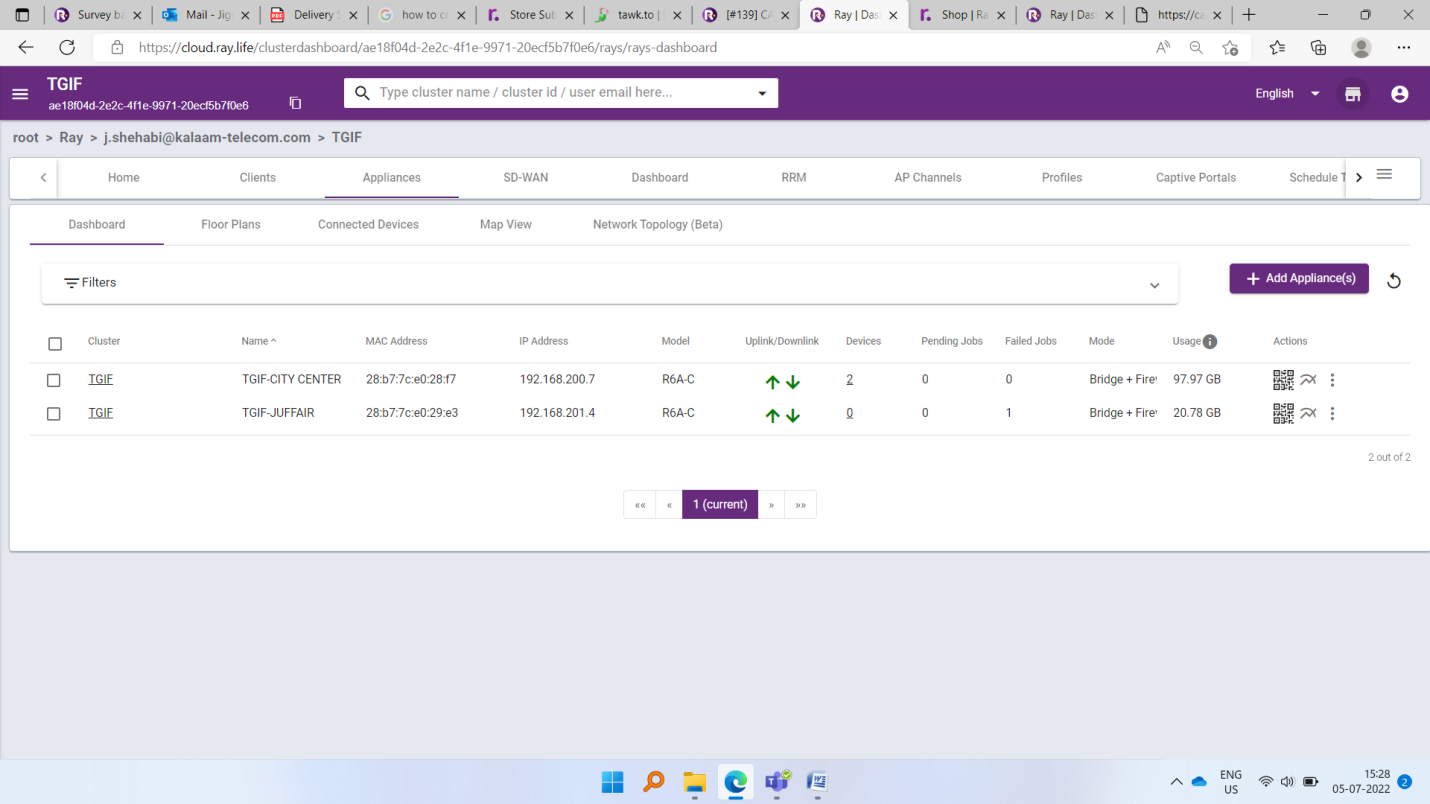
THEN GO TO THE RAY APP STORE:
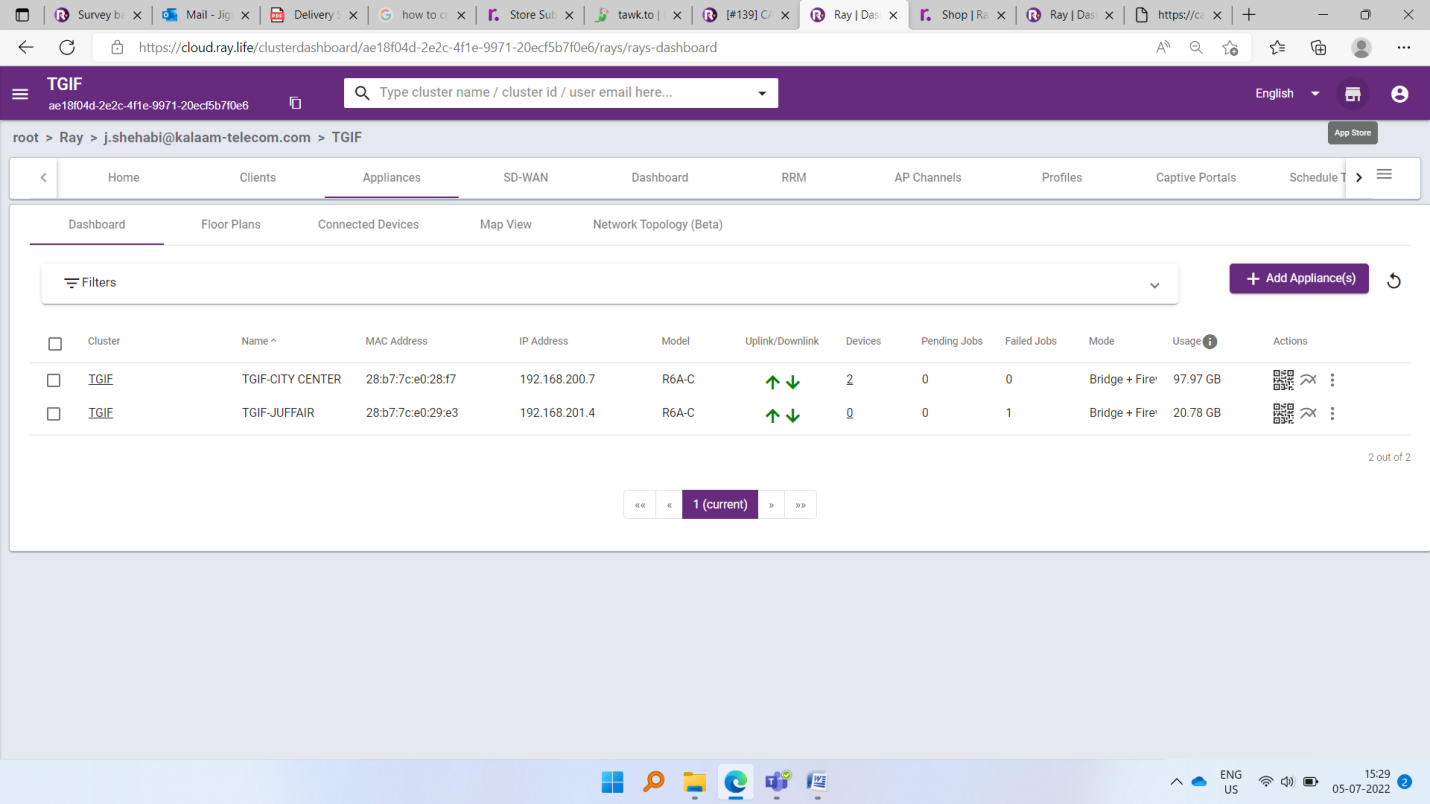
AFTER APP STORE YOU ARE GETTING USERNAME AND CLICK ON THAT AND ACTIVATE LICENSE
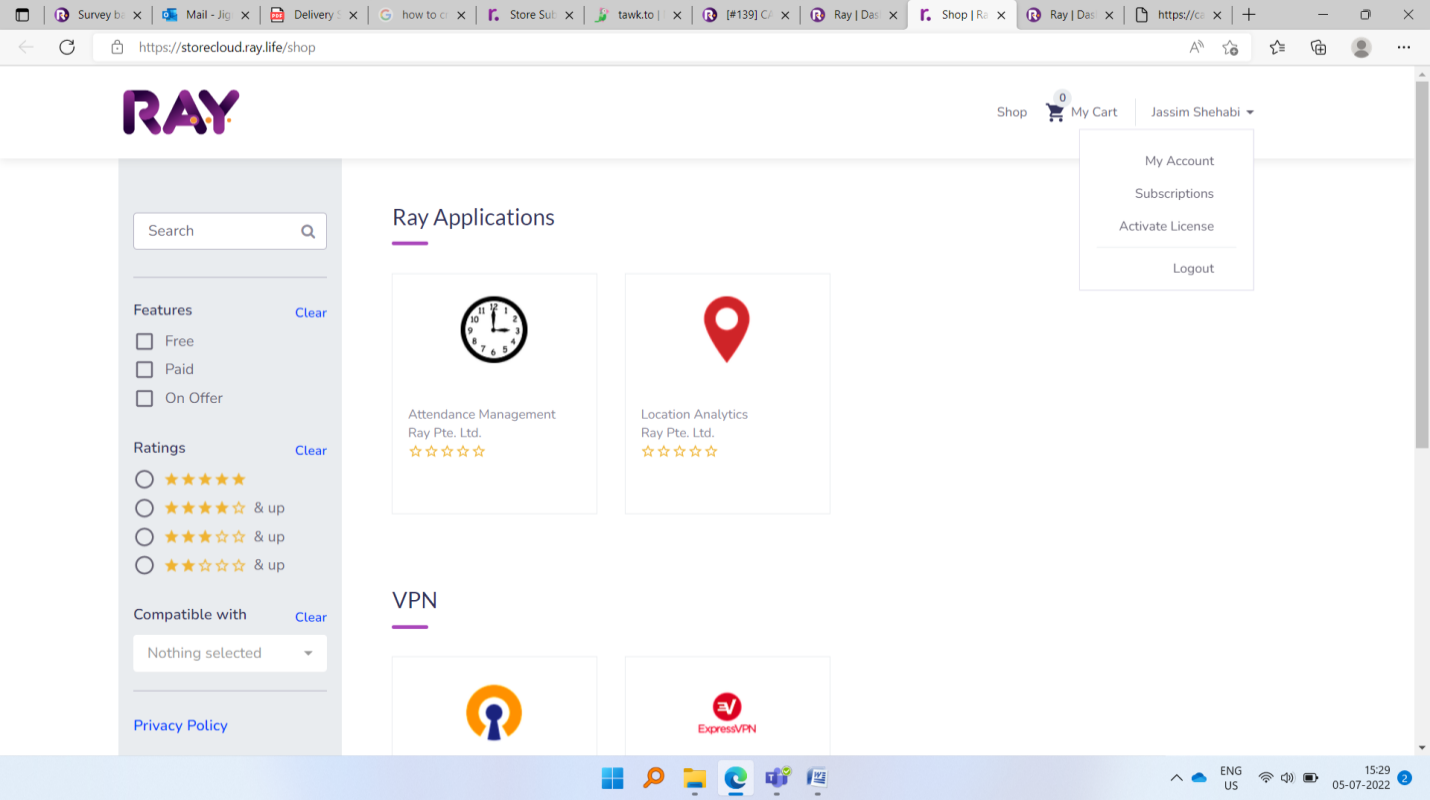
CLICK ON ACTIVATE LICENSE SO YOU WILL GET BELOW WINDOW AND ENTER THE ACTIVATION KEY SUPPLIED BY YOUR RAY RESELLER/SUPPLIER. (USUALLY IN EXCEL .CSV FORMART)
THEN PLEASE SUBMIT.
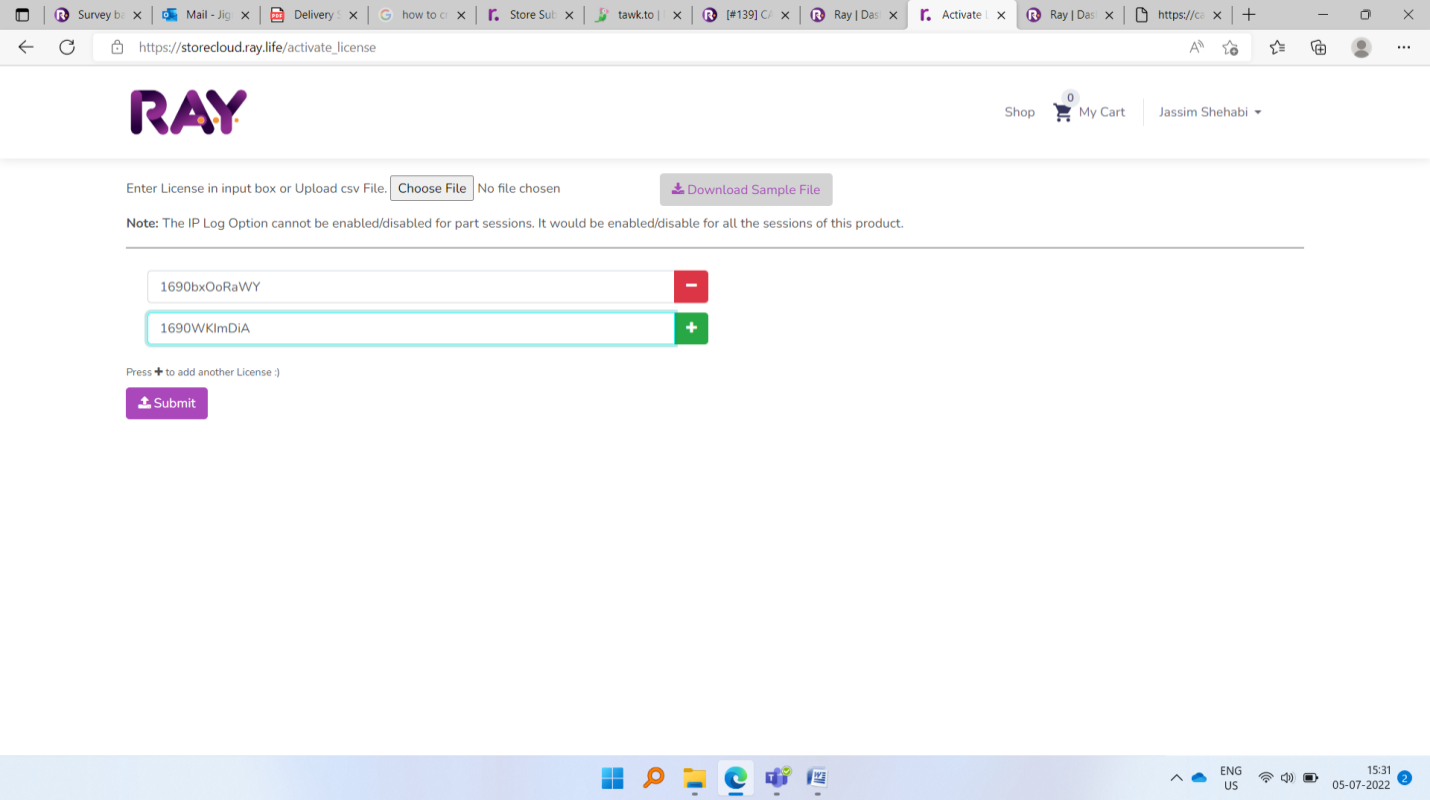
After that u can verify by clicking user and subscriptions.
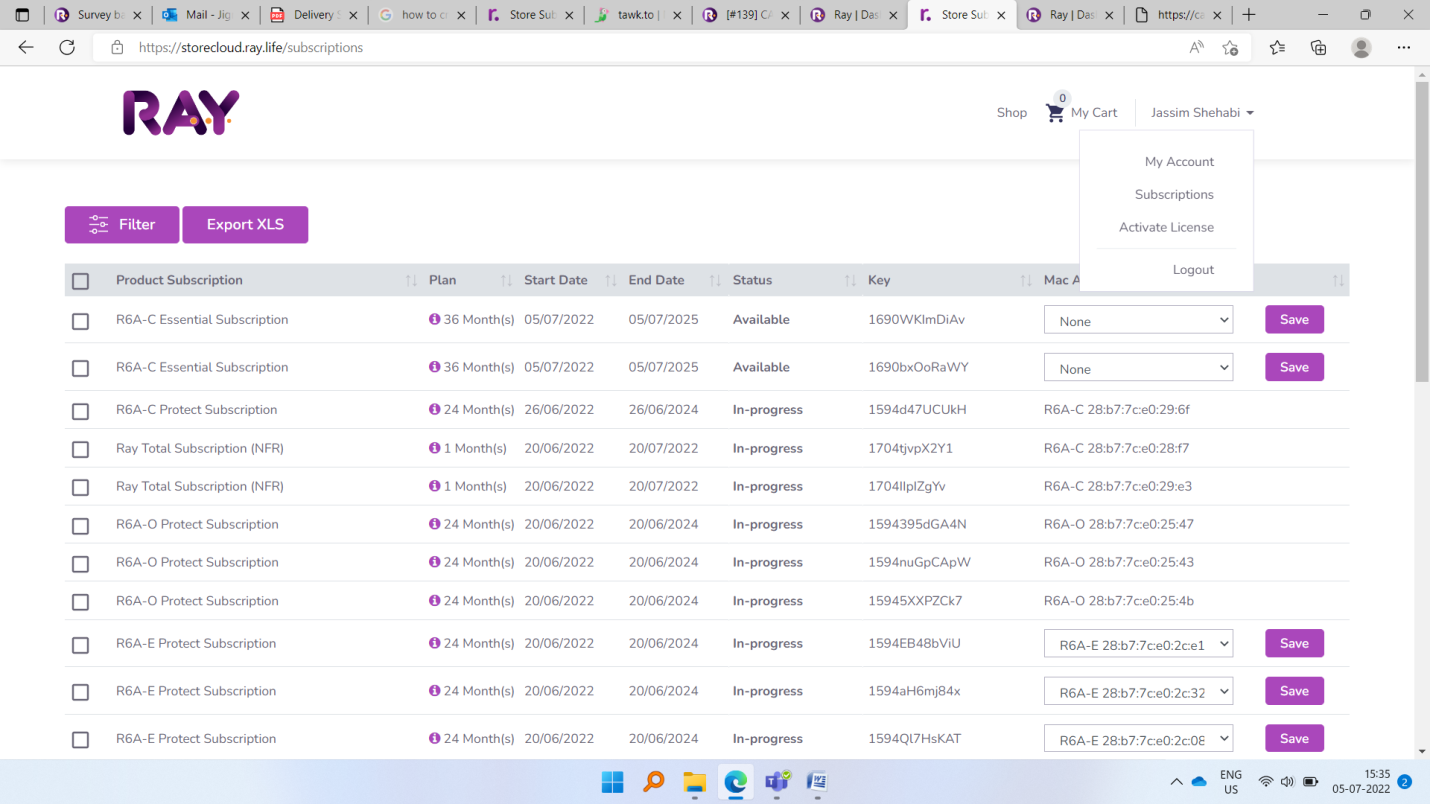
Then this process is over for license activation.
You can see above two licenses now and after that from device table we have to select device if and only if device license is expired.
How to raise a TICKET or booked the complaint online.
- First you have to open URL support.ray.life.
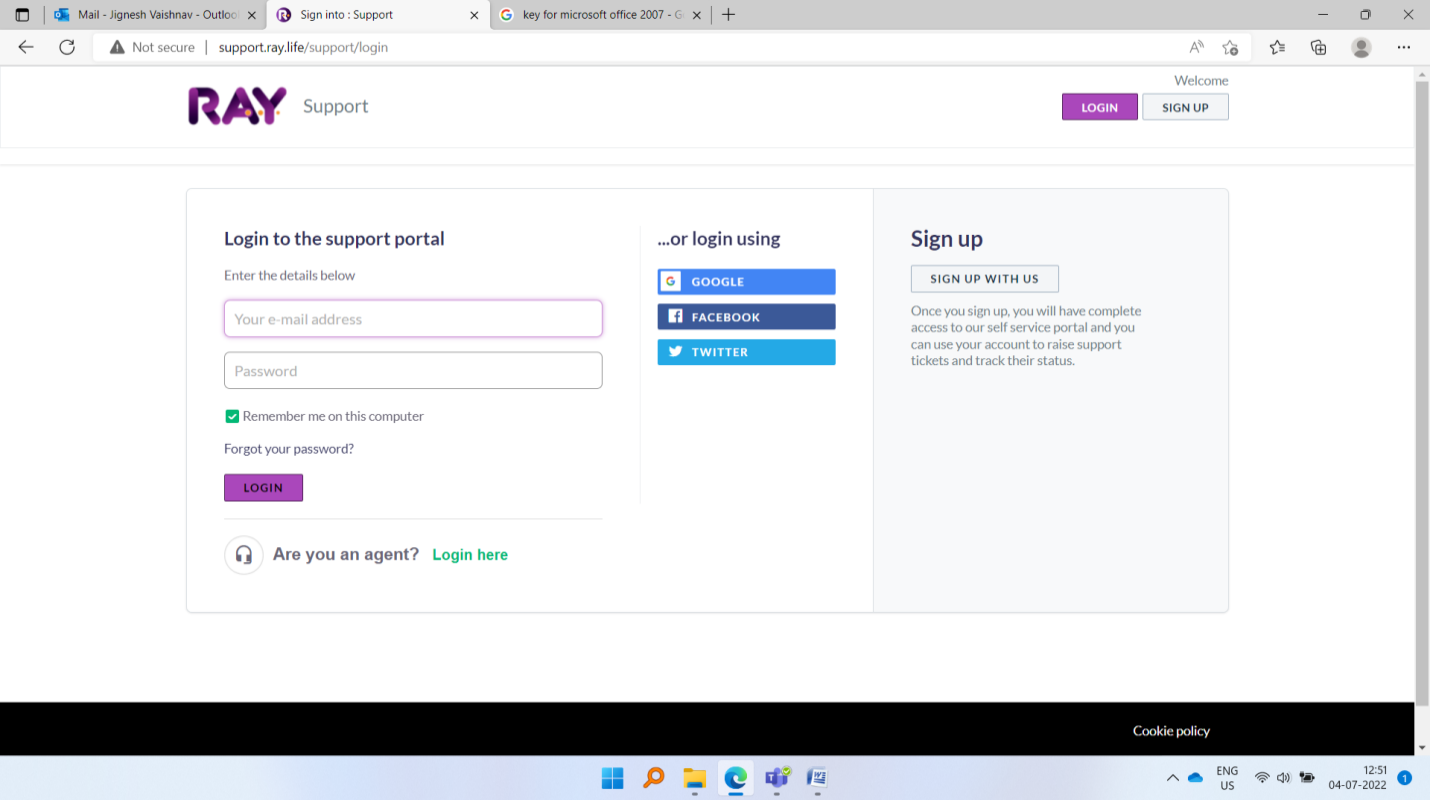
- There are two steps through user can booked the ticket.
In First step user can login through existing google or Facebook or twitter account.
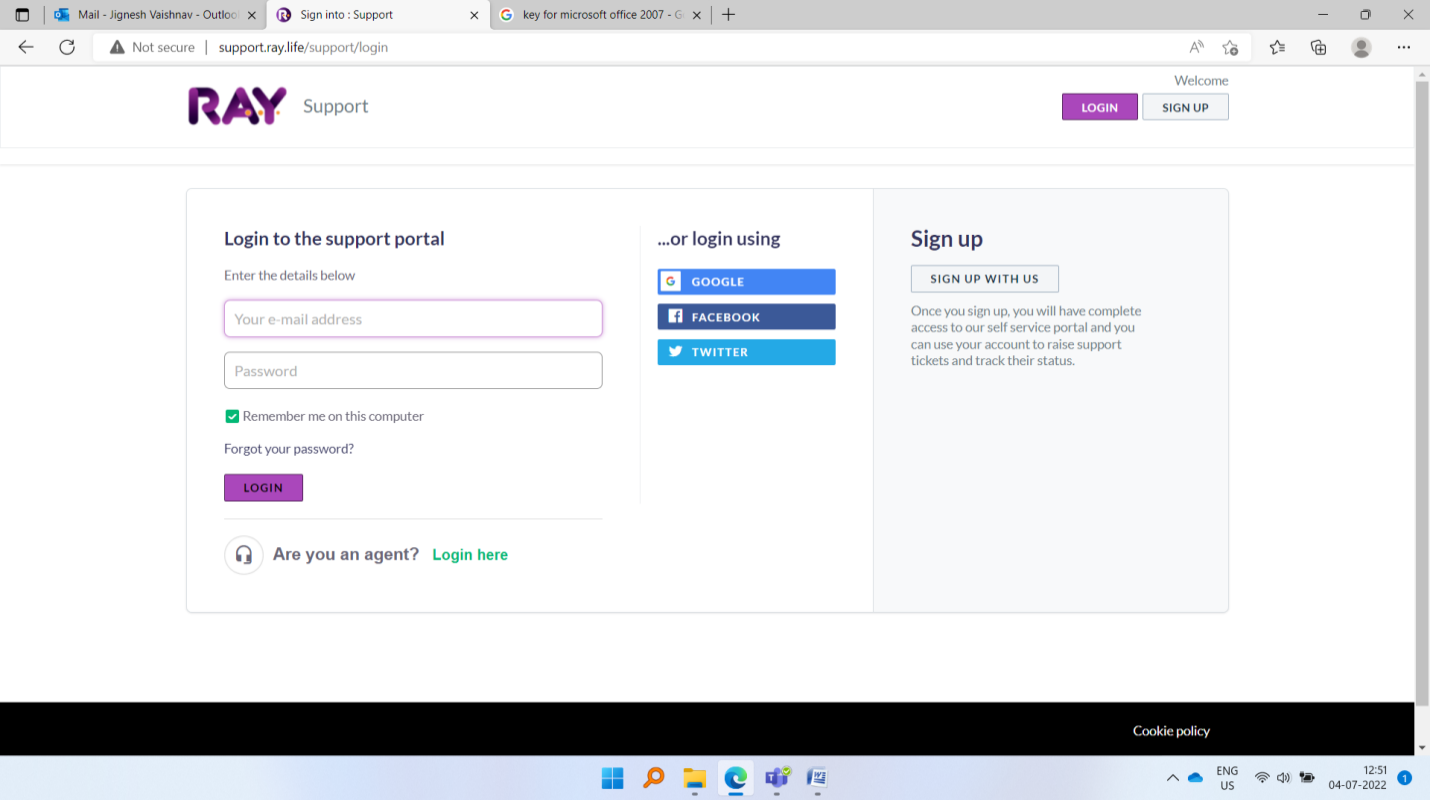
In second step user can sign up to booked the ticket.
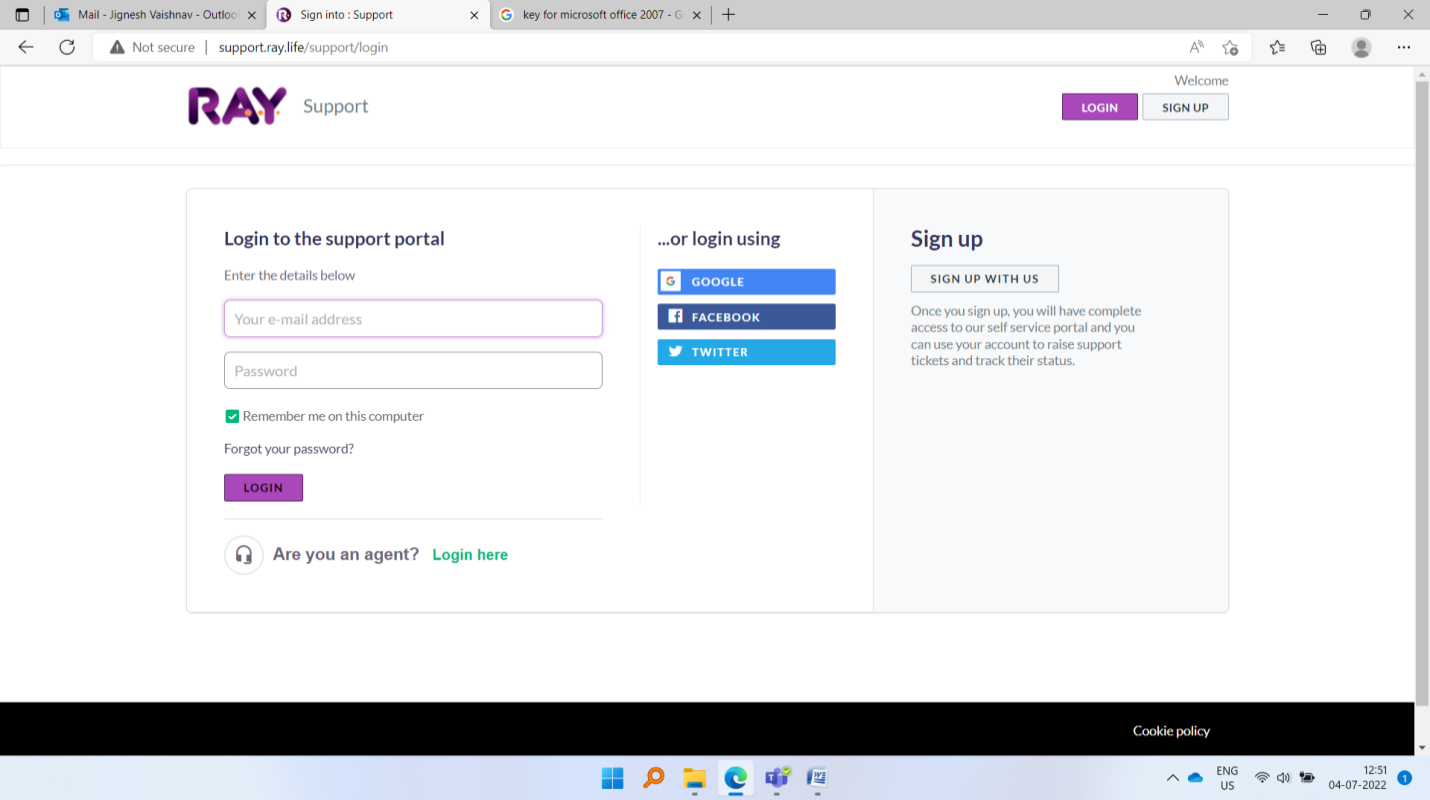
After sign up you can get the full name and email id window. In which you have to input the required information and then click on register.
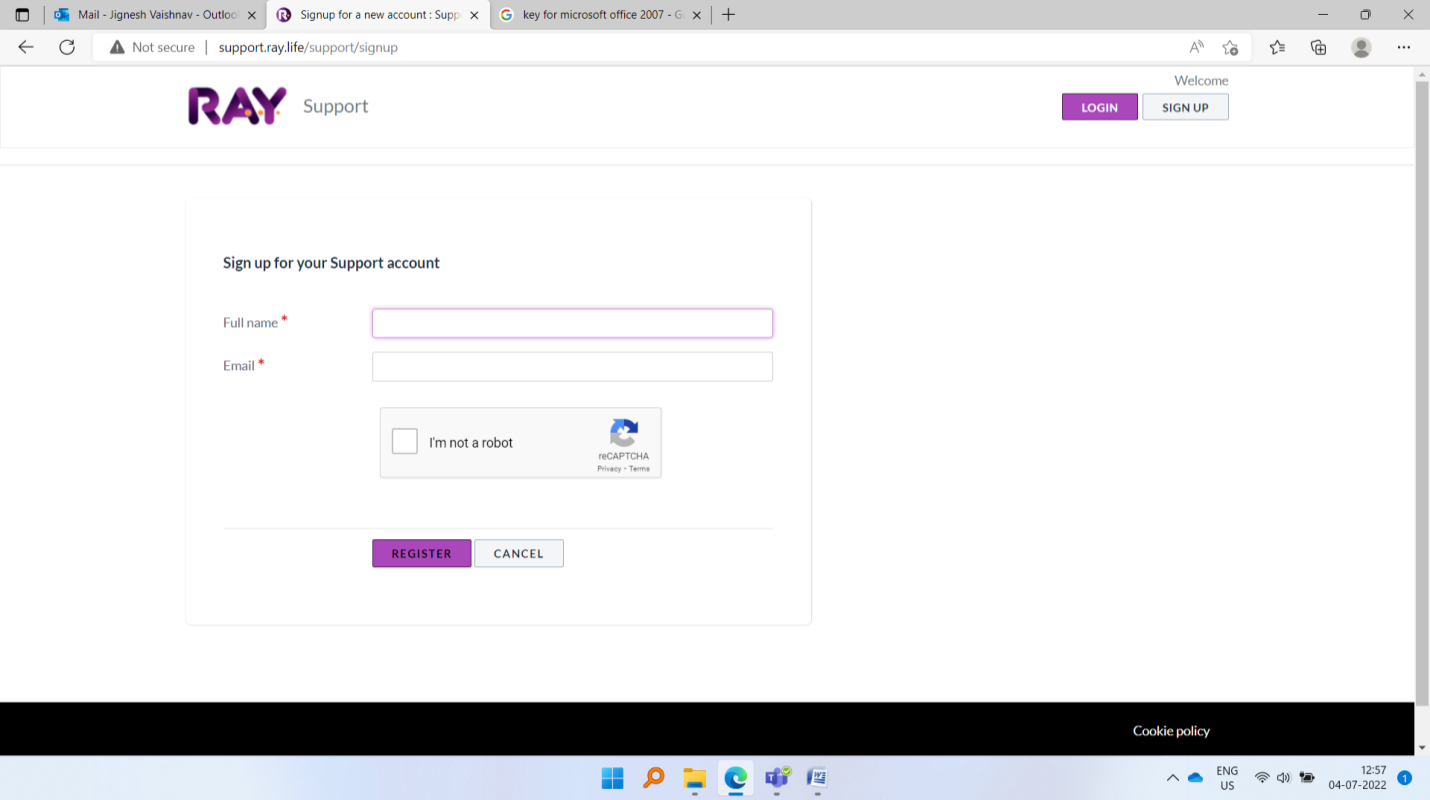
After successful registration user will get link on his email id to activate it. User have to click on given URL and set the password .
After activation user can login with his email id and password.
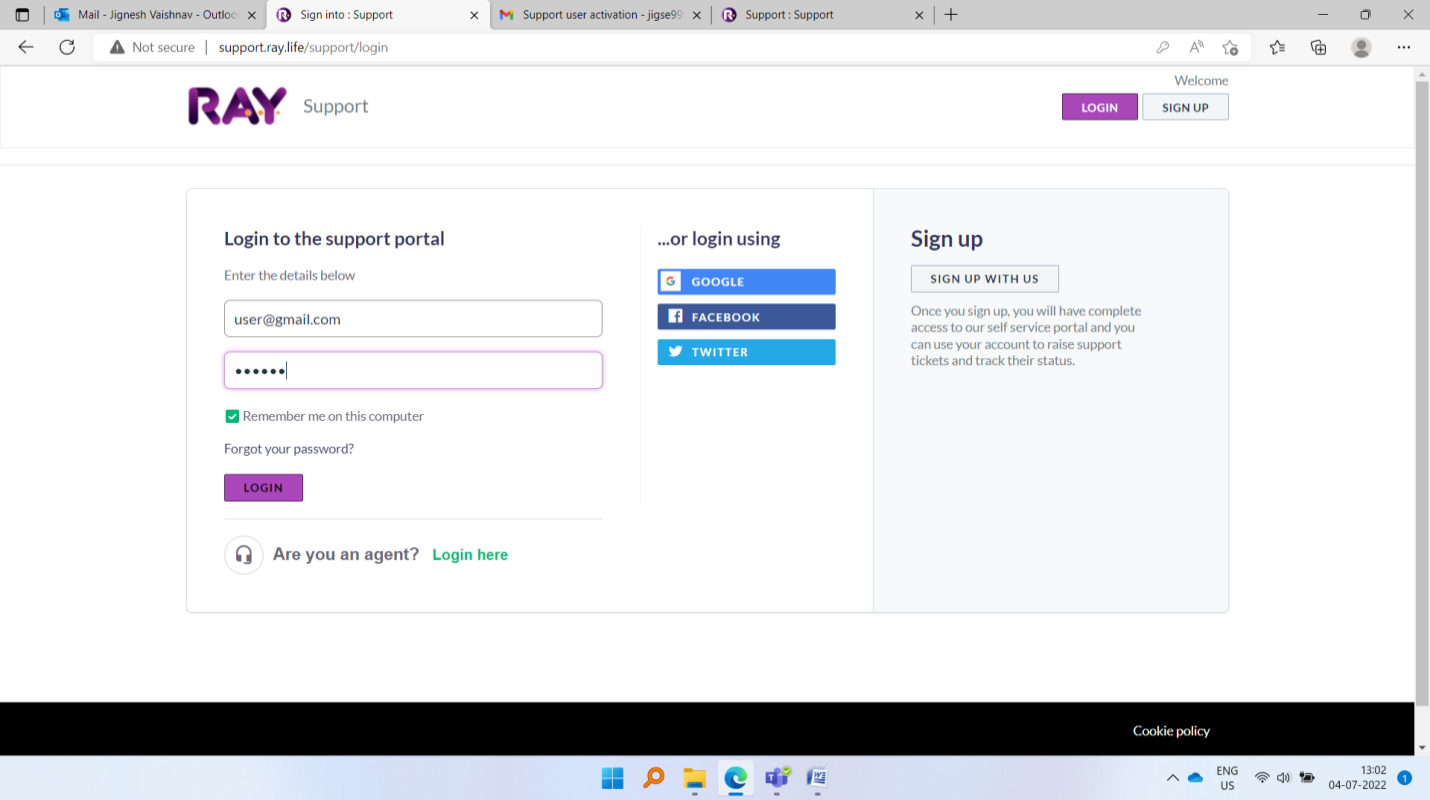
After successful login user get below page.
In given website click on new support ticket.
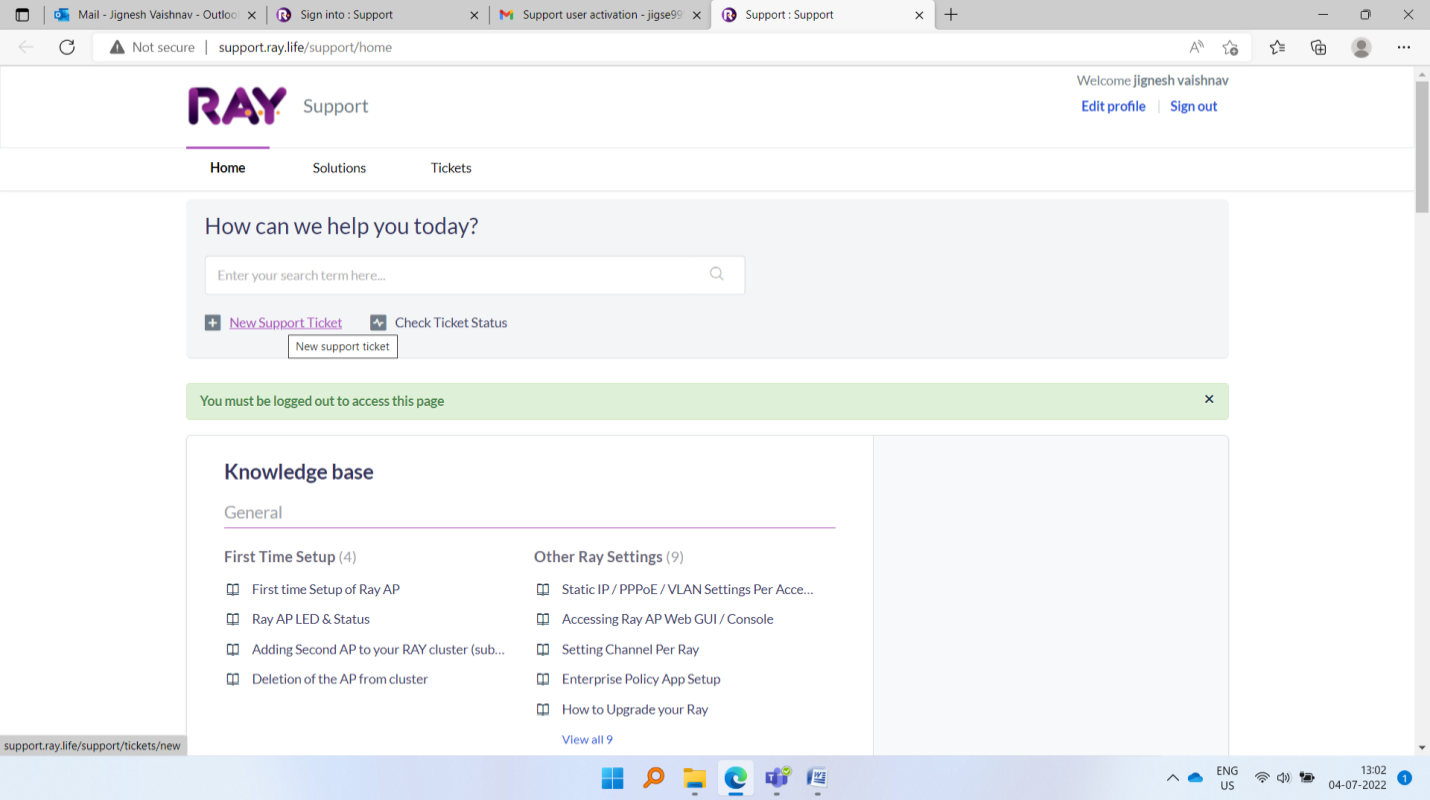
In new support ticket mention the subject and description about the issue or problem.
Thanks,
Ray Support.