In General terms, Local networks are used to facilitate communication and resource sharing among devices in a specific location, making it easier for users to collaborate, access shared files, and use shared devices.
RAY devices kernel is create/update routing table automatically. You can ping ip addresses with each other on the Cloud.ray.life by using a feature called Debugging Utilities. In Debugging utilities you also check the routing tables of the network.
To learn more about Debugging Utilities follow the KB article provided in the below link.
https://support.ray.life/en/support/solutions/articles/81000412686-network-troubleshooting-on-ray-devices-using-commands
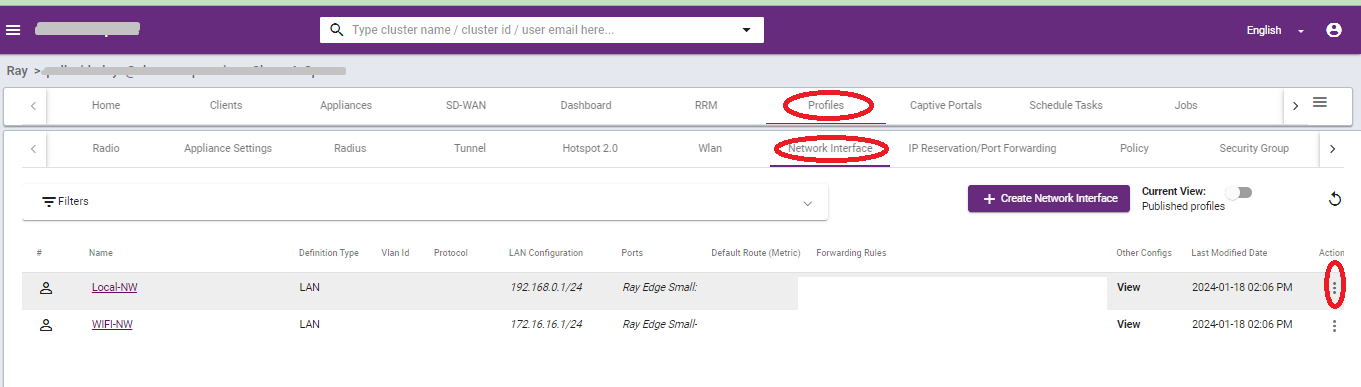
In this article we have two local network one is Local-NW(192.168.0.1/24) and another one is WiFI-NW(172.16.16.1/24).
To learn more about network interfaces follow the KB article provided in the below link.
https://support.ray.life/en/support/solutions/articles/81000412321-network-lan-vlan-wlan-configuration
Follow the below steps to communicate lan networks.
1. Go to Profiles >> Network Interfaces >> click on the three dots below the action button.
2. Click on the view/edit.
3. A new window is pop-up, scroll down and click on the Outbound Forward Rules.

4. Select the suitable Wan/Lan interface.
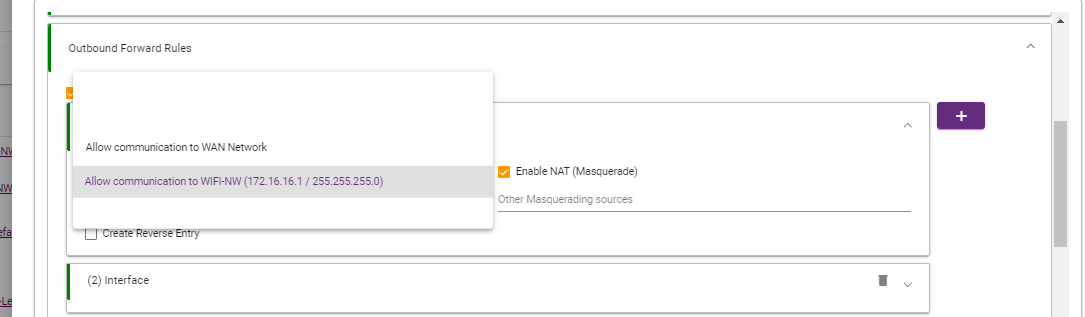
5. Enable the Create reverse entry. Make sure the NAT option is disable.
6. Fill the remarks and click on the save button.
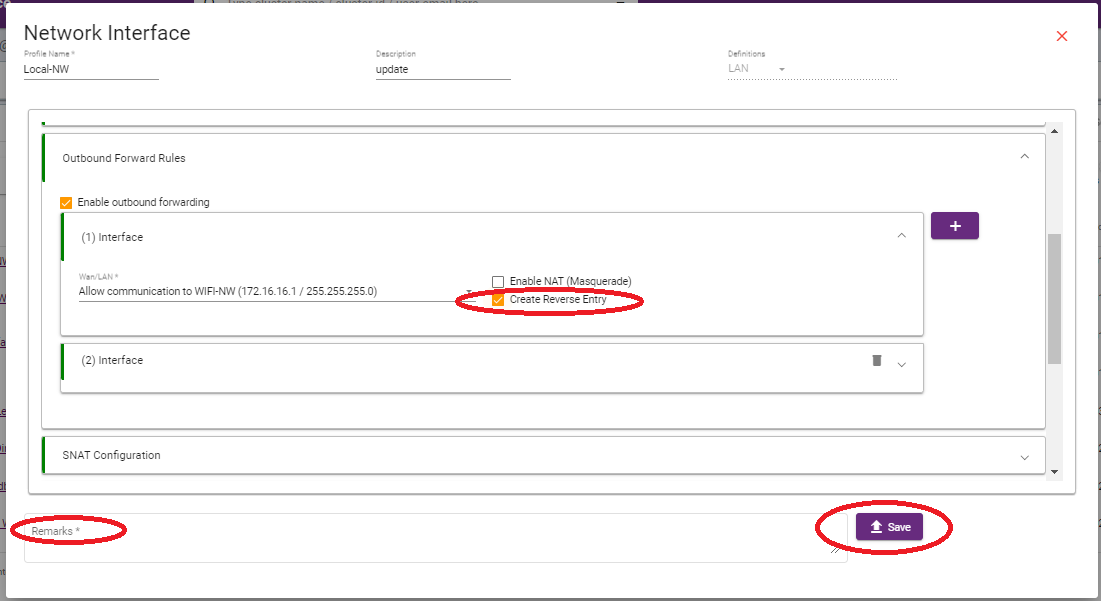
Now sucessfully created the forwading rules. You can ping the ip adresses sucessfully.
Thank you,
Ray support Team