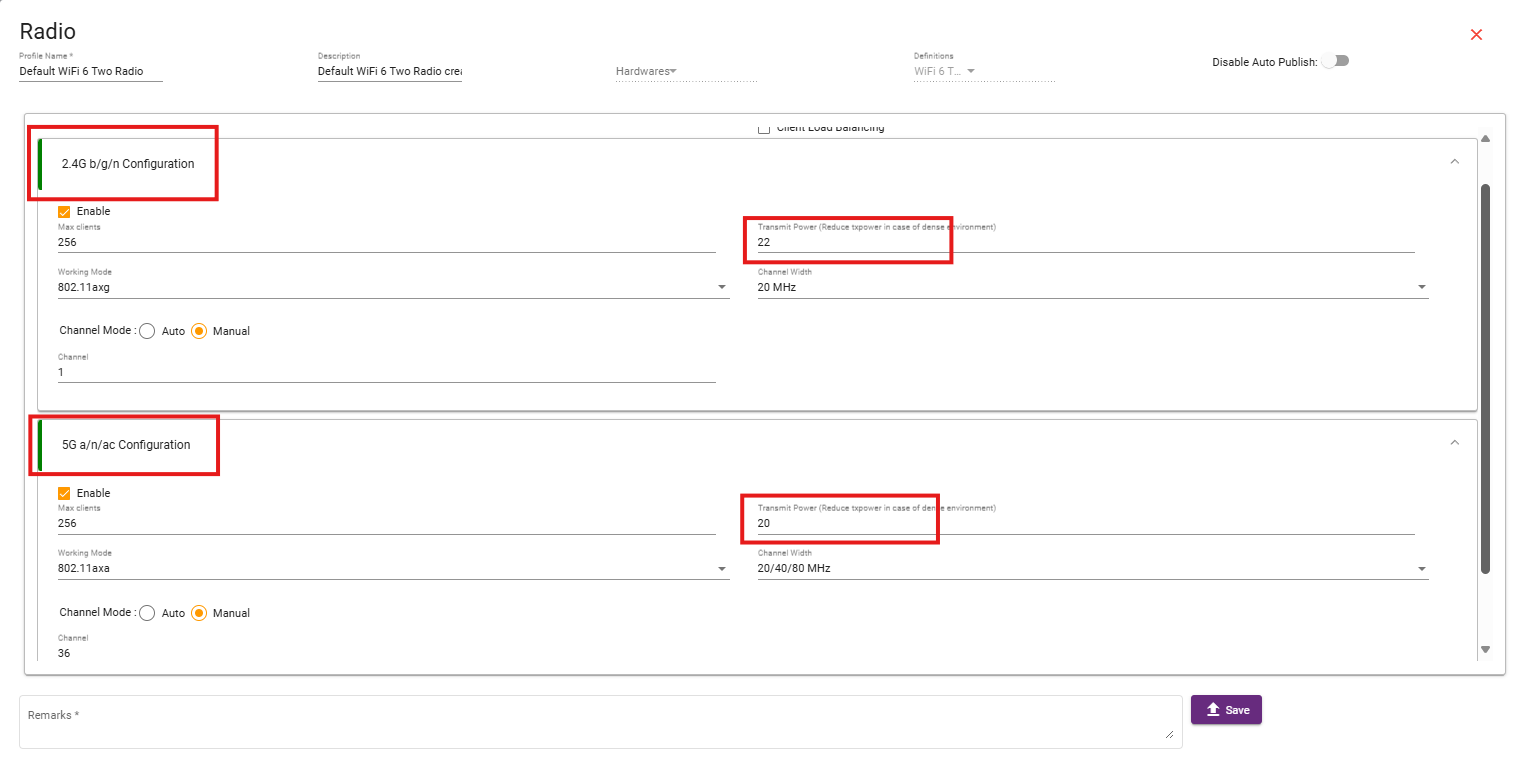
SCENARIO : Increasing & Decreasing Tx Power Levels
CATEGORY : RF Tuning
PURPOSE / USE CASE : Adjust coverage or reduce interference
STEPS TO TEST : Increase/decrease power, check RSSI
RF tuning (Radio Frequency tuning) refers to the process of optimizing your wireless network’s radio settings to ensure the best possible performance, coverage, and stability. It involves adjusting channel selection, transmit power, channel width, and other RF parameters to minimize interference and maximize efficiency.
RSSI is a measure of the strength of a wireless signal that a device receives from an access point (AP). It plays a critical role in Wi-Fi performance, roaming, and troubleshooting.
METHODS OF CHANGING TX POWER:
-
For a Specific Device – Adjust the Tx Power settings individually.
-
For All Devices – Apply Tx Power changes globally across all devices.
(1) CHANGING TX POWER FOR A SPECIFIC DEVICE.
HOW IT WORKS:
STEP 1:
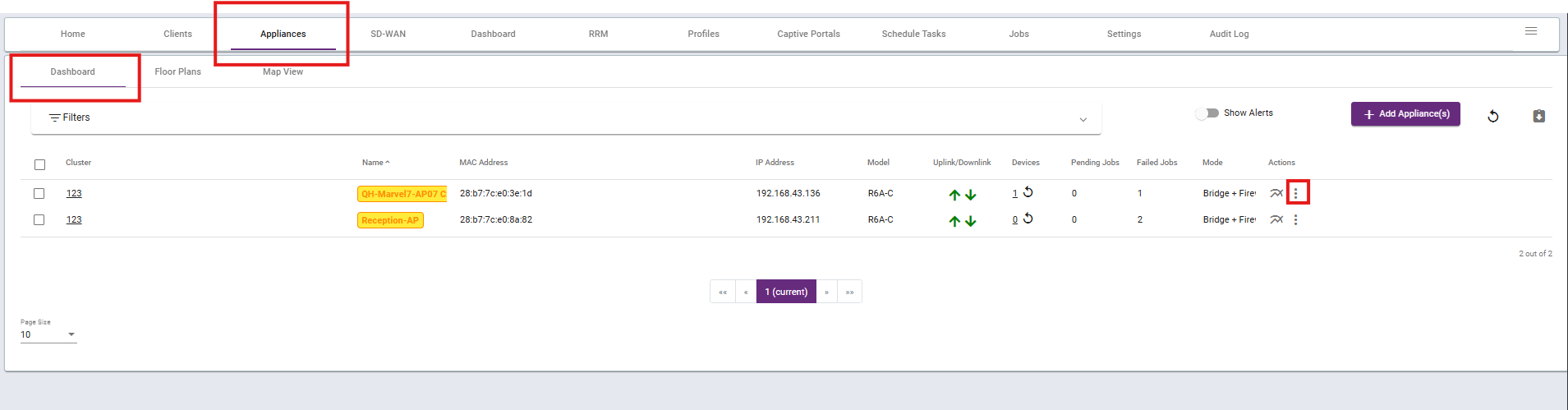
Navigate to the Dashboard under the Appliances section. Here, you will see all devices within the current cluster.
To adjust the Tx Power for a specific device, click on the three-dot icon next to that device.
STEP 2:
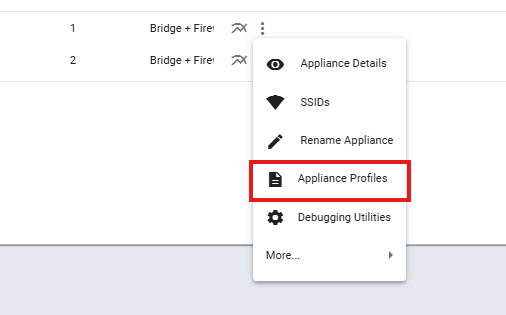
Tab will be open where you have to select Appliance Profile.
STEP 3:
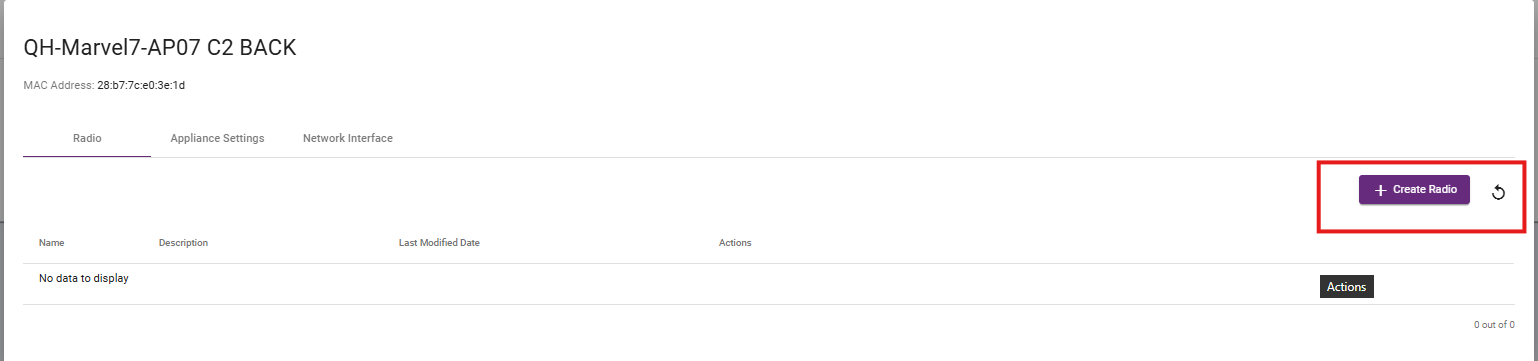
A new tab will open, where you need to select +Create Radio.
STEP 4:
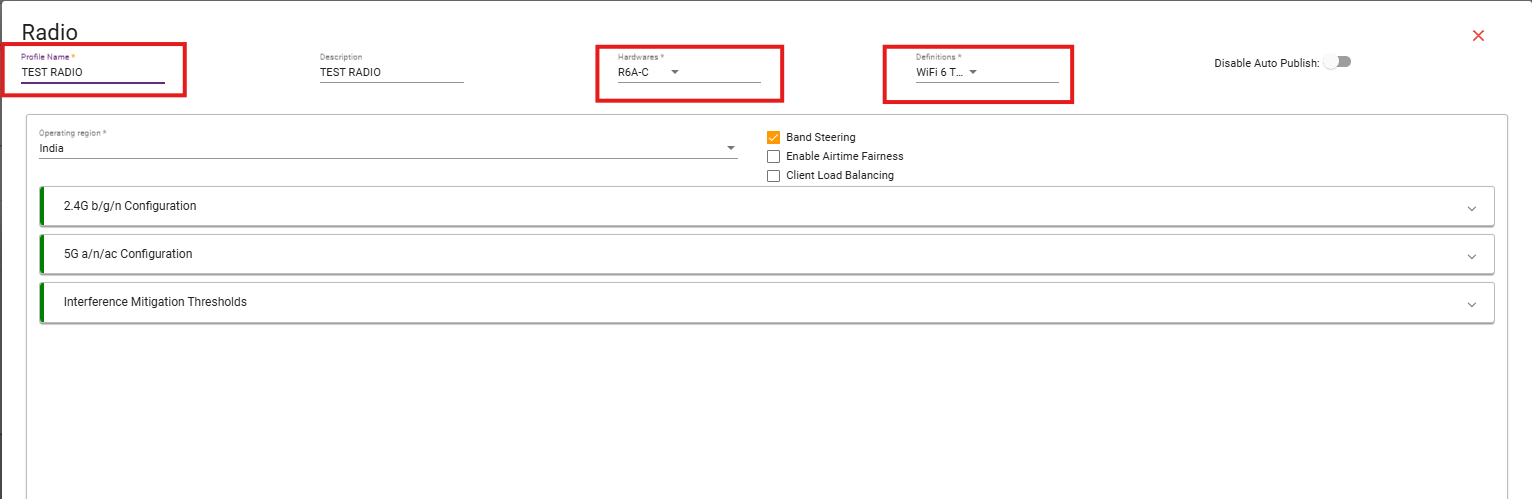
Select the Profile Name, Hardware Model, and Definition.
STEP 5:
-
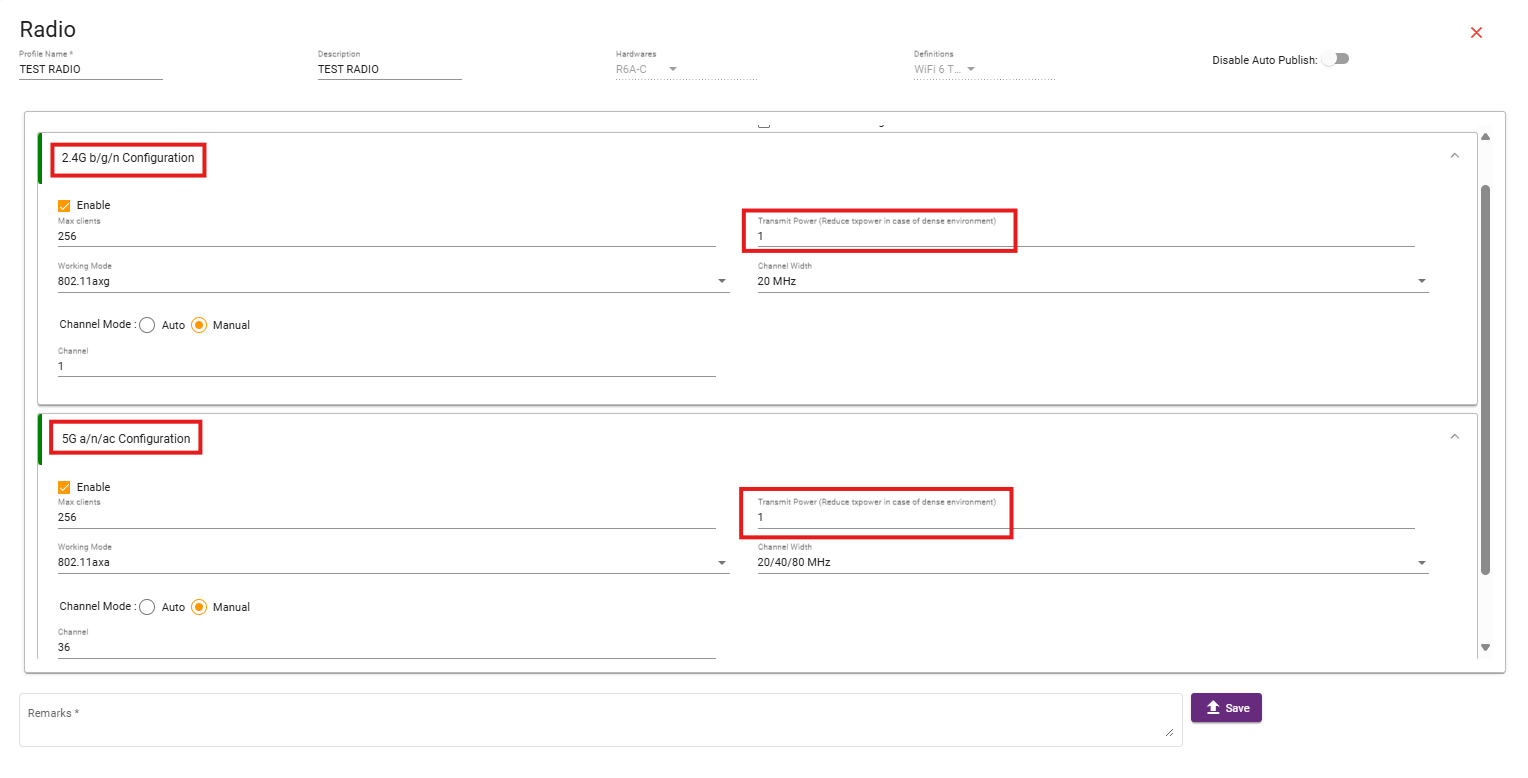
Enter the desired Transmit Power value for the 2.4 GHz radio.
-
Enter the desired Transmit Power value for the 5 GHz radio.
STEP 6:
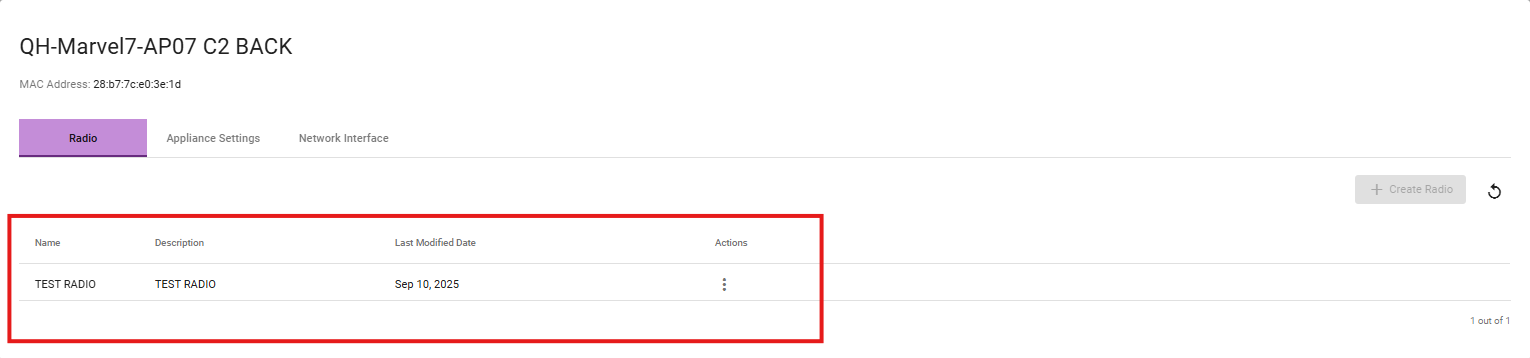
You can verify the profile creation by navigating to the Dashboard under the Appliances section, clicking the three-dot icon next to the device, and then selecting Appliance Profile, where the created profile will be visible.
(2) CHANGING TX POWER FOR ALL DEVICE.
HOW IT WORKS:
STEP 1:
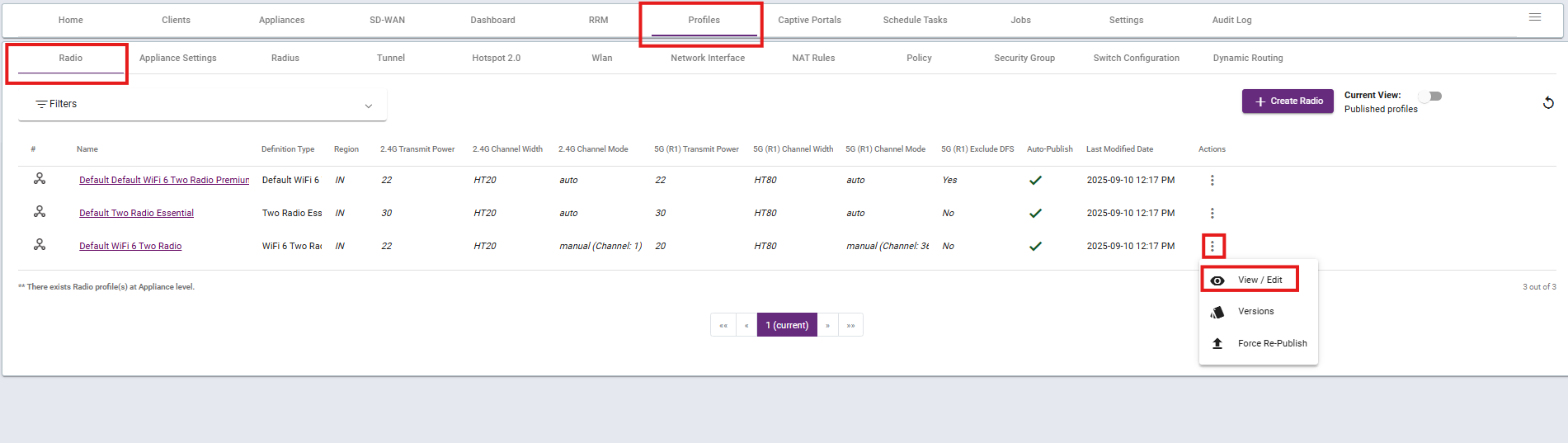
Go to Profiles in the desired child cluster.
STEP 2:
Click on the Profile and select the Radio Profile whose Tx Power you want to change.
(Note: If you are configuring for the first time, you need to create a new Radio Profile. The steps for creating one are provided below.)
STEP 3:
Click on the Action button. A drop-down menu will appear.
STEP 4:
From the drop-down, select View/Edit. A pop-up window will open with the Radio Profile settings.
STEP 5:
-
Enter the desired Transmit Power value for the 2.4 GHz radio.
-
Enter the desired Transmit Power value for the 5 GHz radio.