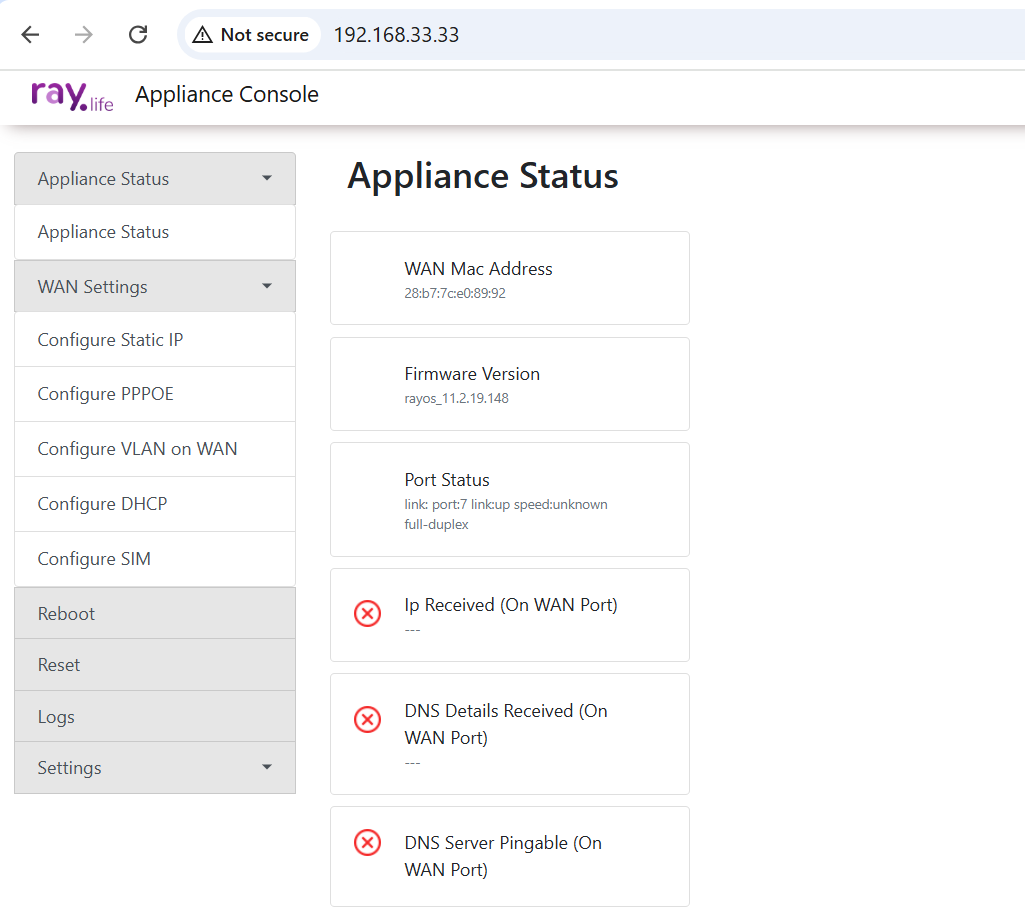
The Console Page allows you to configure the device while it is offline, tailoring the settings to meet your network requirements. Additionally, the status of the device is displayed immediately upon logging in, providing an overview of its current state.
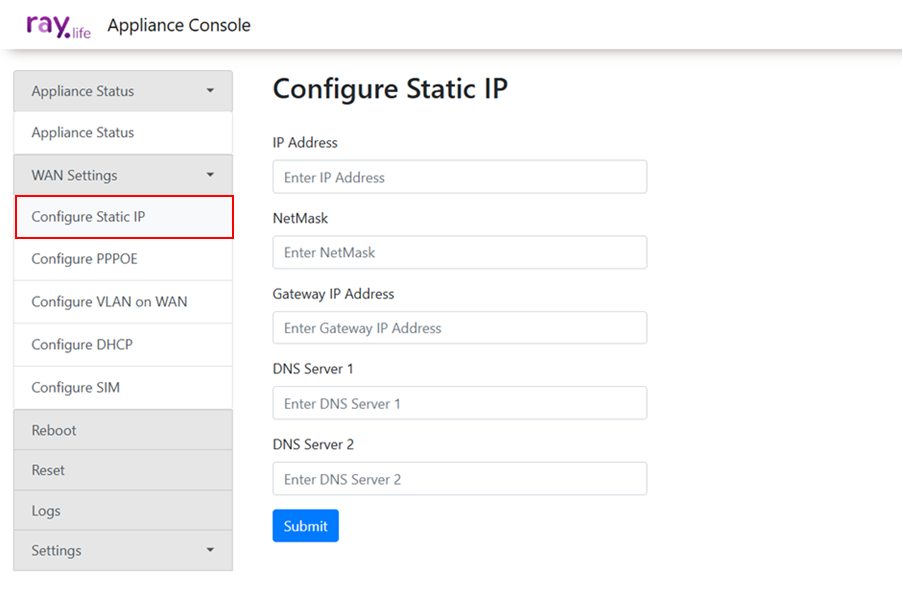
Configuring the WAN with a Static IP Address
To configure the WAN using a static IP address, navigate to the WAN Settings tab. Select the option Configure Static IP, and then input the required network details as specified for your setup. Ensure all configurations align with your network requirements before saving the changes.
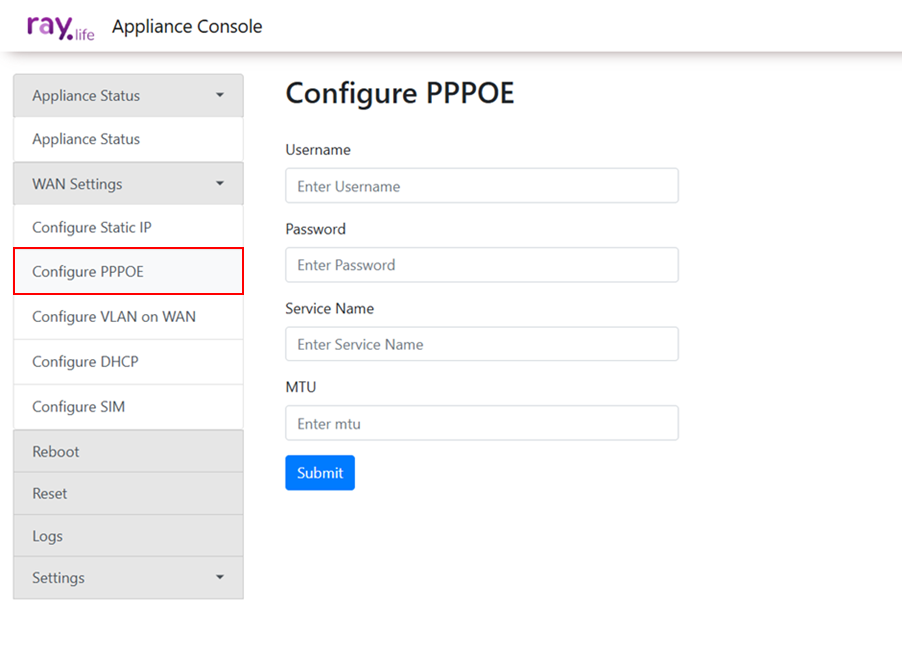
Configuring the WAN with PPPoE
To configure the WAN using PPPoE, go to the WAN Settings tab. Select the option Configure with PPPoE, and enter the necessary credentials, such as the username and password provided by your Internet Service Provider (ISP). Verify the settings and save the configuration to establish the connection.
Configuring VLAN on WAN
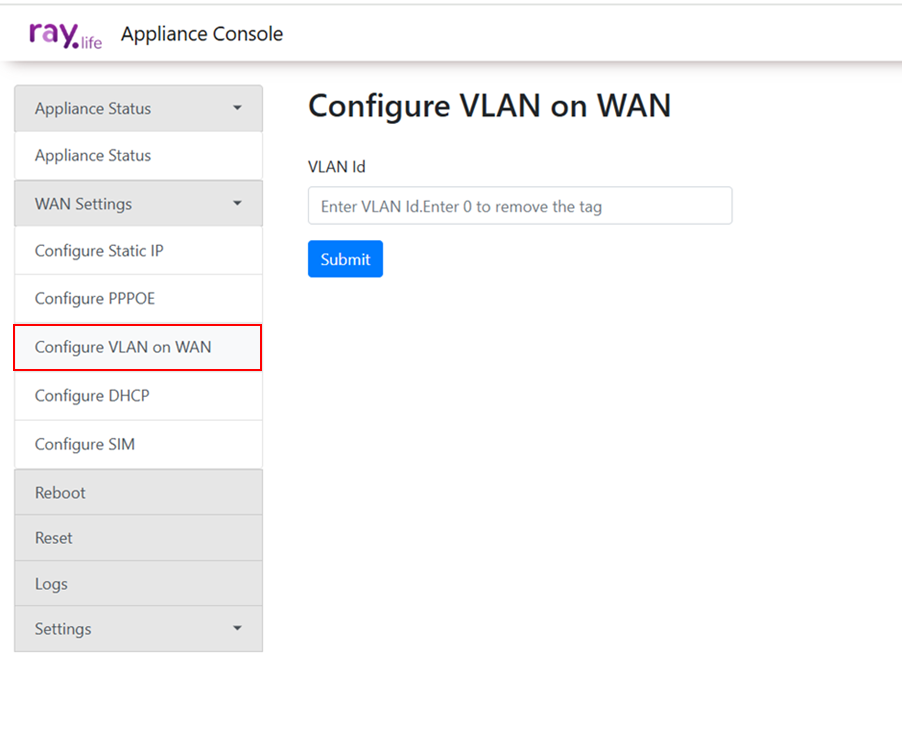
To configure a VLAN on the WAN, access the WAN Settings tab. Choose the Configure VLAN on WAN option. Enter the VLAN ID as required by your network setup. Confirm the details and save the configuration to enable VLAN functionality.
Configuring the WAN with DHCP
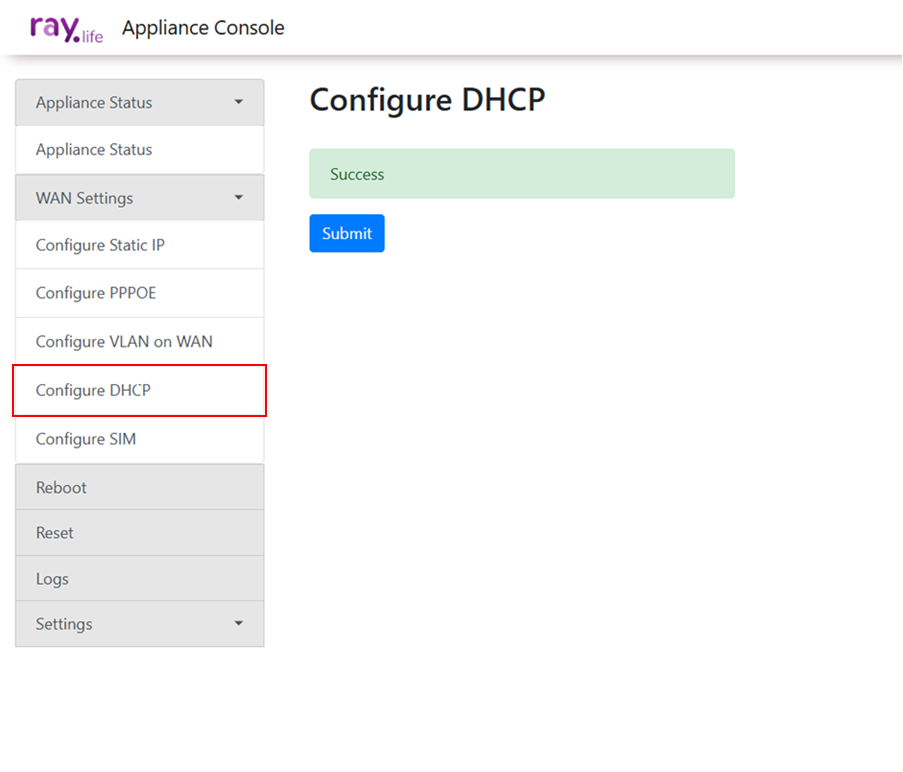
To configure the WAN using DHCP, navigate to the WAN Settings tab. Select the option Configure DHCP to enable automatic IP address assignment. The device will obtain the necessary network settings, such as IP address, subnet mask, gateway, and DNS, from the DHCP server. Save the configuration to apply the settings.
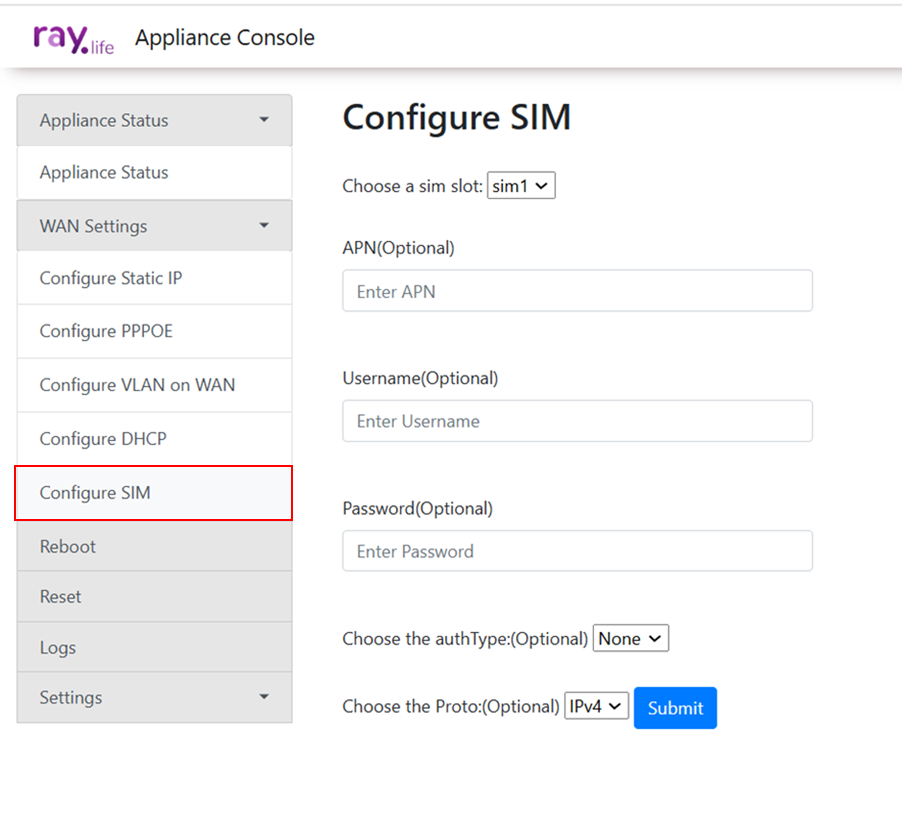
Configuring the WAN with a SIM
To configure the WAN using a SIM card, open the WAN Settings tab. Select Configure SIM, and insert the SIM card into the designated slot on the device. Enter the credentials provided by your service provider. Save the settings to activate the SIM-based connection.