Welcome to Ray
Let’s get you started.
Please ensure the Network Requirements are met in case your setup is behind a firewall.
https://rayassist.freshdesk.com/en/support/solutions/articles/81000144888-network-requirements
Ensure that the open & available internet is open to the AP via (WAN/POE) port.
If your AP requires settings like Static IP/PPOE/VLAN etc, please refer to the below article.
Setup via Laptop
1. Go to https://cloud.ray.life
2. Click Create Account
3. Put the MAC Address (It should be at the back side of the AP)
4. Put the security code. Security code is the last 6 digits of the Serial Number. (e.g. FUTHxF).
If you don’t have the security code, please contact support by creating a ticket
5. Put the details asked
First Name
Last Name
Email Address
Password
Timezone
6. Agree to the Terms & Conditions
7. Check the OTP in your email. Check SPAM folder as well.
That’s it!
8. Go to https://cloud.ray.life/ and login with your email id and password.
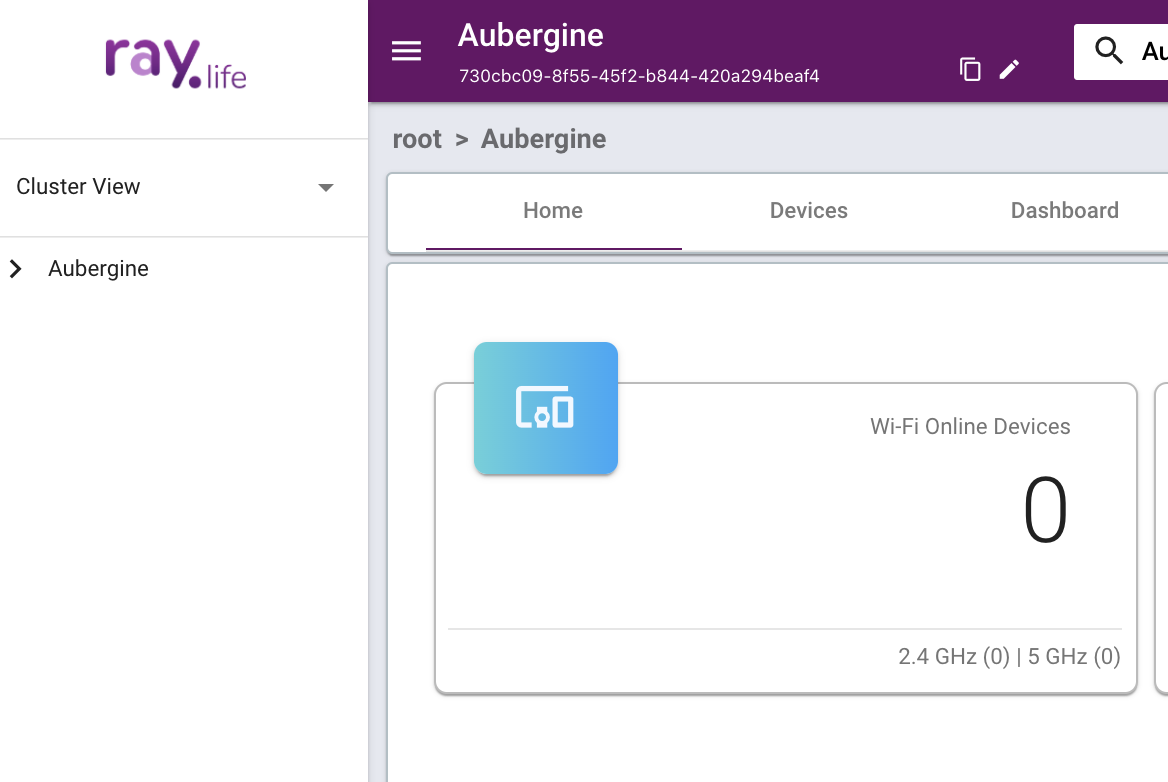
9. Once logged, click the overflow menu to toggle open the Cluster view.
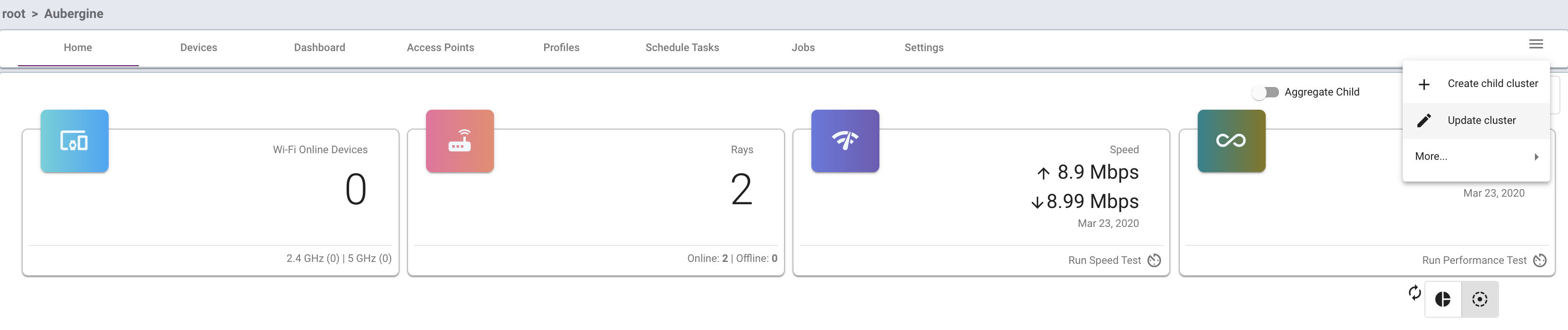
10. You may update the cluster details by clicking Update Cluster
11. You may update the cluster details as below
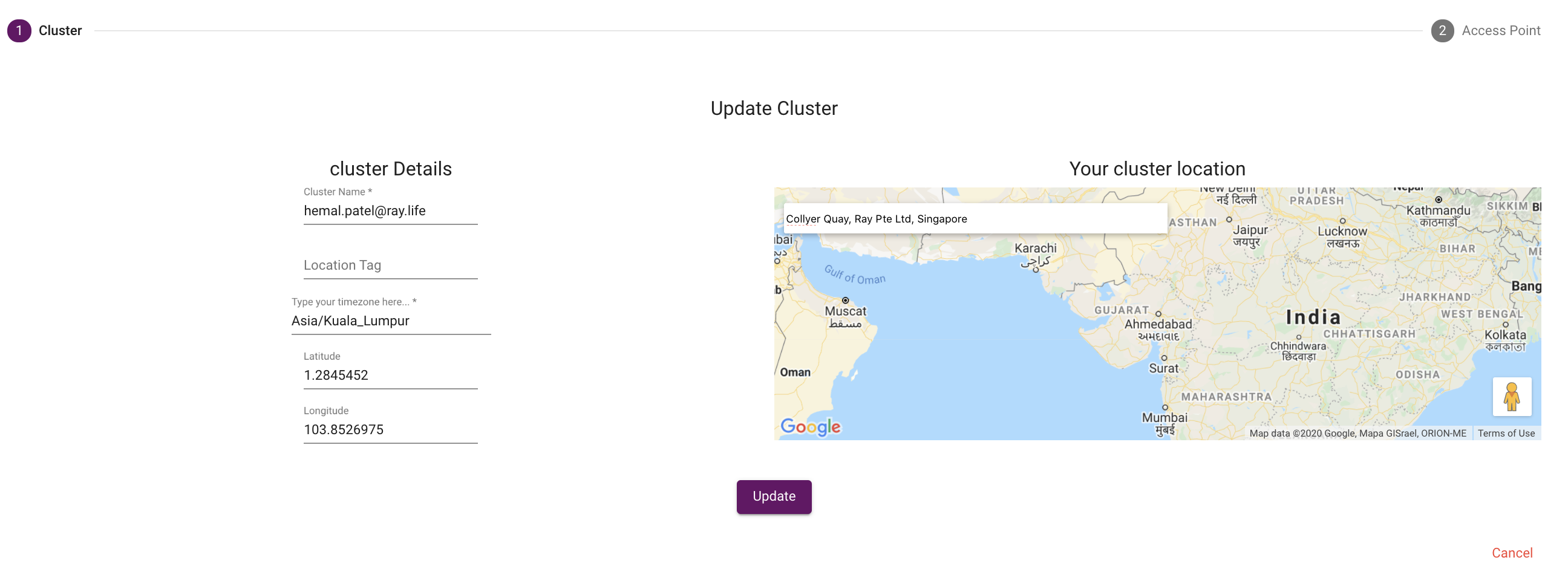
You may search the location in the search bar or input the Latitude & Longitude directly.
You may update the Timezone as well.
Press Update once done.
Thank You
Ray Support


