 #
#
HOW TO ACTIVATE THE RAY APPLIANCE LICENSE FROM CLOUD AND RAY APP STORE: #
After purchasing your Ray hardware appliance. Your Ray appliance supplier would have supplied you with a
.CSV Excel document containing your Ray appliance License activation keys.
The following steps will assist you with activating and applying those license keys.
IT is important to note that you must plug-in to power and connect your new Ray Hardware appliances to the internet before attempting to activate/apply your license keys.
refer to article on Ray LED status meaning: RAY LED STATUS INDICATORS
- Open your browser and navigate to Cloud.ray.life to signup and create a new user account if it’s your first Ray appliance purchase. If you are an existing Ray customer simply log in with your existing user account credentials.
- For First time Ray customers, after clicking on Create account in the previous step 1 you will be prompted to provide a MAC address and Security Code (Last 6 Digits of Serial Number). This information can be obtained from any new Ray Appliance that you have purchased.
- On providing the requested information in step 2 above and clicking next, the Registration page requesting personal information including Name, email address, phone number, and password shall pop up. Kindly fill in the requested information after which an OTP verification code shall be sent to the email address you provided during registration.
- Open your registered email mailbox and check for the OTP verification code which will contain a redirect link to your Ray cloud controller page. Log in with the email and password you used on the registration page.
- on successful login, you will land on your Ray controller dashboard showing your home tab.
- By default, Ray provides a 15days trial license for first-time users on signup.
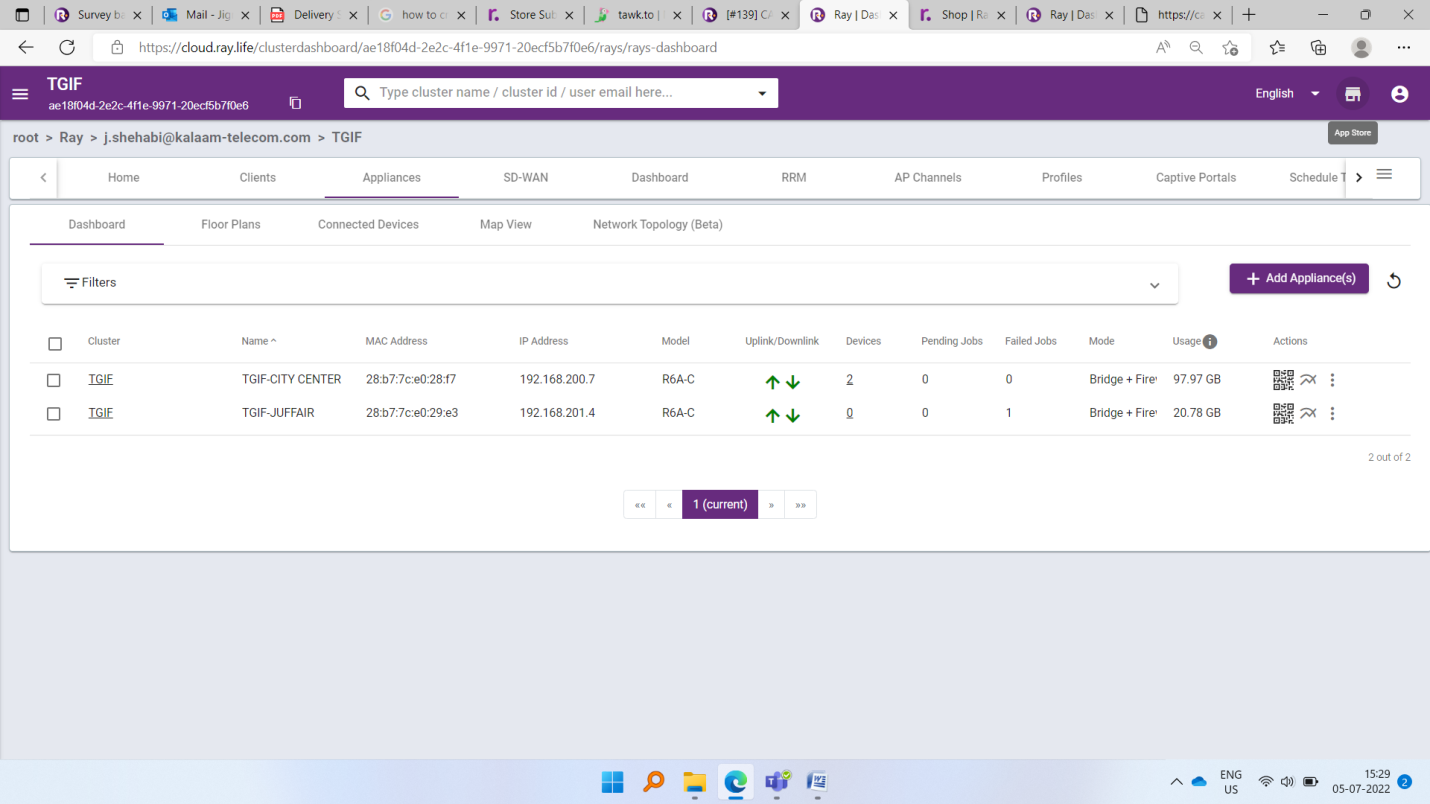
- Navigate to the Ray APP store as shown below to access the store interface for uploading your .CSV licenses
THEN GOTO APP STORE
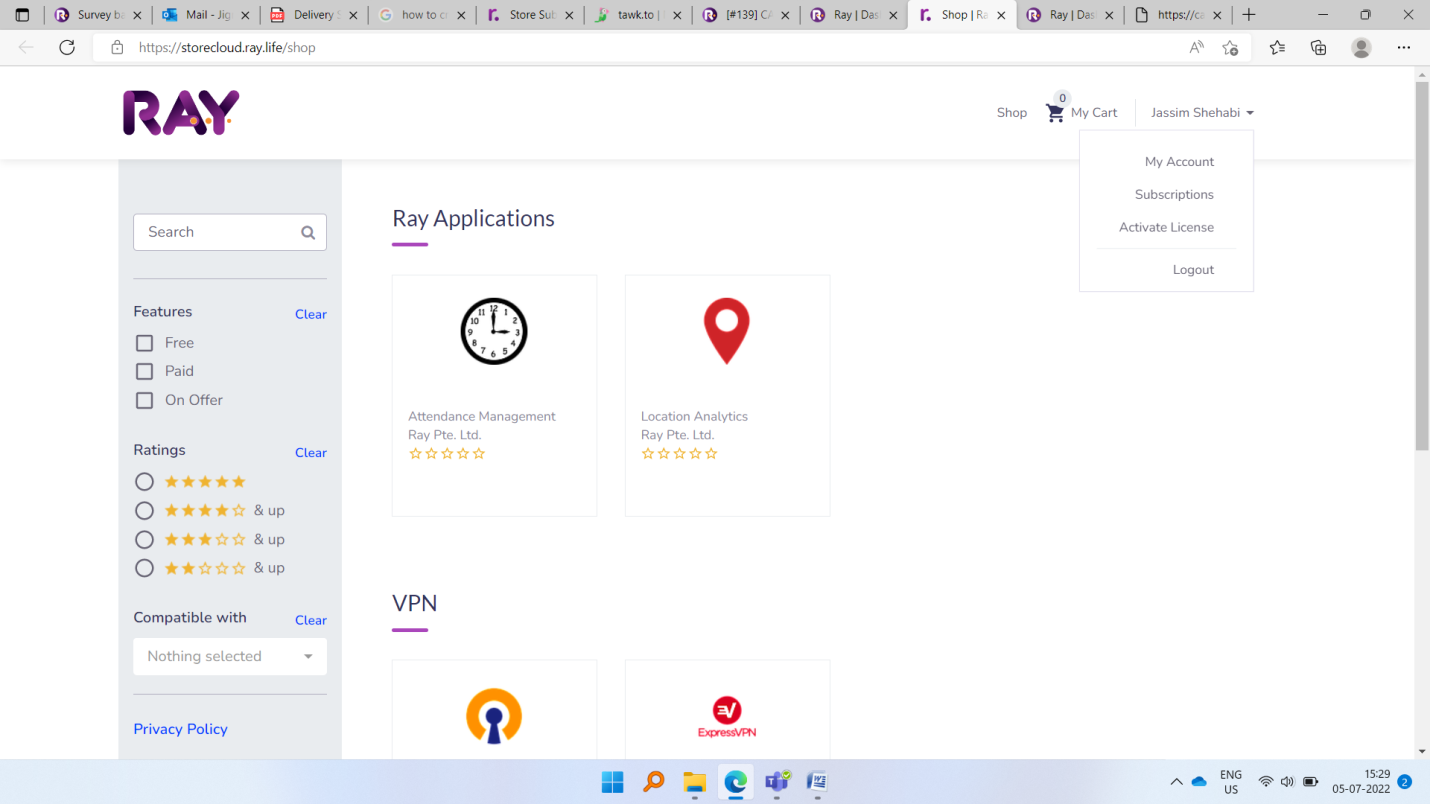
From the Ray APP STORE shown below CLICK ON your account username to expose a drop-down menu
that will have the Activate License option.
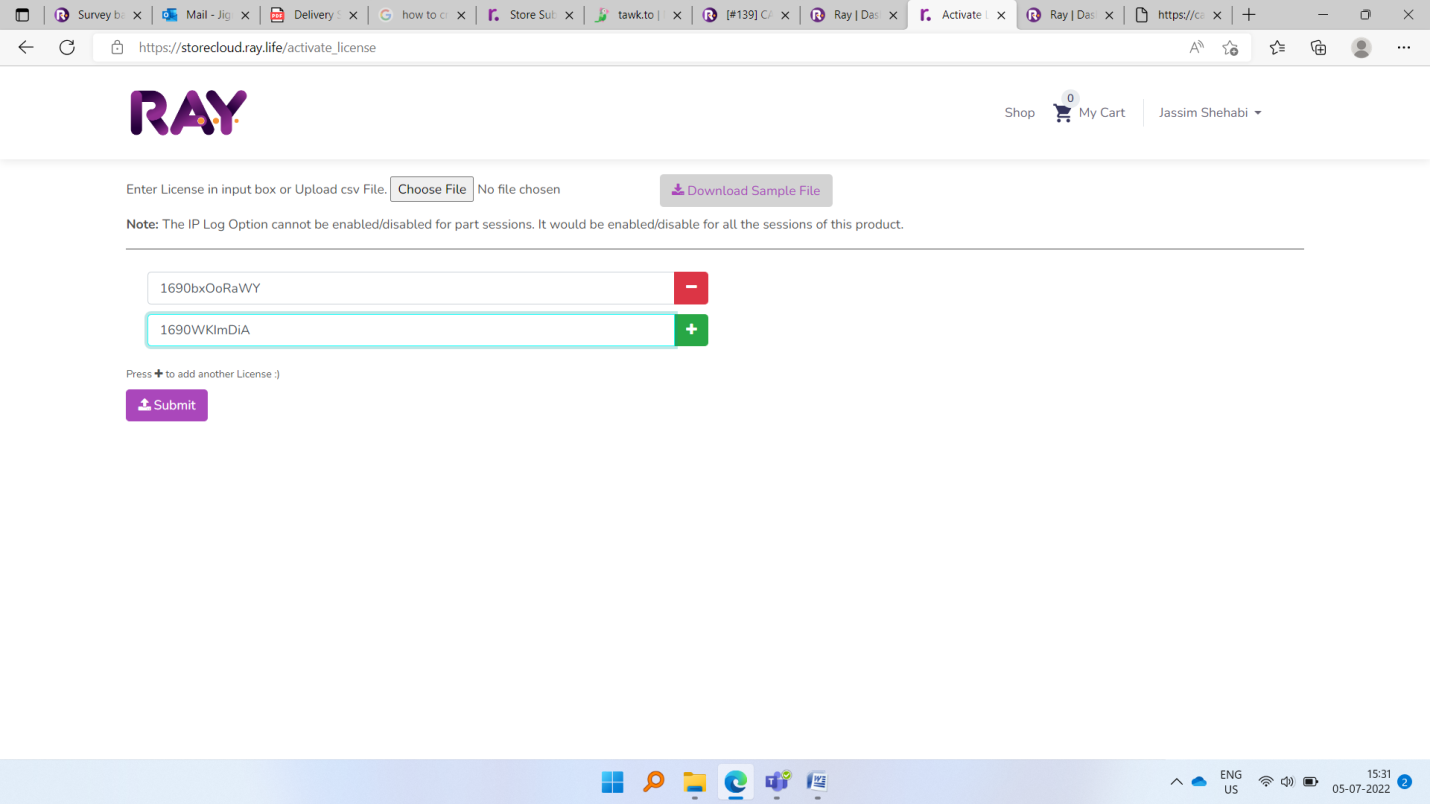
CLICK ON the Activate License tab menu which will display the following window below.
From which you can either copy and paste the individual license keys or bulk upload all the license keys using the choose file option and selecting the .CSV file provided by your Ray supplier.
After uploading your license keys you can verify your uploaded license keys by clicking the subscriptions tab from your App Store menu.
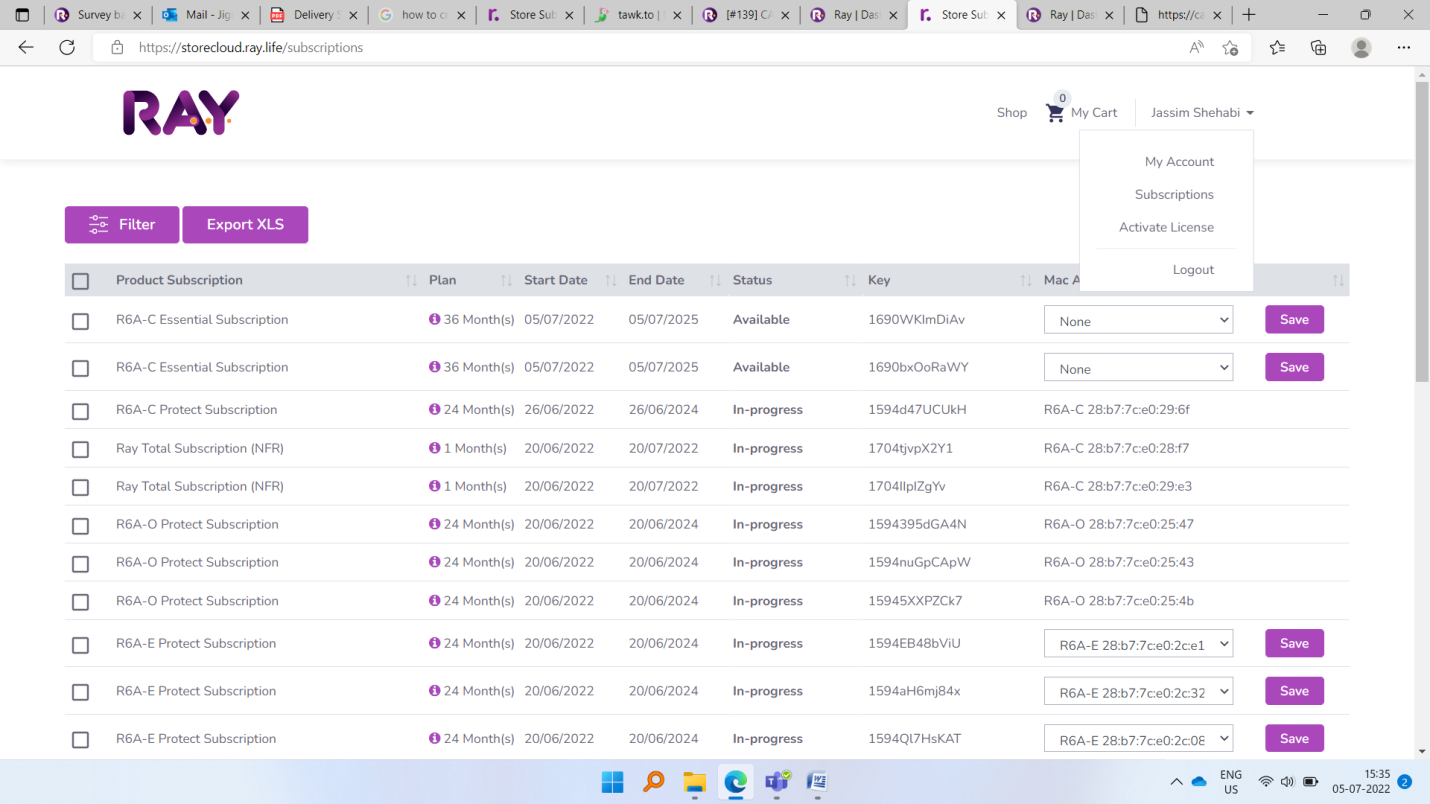
The final step is clicking on o the MAC address drop-down tab in the Ray App Store subscription tab, selecting a Mac address, and pressing the save button to map the individual license key to that specific MAC address.
You can see the above two licenses now and after that from the device table, we have to select a device if and only if the device license is expired.
Thanks,
Ray Support
Support.ray.life