Implementing Multiple VLANs and SSIDs in a Gateway-Switch-AP Setup
A small organization wants to segregate its network users into multiple VLANs for security and management purposes. Each VLAN is mapped to a dedicated SSID so that wireless users automatically connect to the correct network segment.
The goal of this lab is to configure multiple VLANs and multiple SSIDs on a network consisting of one Gateway, one Switch, and one Access Point (AP).
Requirements :
- Each department or user group should have a dedicated VLAN.
- Each VLAN should be assigned a separate IP pool from the Gateway.
- The Switch should carry all VLAN traffic between the Gateway and the Access Point.
-
The Access Point should broadcast multiple SSIDs, each mapped to a specific VLAN.
| SSID | VLAN | Gateway IP | Subnet (assumed) |
|---|---|---|---|
| Guest | 10 | 10.10.10.1 | 10.10.10.0/24 |
| Employee | 20 | 10.20.20.1 | 10.20.20.0/24 |
| VIP | 30 | 10.30.30.1 | 10.30.30.0/24 |
| Finance | 40 | 10.40.40.1 | 10.40.40.0/24 |
- Gateway – Provides WAN connectivity (connected to ISP) and handles VLAN creation and IP pools.
- Switch – Passes VLAN traffic between Gateway and AP.
-
Access Point – Broadcasts multiple SSIDs, each tagged with its respective VLAN.
Objective :
By the end of this lab, the network should have:
- Four VLANs (10, 20, 30, 40) created on the Gateway and Switch.
- Four SSIDs (Guest, Employee, VIP, Finance) configured on the AP, each mapped to its VLAN.
-
Devices connecting to SSIDs should receive IP addresses from the correct VLAN subnet and be isolated from other VLANs.
Step-by-Step GATEWAY Configuration :
Step 1:
Onboard the Gateway and connect its WAN interface to the ISP.
Step 2:
Connect the Gateway’s LAN-1 port to the Switch.
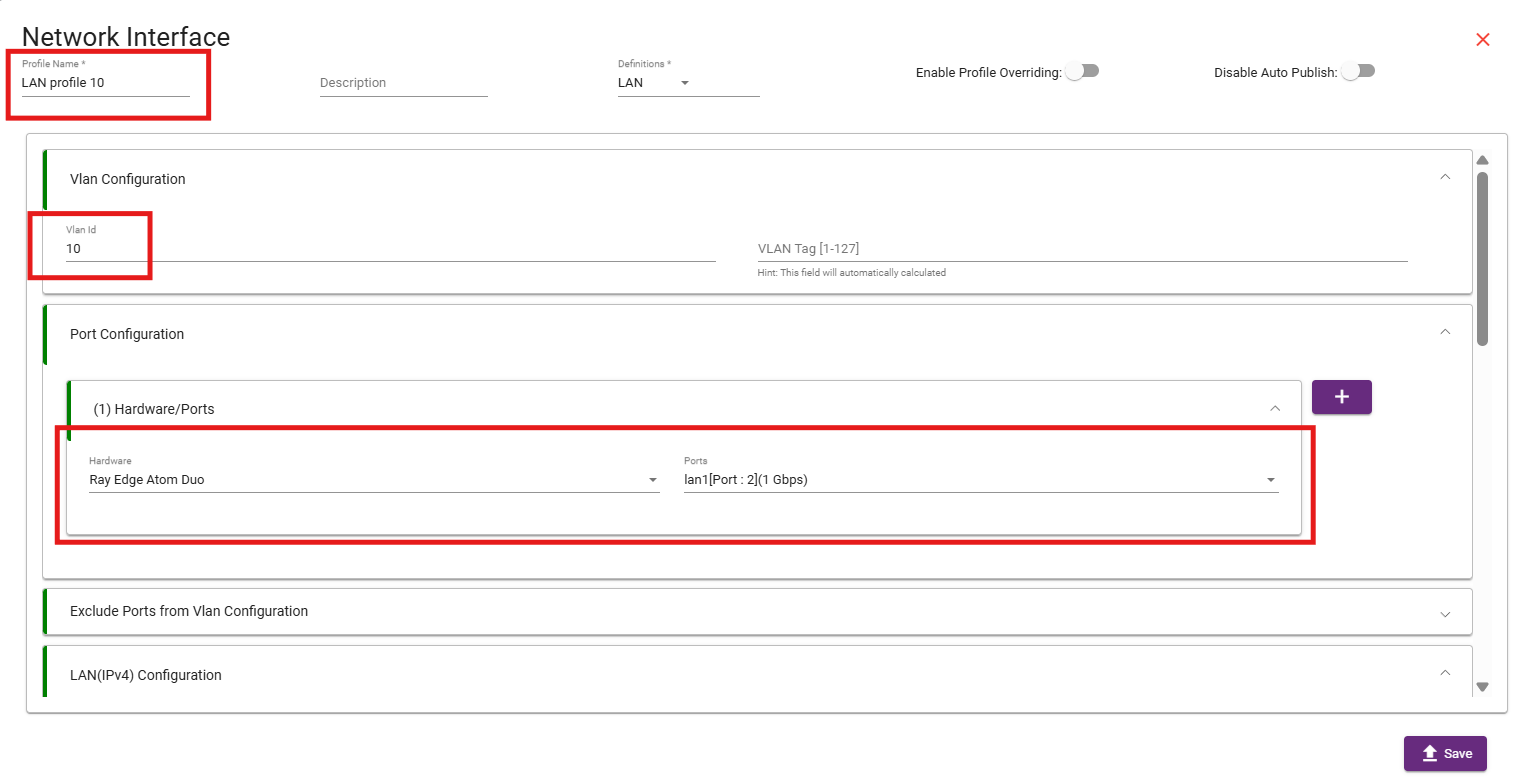
- Go to Network Interface settings and create VLAN 10 under VLAN Configuration.
-
In the Port Configuration section, select LAN-1 to allow the Gateway to pass VLAN 10 traffic through that port.
STEP 3:
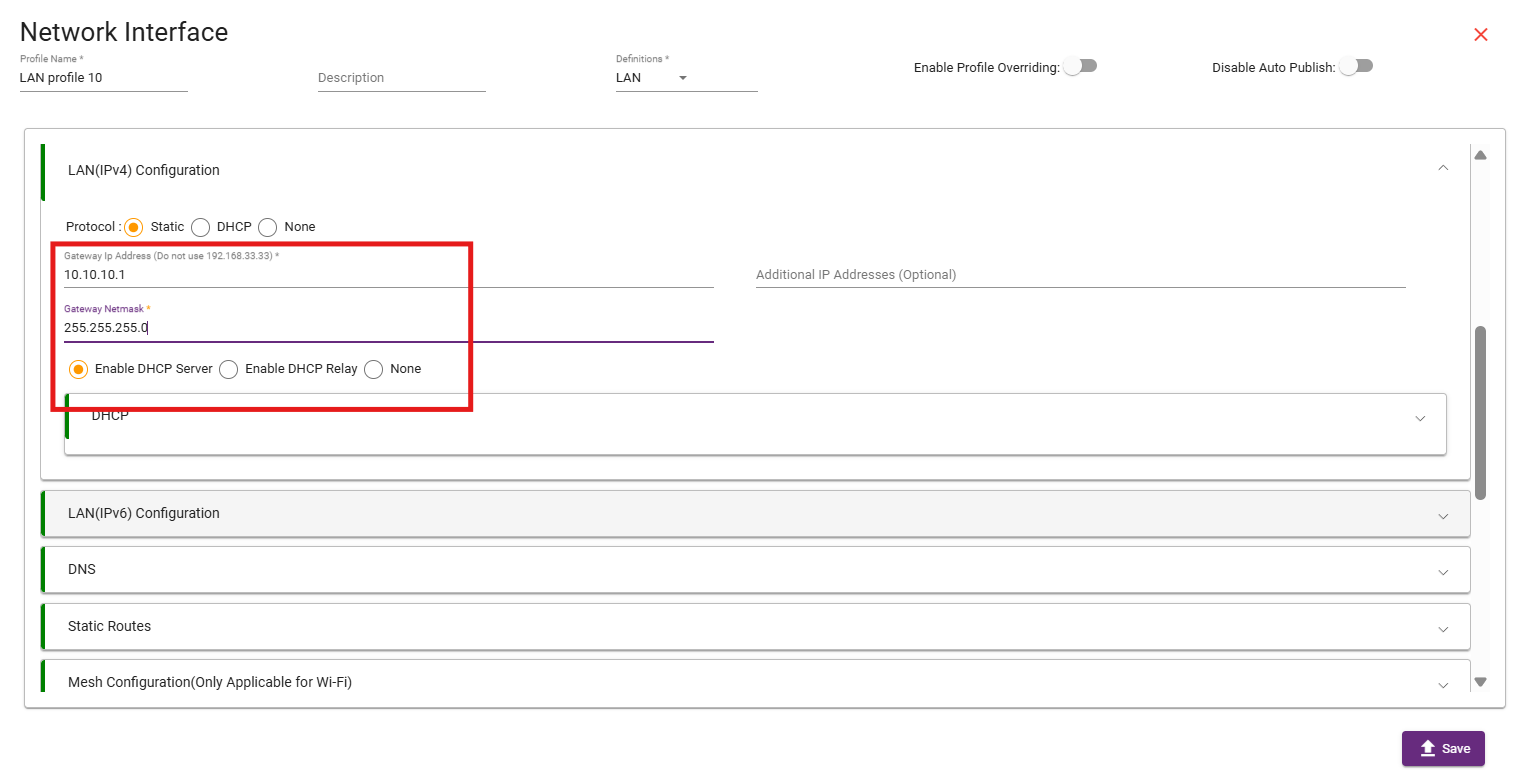
Enter the IP pool you want to assign to that VLAN.
STEP 4:
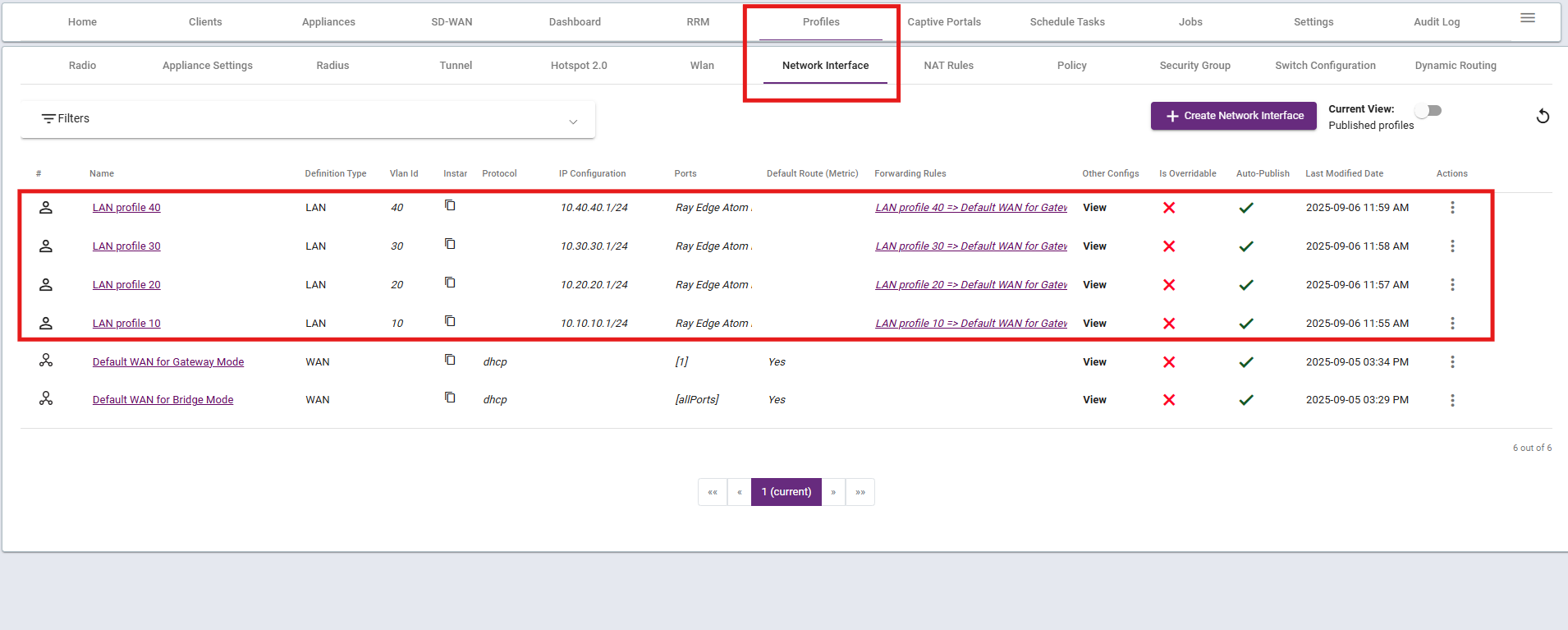
Repeat the same configuration for VLANs 20, 30, and 40 as done for VLAN 10.
Step-by-Step SWITCH Configuration :
Step 1:
- Configure all required VLANs in switch and assign them IP addresses.
- Instead of manually configuring static IPs, we will let the switch obtain IP addresses automatically from the Gateway’s DHCP server.
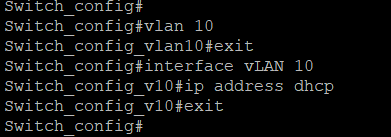
- This ensures that the switch gets an IP in the 10.10.10.0/24 subnet (from the Gateway configuration), allowing it to communicate with devices and the Gateway in VLAN 10.
- The same steps should be repeated for VLANs 20, 30, and 40 so that each VLAN interface receives an IP from the Gateway automatically.
Step 2:
- Connect any port of Switch to Gateway’s LAN-1 port so that it can pass all VLANs. Here we are taking port 0/16 of switch.
- Suppose SWITCH’s PORT 0/16 with GATEWAY’s LAN-1.
- Configure PORT 0/16 as TRUNK and allow all VLANs (10,20,30 and 40).

Step 3:
- Connect any port of Switch to AP’s WAN port so that AP can get online.
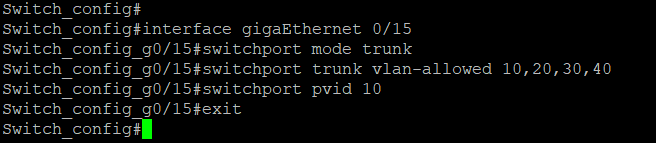
- Suppose SWITCH’s PORT 0/15 with AP WAN.
- Configure PORT 0/15 as TRUNK and allow all VLANs (10,20,30 and 40).
- For getting AP online, here we need to define any VLAN as a native.
- Taking VLAN 10 as a NATIVE for getting AP IP from it.
Step 4:
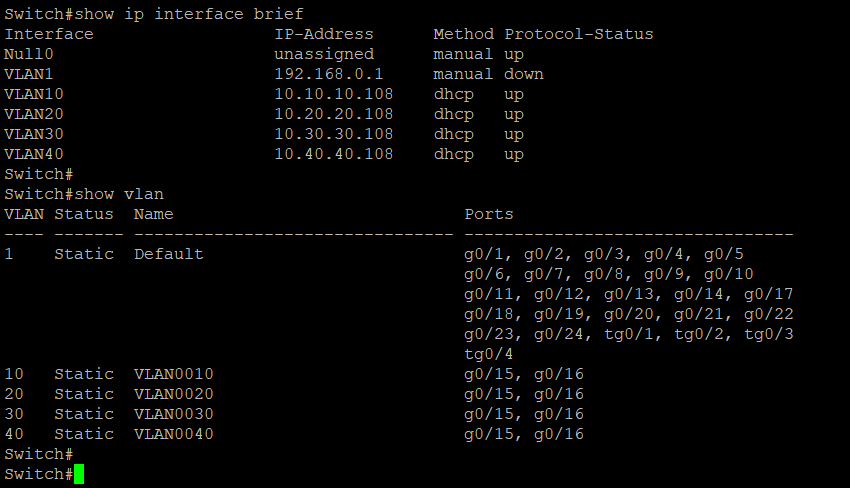
Check VLAN’s are created as required and they are getting IP from the given IP pool.
Step-by-Step AP Configuration :
Step-by-Step AP Configuration :
STEP 1:
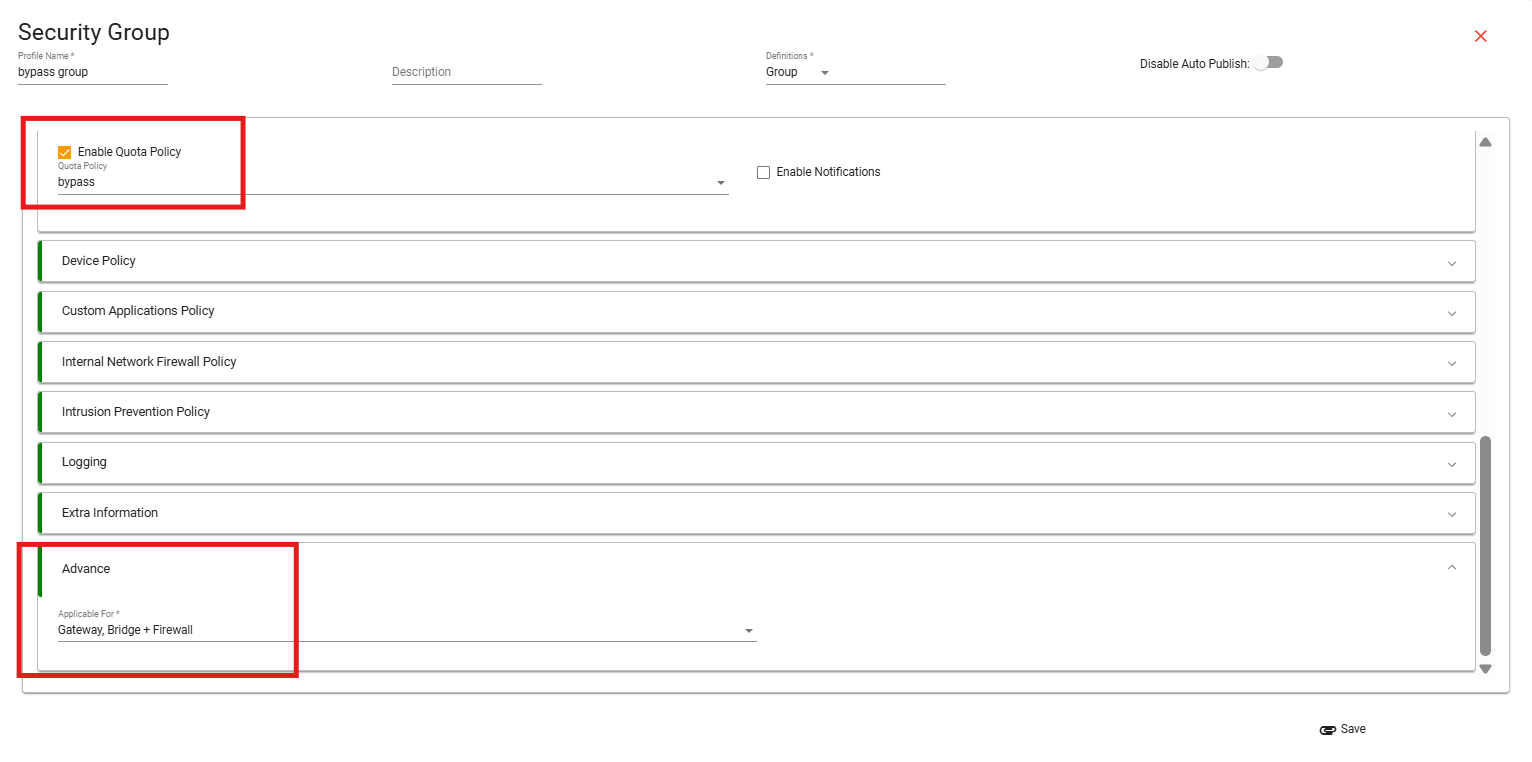
- For getting AP online, we need to create bypass policy.
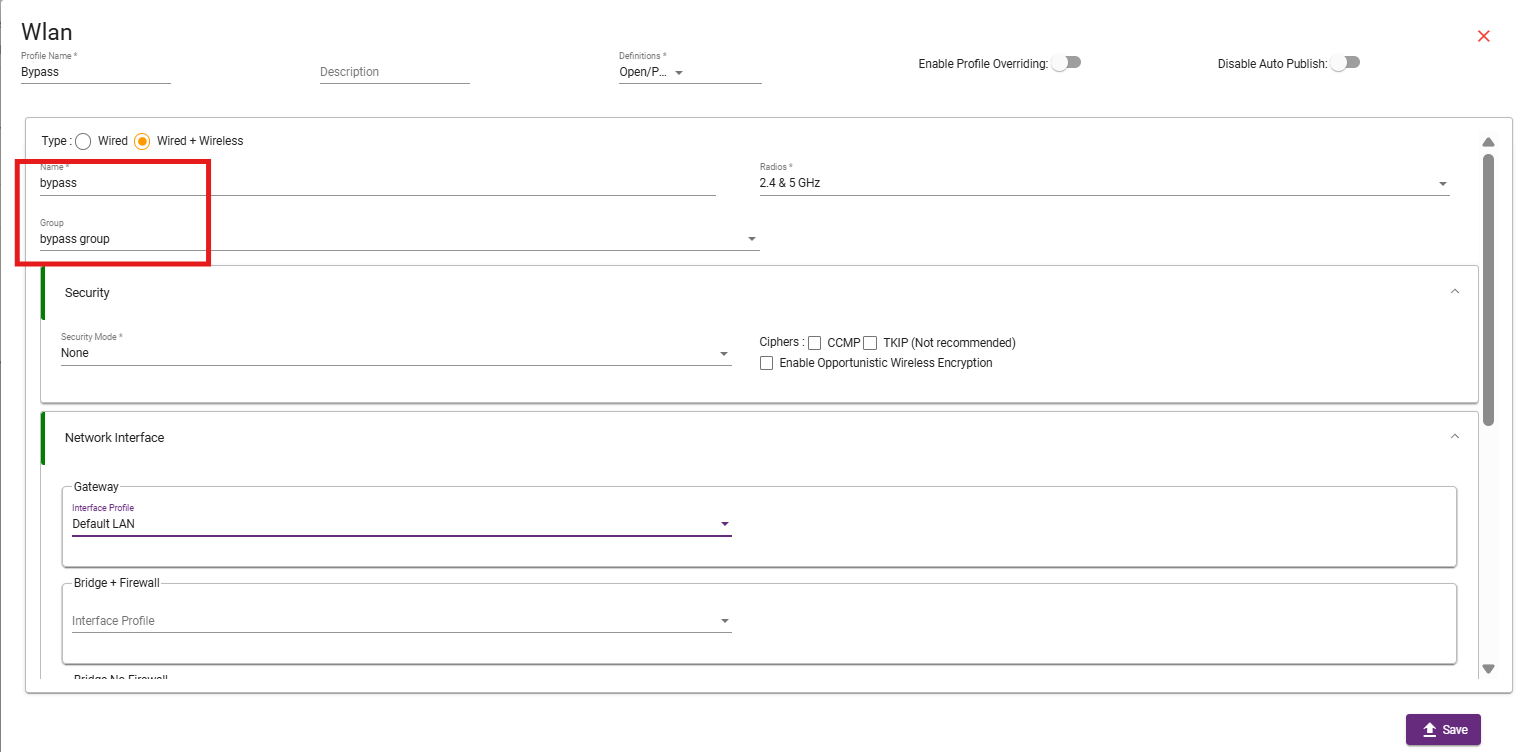
- Create QUOTA policy, attached it into security policy and enable BYOD in security group.
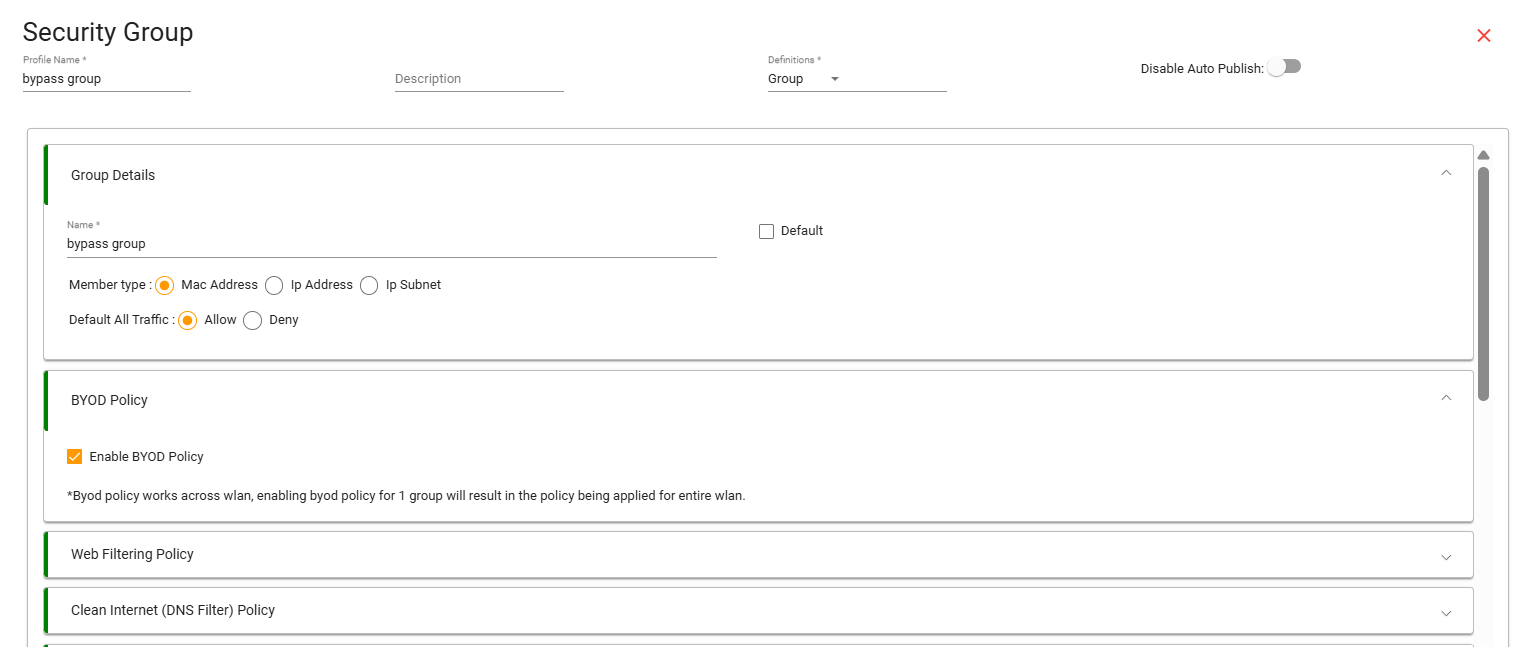
- Attached Security group in WLAN.
STEP 2:
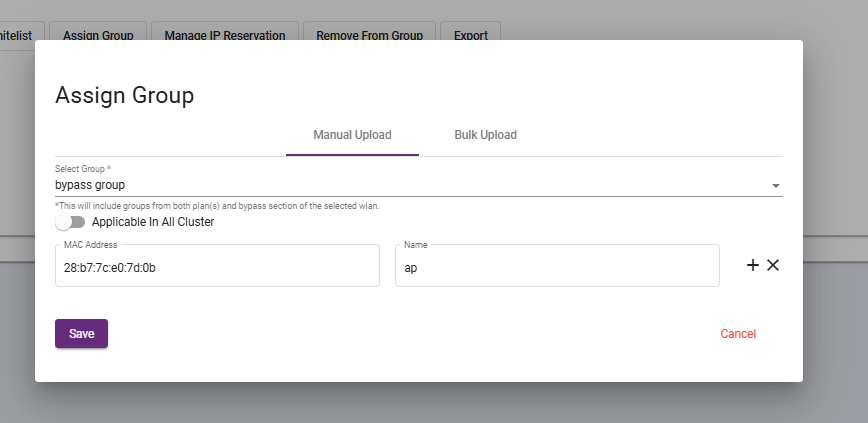
- Go to Client, click on assign group. Assign Bypass group to AP’s MAC.
STEP 3:
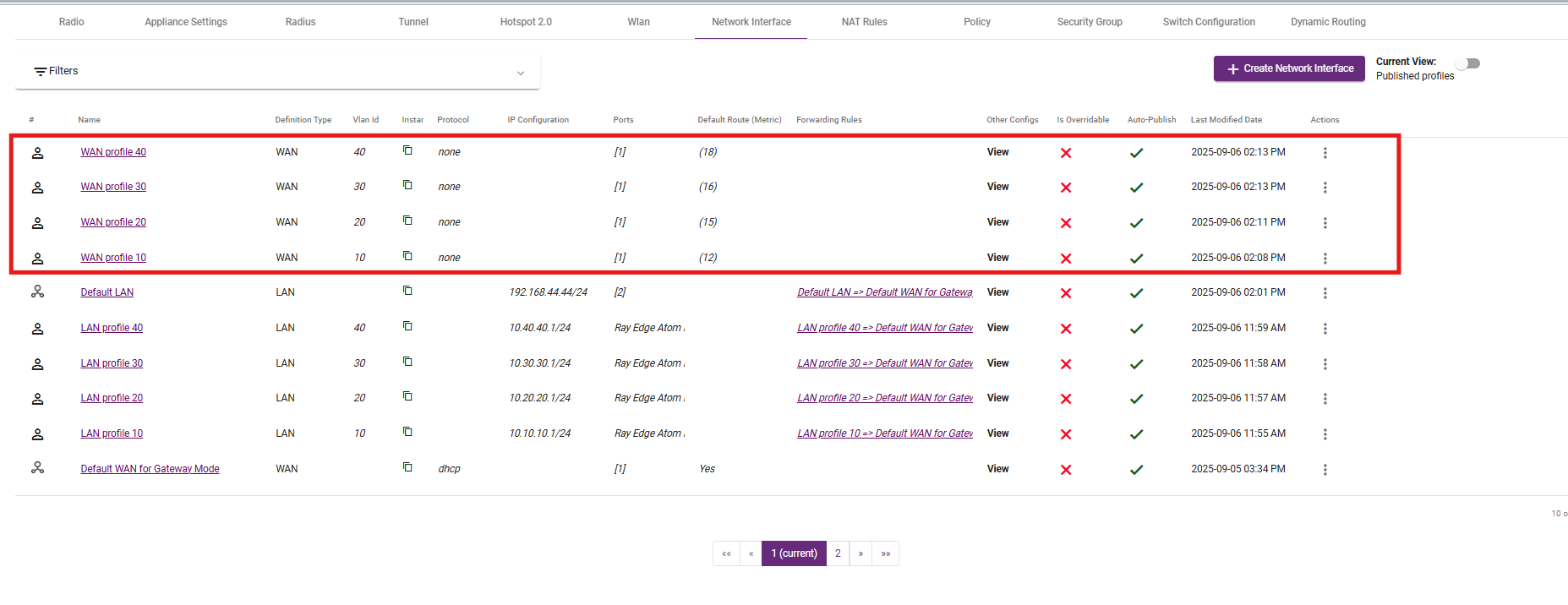
- Define WAN for AP with VLAN 10 (Because we have select VLAN 10 as a native).
- AP will get IP from VLAN 10 and gets online.
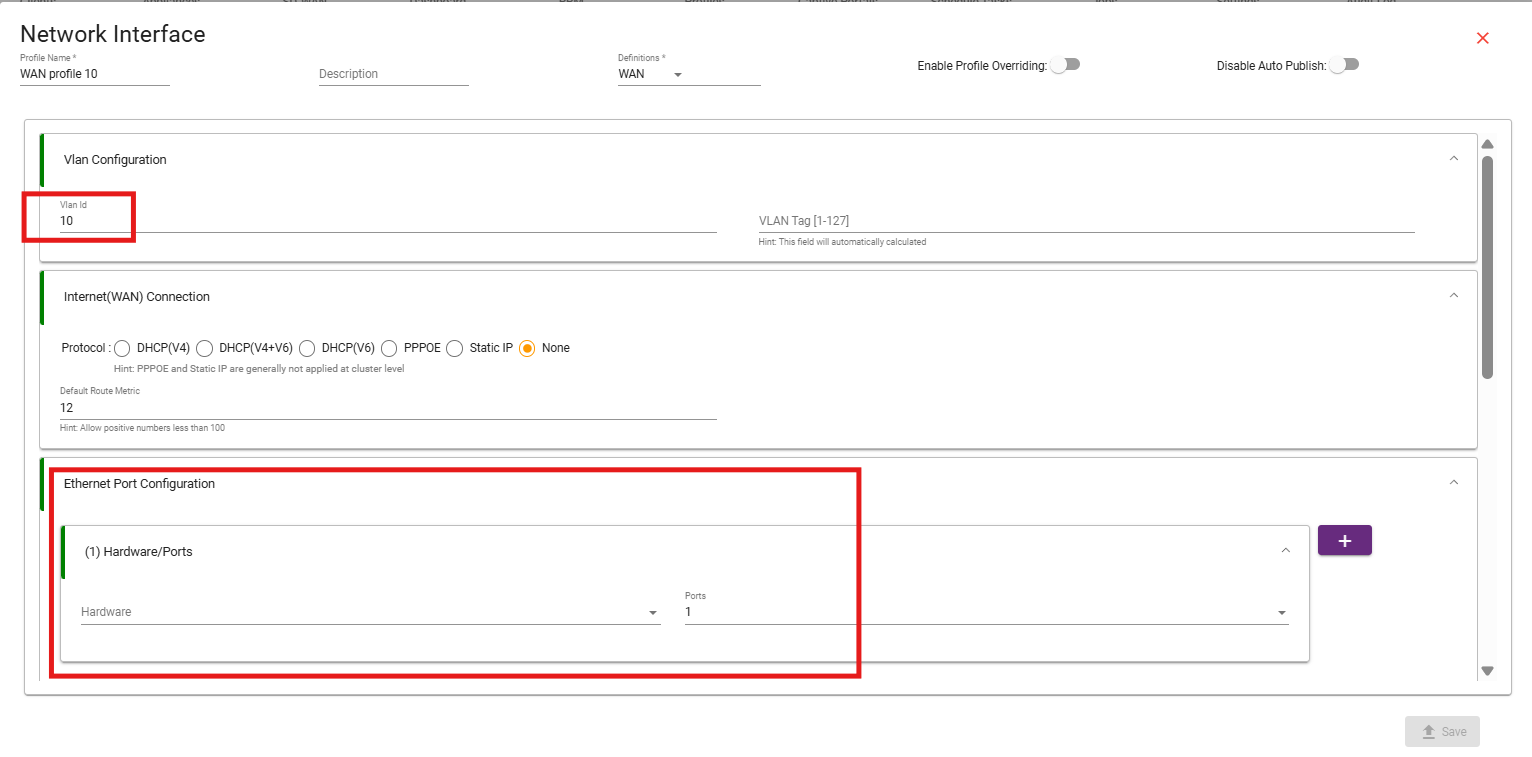
- Ap will get online.

STEP 4:
- After AP gets online configure WAN policy for all VLAN’s same as we have done for VLAN 10.
Step-by-Step WLAN (SSID) Configuration :
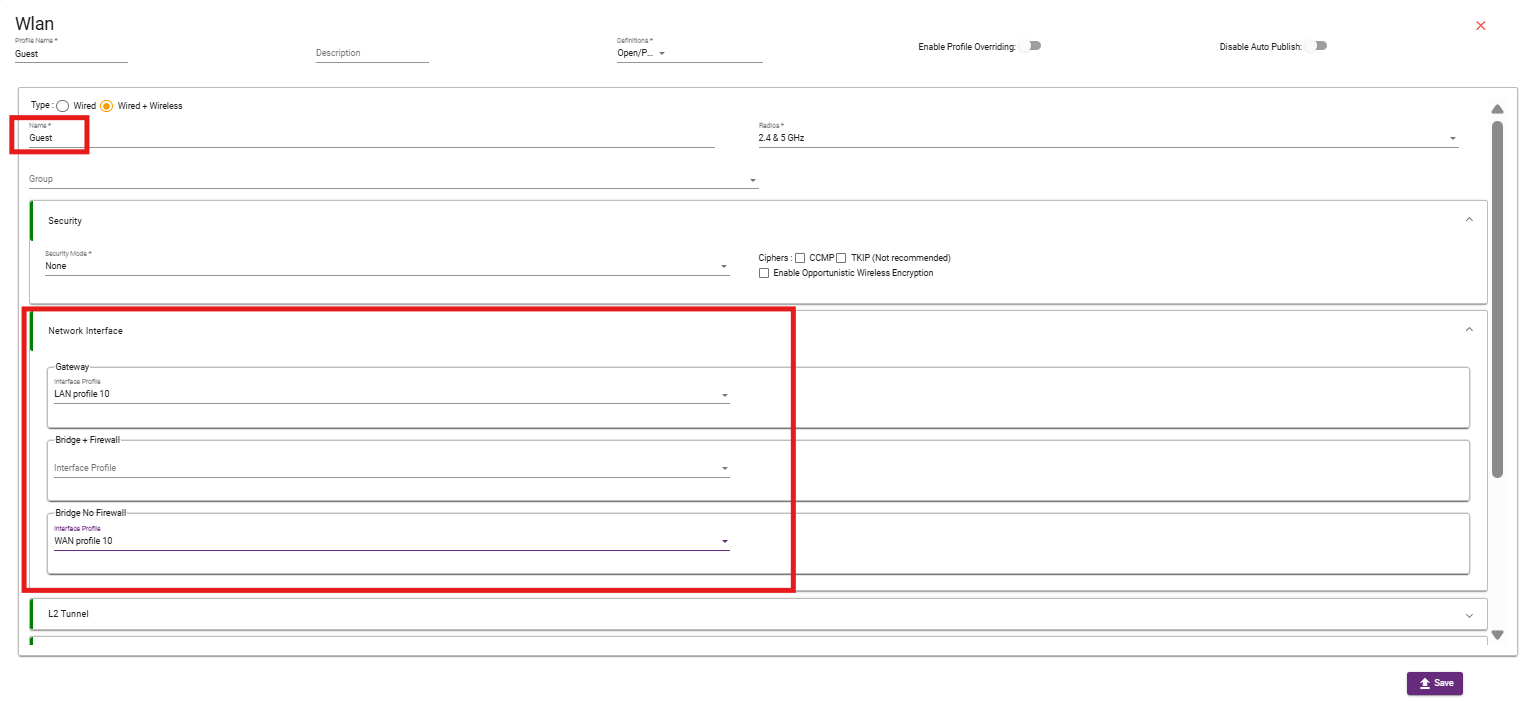
STEP 1: Guest SSID (VLAN 10)
- Create WLAN with the desired name (Guest).
- Select Security Group.
- In NETWORK INTERFACE select GATEWAY’s ( LAN profile ) in gateway section and AP’s ( WAN profile ) in Bridge No firewall section. Select both profile of VLAN-10.
- Both profile should be of same VLAN which have to be broadcast.
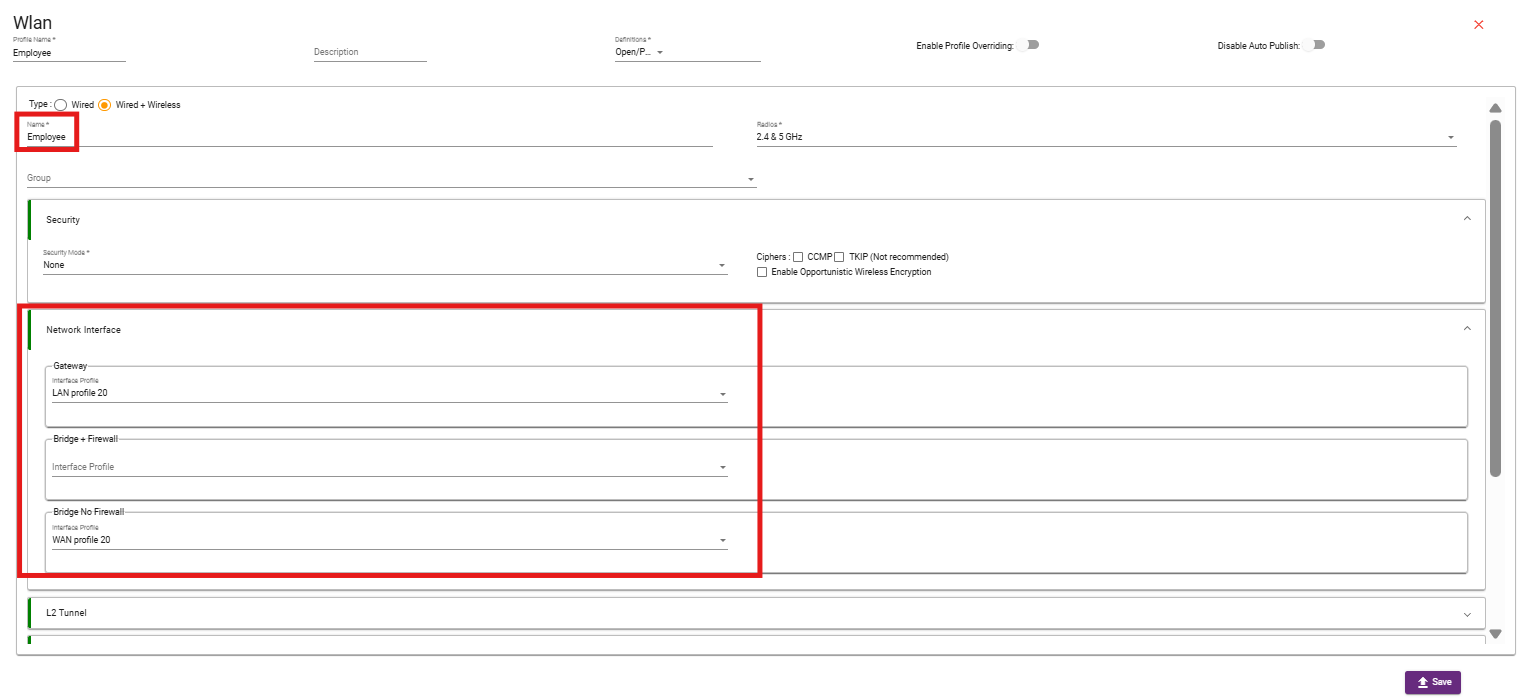
STEP 2: Employee SSID (VLAN 20)
- Create WLAN with the desired name (Employee).
- Select Security Group.
- In NETWORK INTERFACE, select GATEWAY’s (LAN profile) in the gateway section and AP’s (WAN profile) in the Bridge No Firewall section. Select both profiles of VLAN-20.
- Both profiles should be of the same VLAN that has to be broadcast.
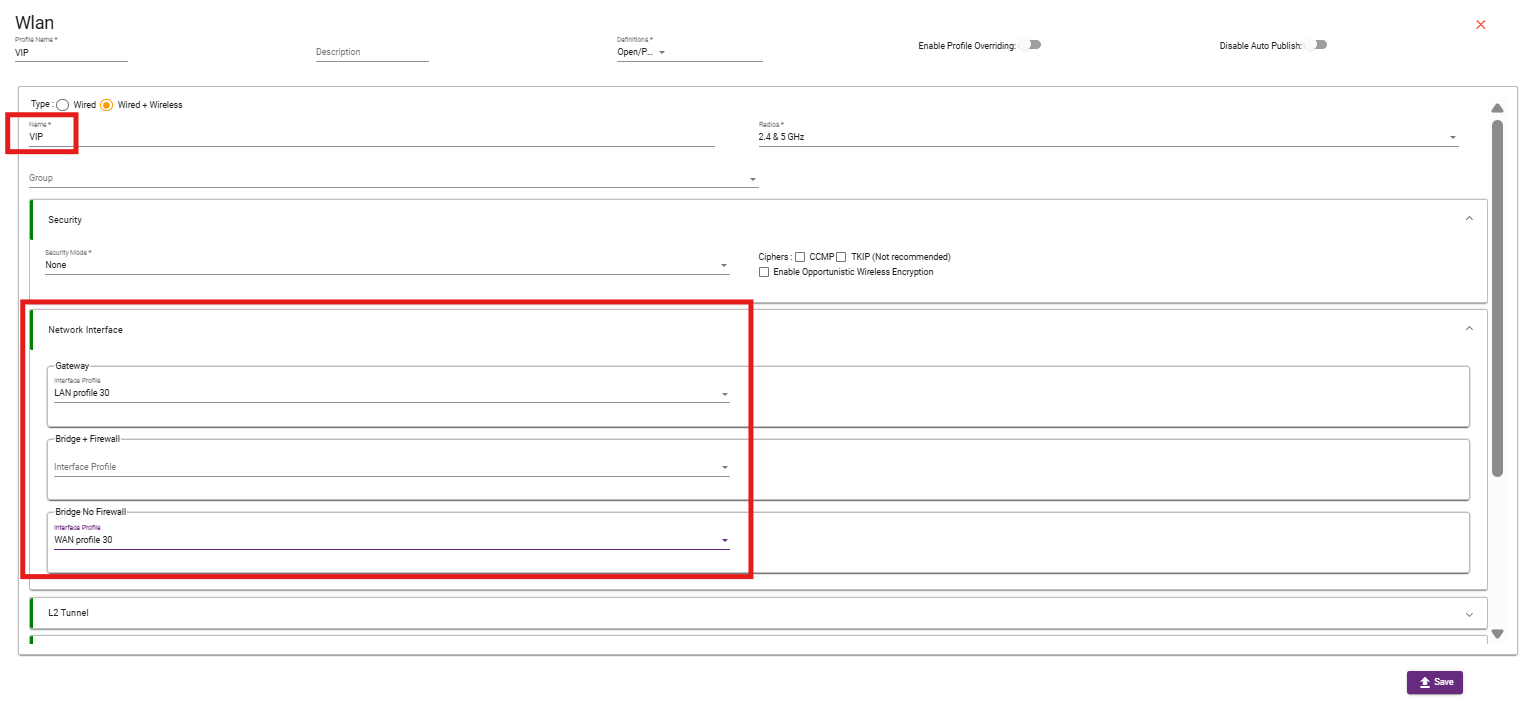
STEP 3: VIP SSID (VLAN 30)
- Create WLAN with the desired name (VIP).
- Select Security Group.
- In NETWORK INTERFACE, select GATEWAY’s (LAN profile) in the gateway section and AP’s (WAN profile) in the Bridge No Firewall section. Select both profiles of VLAN-30.
- Both profiles should be of the same VLAN that has to be broadcast.
STEP 4: Finance SSID (VLAN 40)
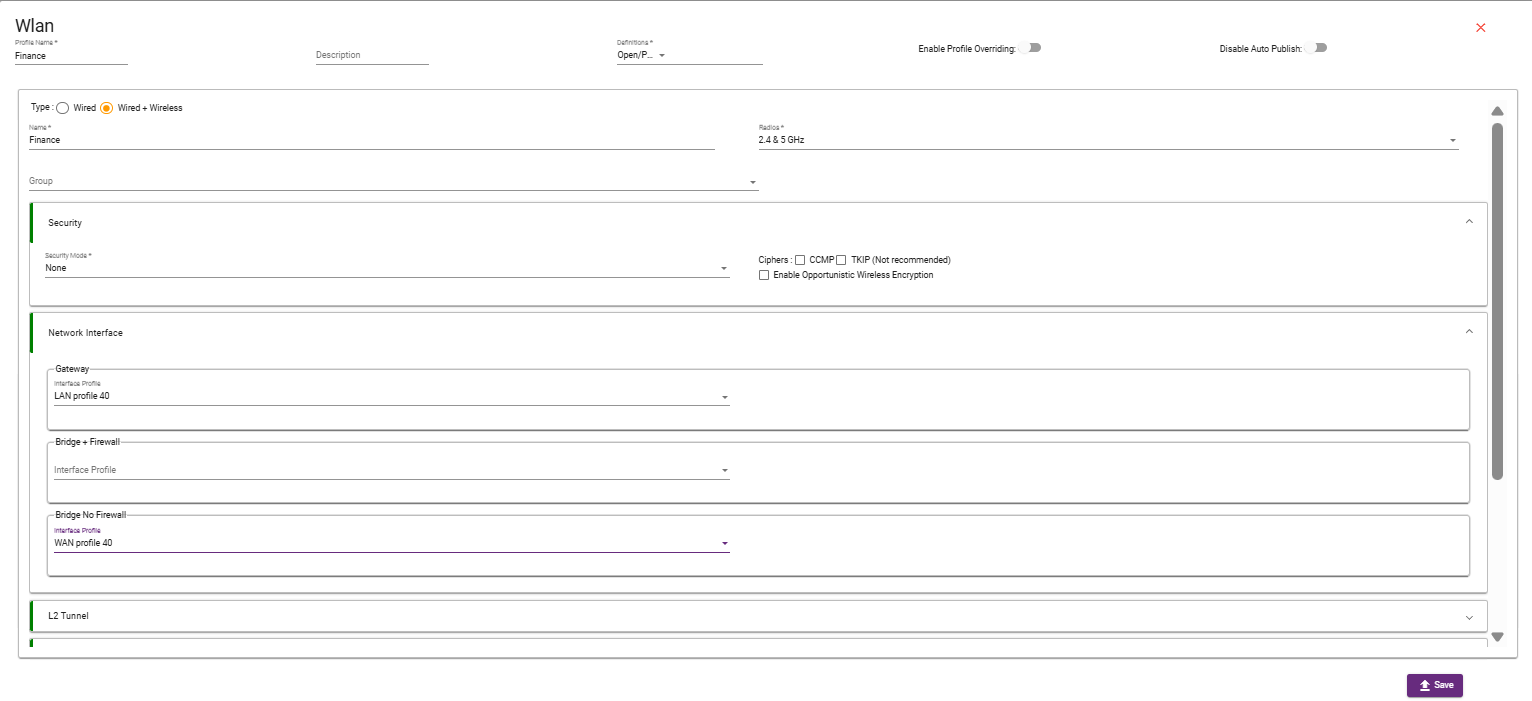
- Create WLAN with the desired name (Finance).
- Select Security Group.
- In NETWORK INTERFACE, select GATEWAY’s (LAN profile) in the gateway section and AP’s (WAN profile) in the Bridge No Firewall section. Select both profiles of VLAN-40.
- Both profiles should be of the same VLAN that has to be broadcast.