
High Availability (HA) Configuration Guide
 1. Overview
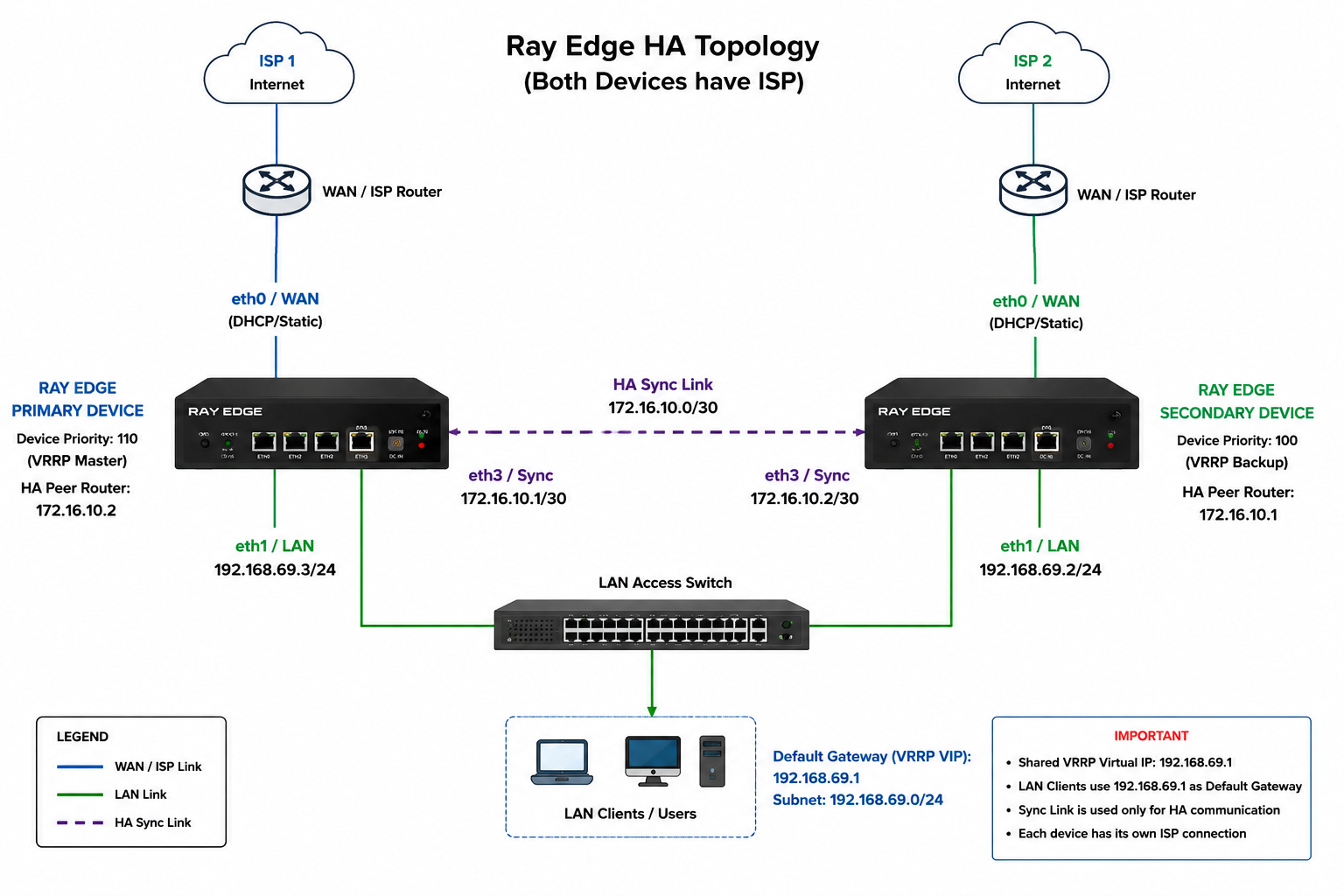
This document explains how to configure High Availability between two Ray Edge devices using VRRP. The main purpose is to provide gateway redundancy, so if the Primary Ray device fails, the Secondary Ray device automatically takes over the shared gateway IP and keeps the LAN network running.
Supported Device Models- Ray Edge Mini
- Ray Edge Medium
Note: HA functionality is currently supported only on x86-based devices.
2. Configuration Flow
- Step 1 – Configure LAN subnet on Primary and Secondary devices.
- Step 2 – Configure dedicated HA sync link on Primary and Secondary devices.
- Step 3 – Configure HA/VRRP instance on Primary and Secondary devices.
3. First, both Primary and Secondary Ray devices need LAN interface configuration. 3.1 LAN Subnet Configuration
First, both Primary and Secondary Ray devices need LAN interface configuration.
For the LAN network:
VRRP Virtual IP: 192.168.69.1This .1 IP is the shared gateway IP.
LAN users should use this IP as their default gateway.
3.1.1 Primary Device LAN Subnet Configuration- Log in to the Ray Dashboard and select the Primary device profile.
- Navigate to Profiles > Network Interface.
- Click Create Network Interface.
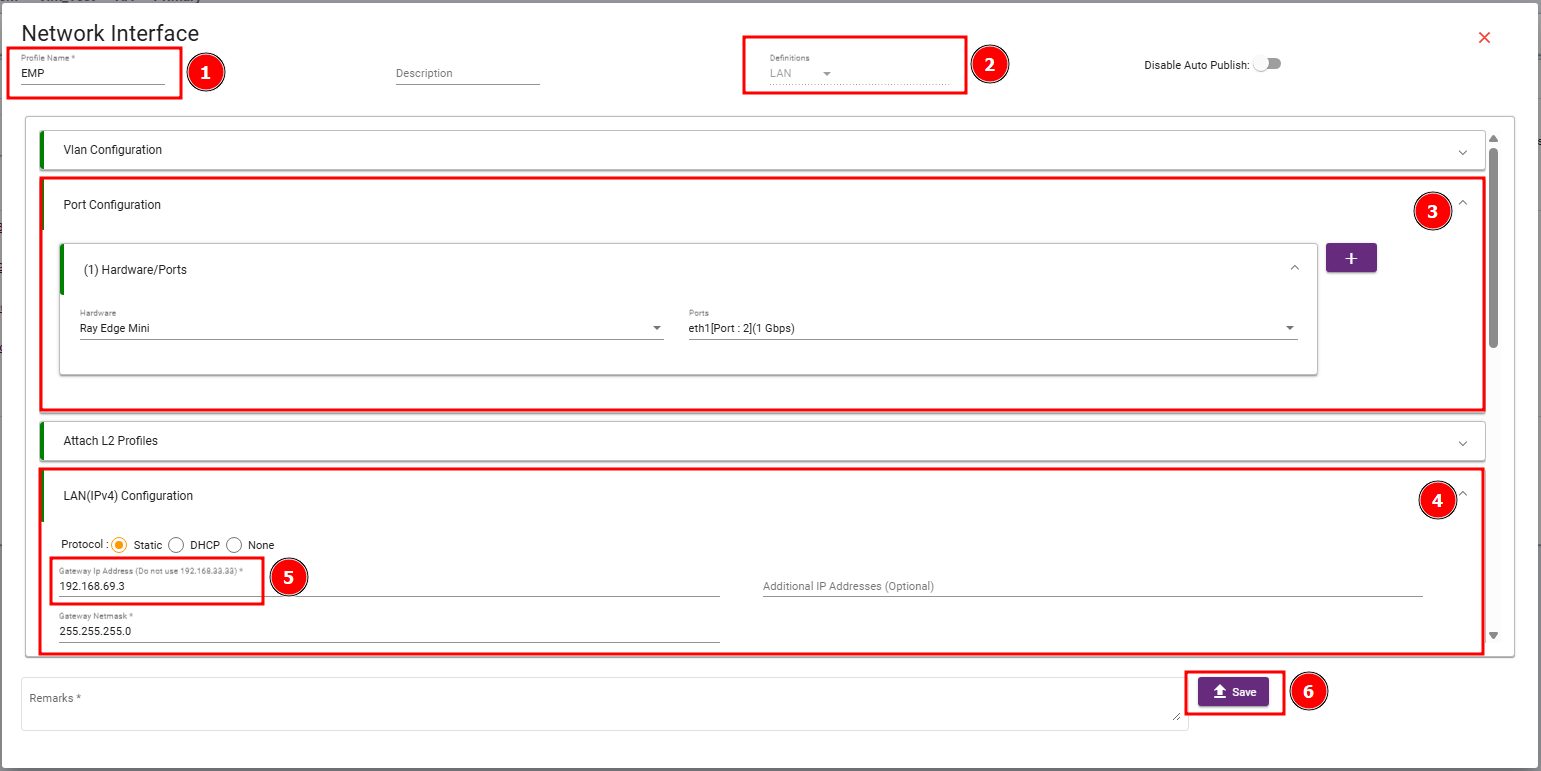
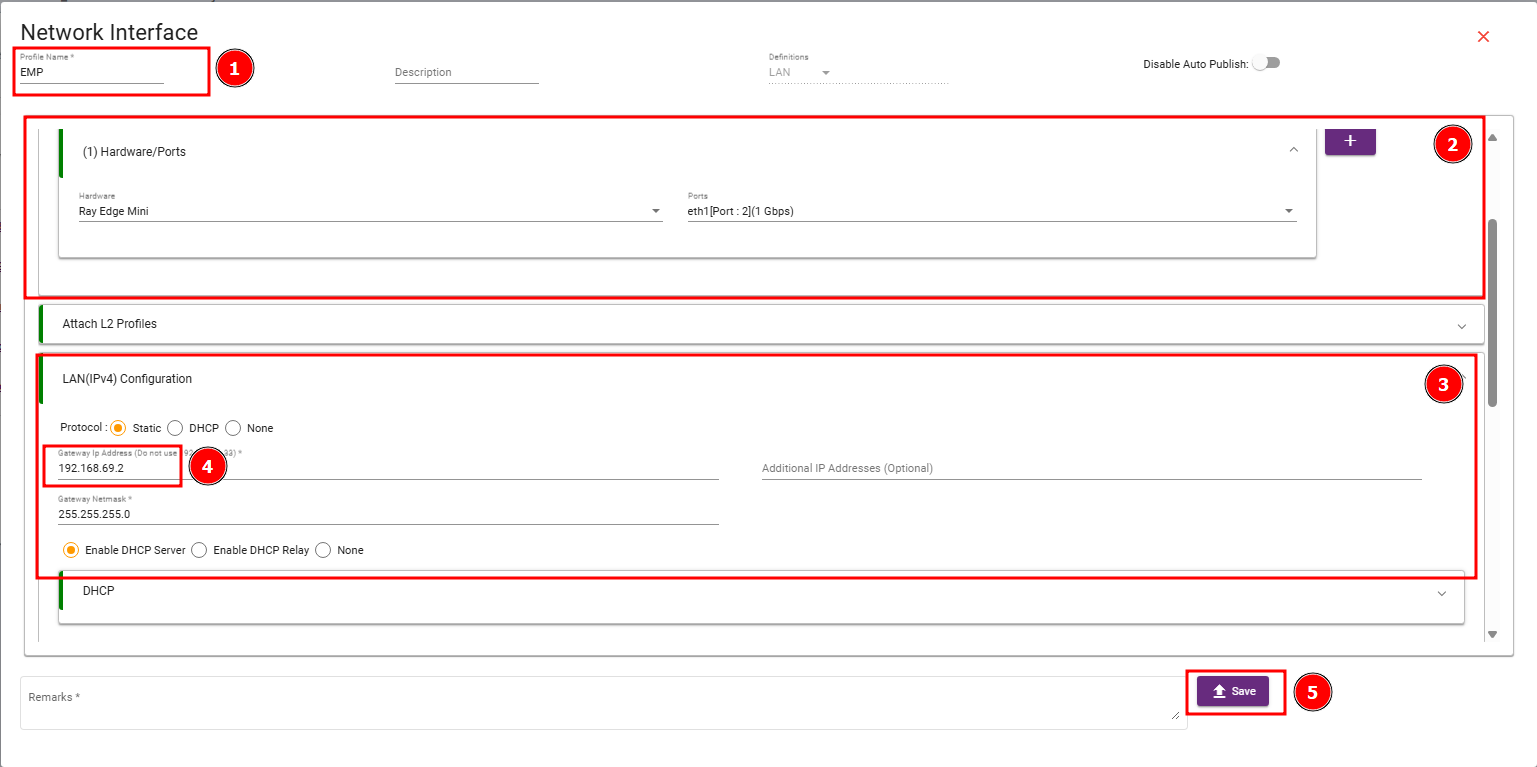
Note: The shared VRRP virtual IP is 192.168.69.1. After HA is active, LAN clients should use 192.168.69.1 as their default gateway. As per the required design, the Secondary LAN IP is 192.168.69.2 and the Primary LAN IP is 192.168.69.3. To use 192.168.69.1 as VRRP VIP, 192.168.69.2 as Secondary LAN IP, and 192.168.69.3 as Primary LAN IP, configure the LAN subnet with 255.255.255.0 (/24). In a /24 subnet, 192.168.69.3 is a valid host IP and the broadcast address is 192.168.69.255.
3.1.2 Secondary Device LAN Subnet Configuration
- Log in to the Ray Dashboard and select the Primary device profile.
- Navigate to Profiles > Network Interface.
- Click Create Network Interface.
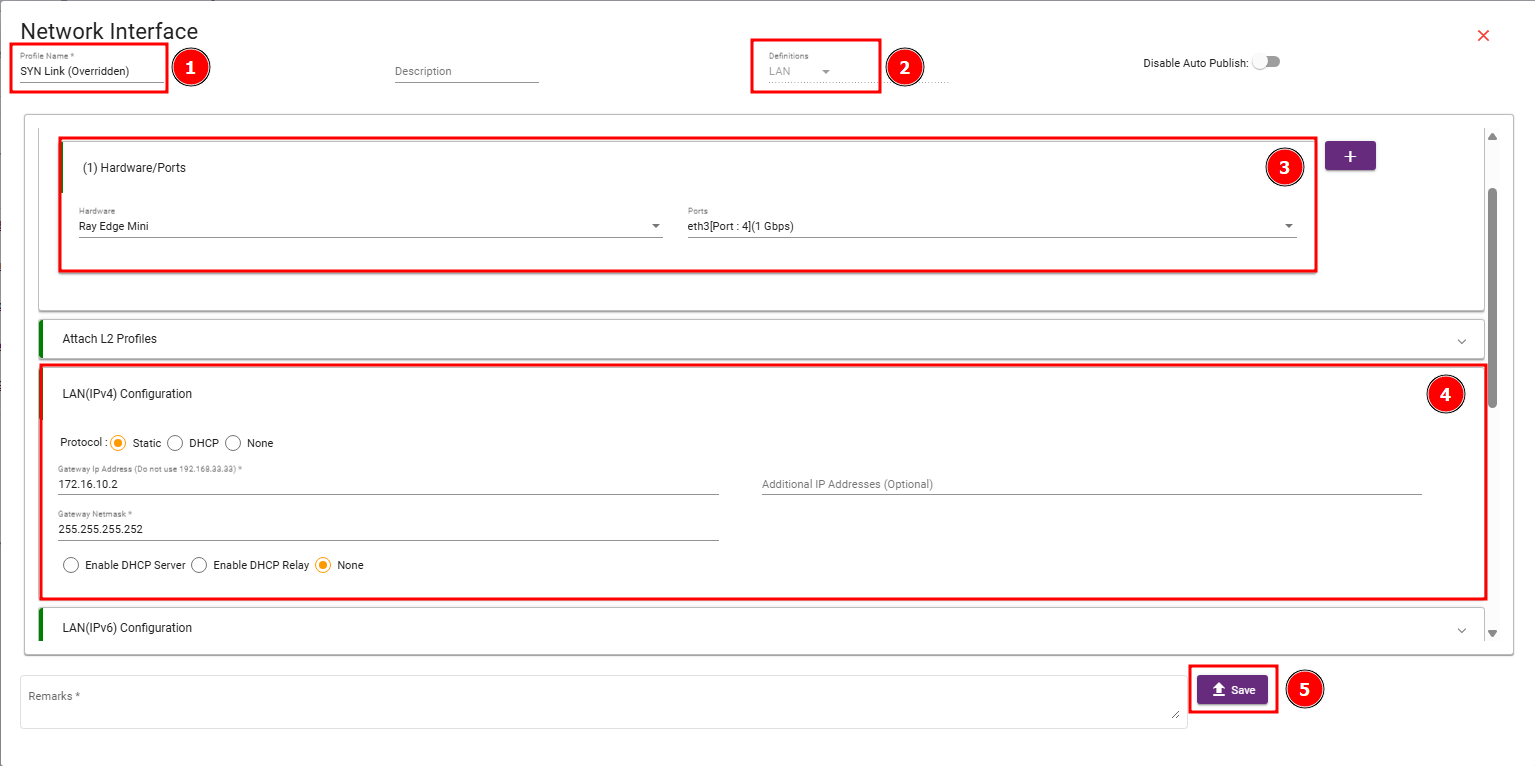
The Sync Link interface is used for HA communication between the Primary and Secondary Ray Edge devices. This link carries HA heartbeat, synchronization, and state coordination traffic between both devices. It should be configured as a dedicated LAN-type interface and should not be used for normal user traffic or internet routing.
4.1 Primary Device Sync Link Configuration

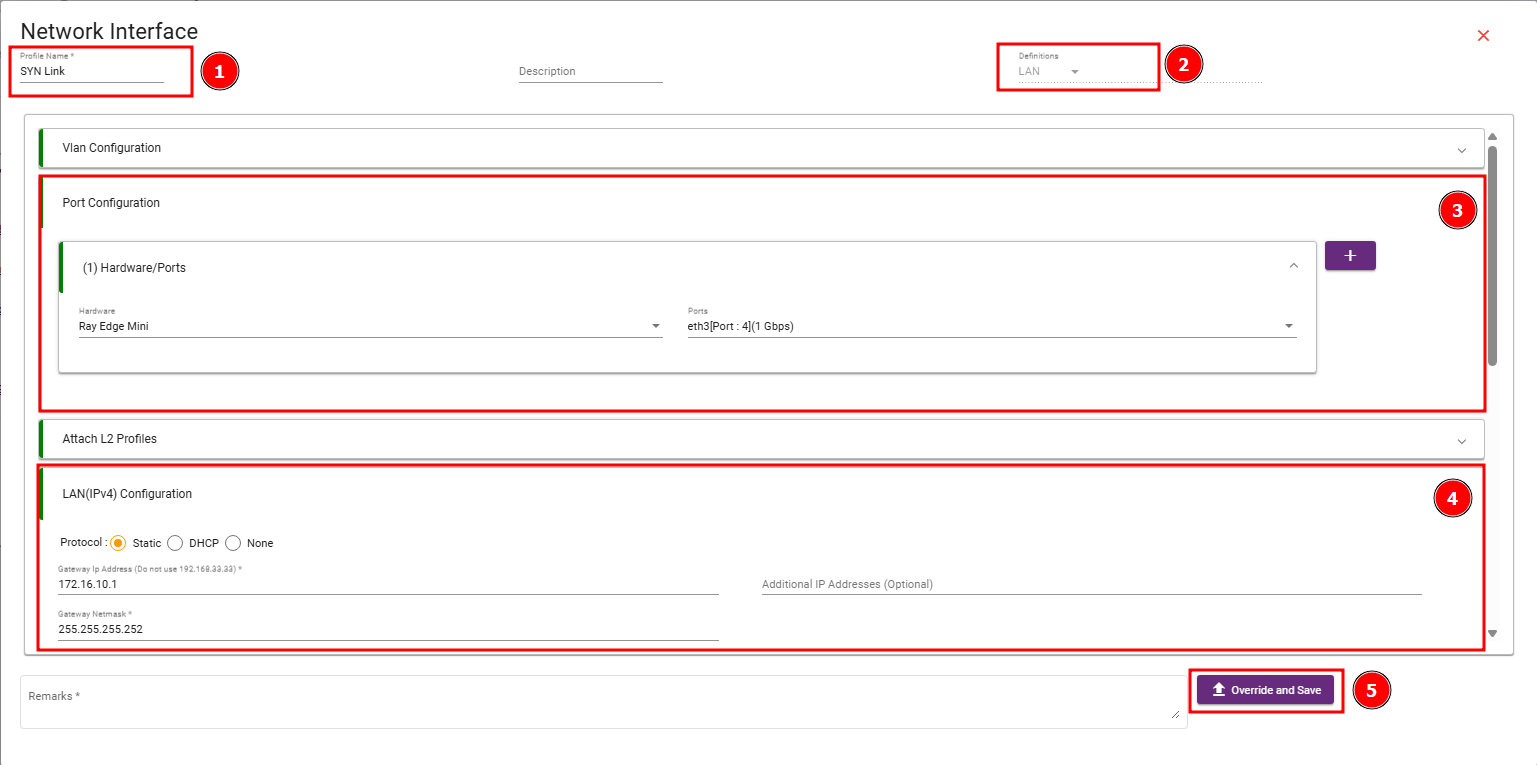
For HA configuration, the peer router IP must always point to the opposite device’s sync IP.
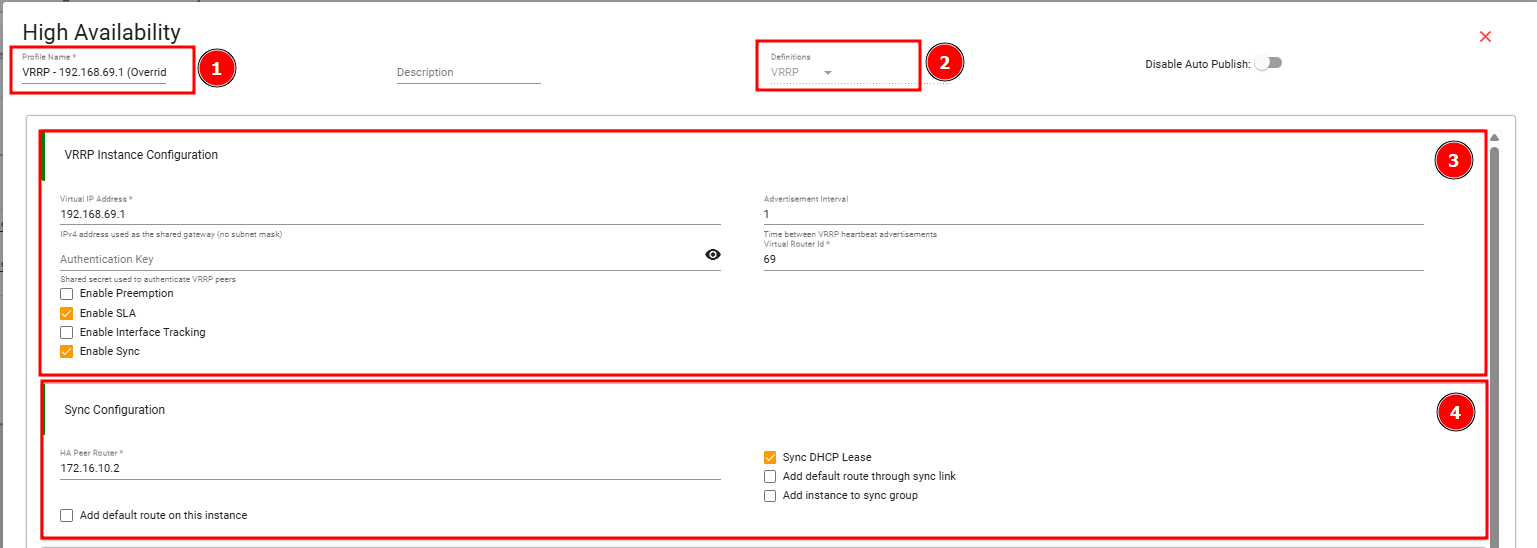
On the Primary device, configure the HA Peer Router as 172.16.10.2, because this is the Secondary device sync IP.
On the Secondary device, configure the HA Peer Router as 172.16.10.1, because this is the Primary device sync IP.
4.2 Secondary Device Sync Link Configuration

5. HA / VRRP Configuration
Create one HA profile on each device. The VRRP parameters should match on both devices, but the HA peer router and priority must be different.
5.1 Primary Device HA Configuration- Navigate to Profiles > High Availability.
- Click Create High Availability.

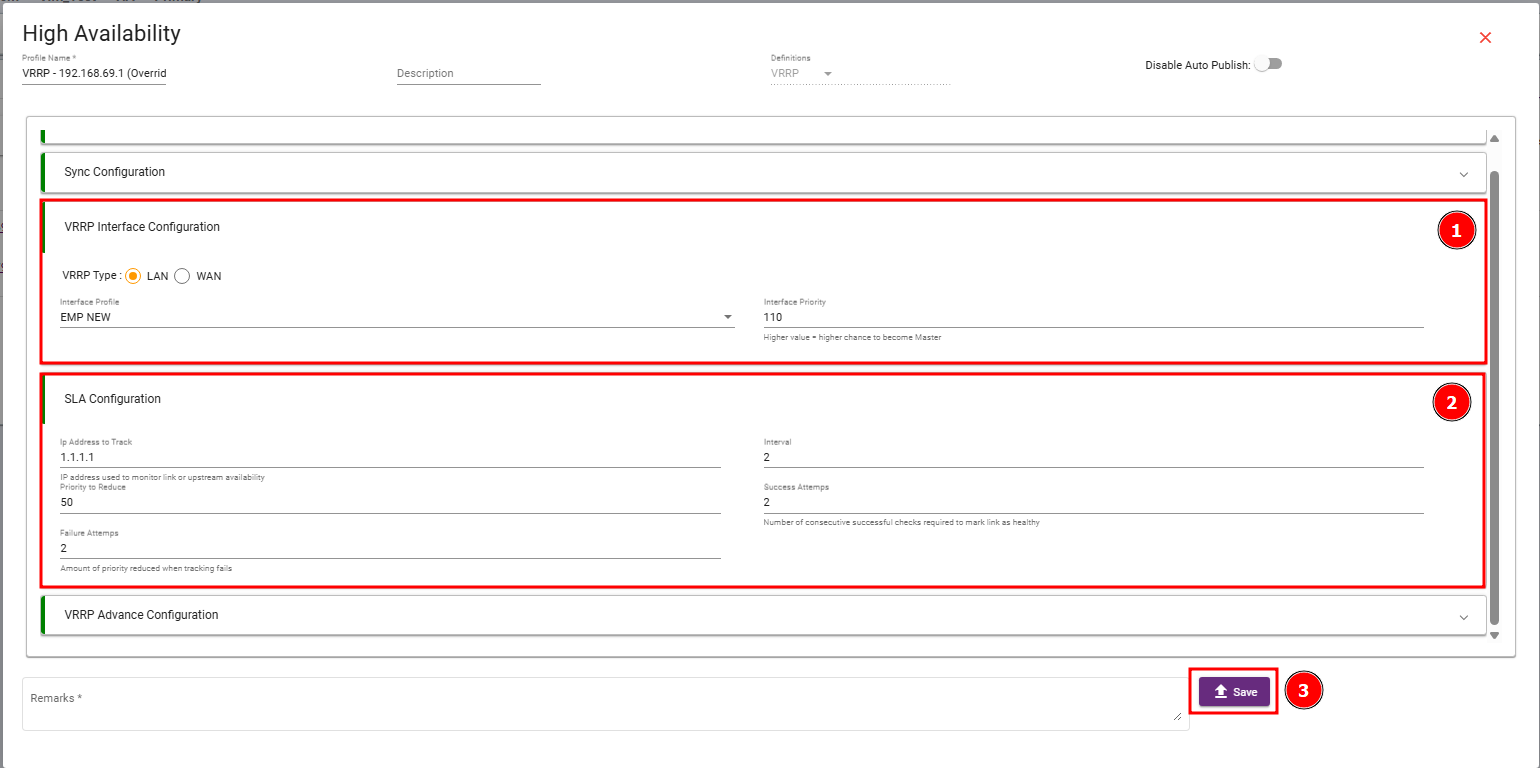
The Primary device priority is set to 110, which is higher than the Secondary device priority. Because of this, the Primary device becomes the VRRP Master during normal operation.
If the Primary device cannot reach the SLA tracking IP, its VRRP priority is reduced by 50. The Primary priority changes from 110 to 60. Since the Secondary device priority is 100, the Secondary device becomes the VRRP Master during SLA failure.
HA / VRRP Checkbox Use Cases
Purpose: This section explains the practical use cases of common HA / VRRP checkboxes available in Ray device configuration. It is written without site-specific IP dependency so it can be reused for general HA deployment documentation.
1 Enable Preemption
Use Case: Use this when the Primary device should automatically take back the Master role after it recovers from failure. This is useful when the Primary device is the preferred device for normal production traffic and the Secondary device is intended mainly for backup.
Positive Impact: The preferred Primary device automatically becomes active again after recovery. This keeps the HA behavior predictable and ensures the preferred device normally handles traffic.
Negative Impact: Automatic failback can cause a short traffic interruption when the role moves back from Secondary to Primary. In critical environments, engineers may prefer to verify the Primary device manually before moving traffic back.
Recommended Use: Enable when automatic failback to Primary is required. Keep disabled when manual failback is preferred for better operational control.
Configuration Guidance: Enable when automatic failback to Primary is required. Keep disabled when manual failback is preferred for better operational control.
2 Enable SLA
Use Case: Use this when failover should happen based on upstream or internet reachability. It helps detect cases where the Primary device is powered on and its LAN side is still working, but the upstream path is not reachable.
Positive Impact: It allows failover even when the Primary device is not fully down. This is useful for WAN or upstream failure scenarios because the Secondary device can become active when the Primary loses external connectivity.
Negative Impact: If the monitored destination is temporarily unreachable or poorly selected, false failover may occur. Wrong SLA target selection can create unstable failover behavior.
Recommended Use: Enable for WAN or upstream reachability-based failover. Use reliable monitoring targets and validate that SLA tracking is actually applied.
Configuration Guidance: Enable for WAN or upstream reachability-based failover. Use reliable monitoring targets and validate that SLA tracking is actually applied.
3 Enable Interface Tracking
Use Case: Use this when failover should happen based on the physical status of an interface, such as a WAN port or uplink interface.
Positive Impact: It provides fast failover when a physical link goes down, such as cable unplugged, ISP handoff down, or switch port failure.
Negative Impact: Interface Tracking only detects physical link status. If the interface is physically up but the upstream network is not working beyond the next hop, this option alone may not detect the failure.
Recommended Use: Enable for physical link failure detection. Best practice is to use it together with SLA for complete WAN failure detection.
Configuration Guidance: Enable for physical link failure detection. Best practice is to use it together with SLA for complete WAN failure detection.
4 Enable Sync
Use Case: Use this when the Primary and Secondary devices need to exchange HA status and synchronization information through the HA sync link.
Positive Impact: It improves HA coordination between both devices and helps maintain consistent failover behavior. The devices can share HA state and synchronization data.
Negative Impact: If the sync link or peer configuration is wrong, synchronization may fail and HA behavior can become unstable or incomplete.
Recommended Use: Keep enabled for HA deployments. Verify that the sync link and peer device information are correctly configured.
Configuration Guidance: Keep enabled for HA deployments. Verify that the sync link and peer device information are correctly configured.
5 Sync DHCP Lease
Use Case: Use this when the Ray device is acting as the DHCP server for client networks and DHCP lease information should be available on the standby device after failover.
Positive Impact: During failover, the Secondary device already knows the DHCP leases assigned by the active device. This helps avoid DHCP conflicts and improves continuity for connected users.
Negative Impact: If DHCP is handled by an external server, this option may not provide any benefit. DHCP lease synchronization also depends on the HA sync link working properly.
Recommended Use: Enable when the Ray device provides DHCP service to users. It is optional when DHCP is provided by an external server.
Configuration Guidance: Enable when the Ray device provides DHCP service to users. It is optional when DHCP is provided by an external server.
6 Add Default Route Through Sync Link
Use Case: Use this only in special routing designs where one HA device must route traffic through its peer using the HA sync link.
Positive Impact: It can help in specific advanced designs where the peer device is intentionally used as a transit path.
Negative Impact: In standard HA deployments, this can create routing problems. User traffic may pass through the HA sync link instead of the correct WAN path, which can cause asymmetric routing, routing loops, packet drops, or difficult troubleshooting.
Recommended Use: Keep disabled in normal HA / VRRP deployments. The sync link should normally be used only for heartbeat and synchronization, not for regular user traffic.
Configuration Guidance: Keep disabled in normal HA / VRRP deployments. The sync link should normally be used only for heartbeat and synchronization, not for regular user traffic.
7 Add Instance to Sync Group
Use Case: Use this when multiple VRRP instances should fail over together. This is useful when multiple LAN networks are part of the same HA pair and should move to the same active device during failover.
Positive Impact: It prevents split-role conditions where one network is active on the Primary device while another network is active on the Secondary device. This gives clean and consistent failover behavior.
Negative Impact: If different networks are intentionally designed to fail over independently, grouping them together may not be suitable because it forces all grouped instances to move together.
Recommended Use: Enable when all related LAN networks should fail over together to the same active device.
5.3 Secondary Device HA Configuration
- Navigate to Profiles > High Availability.
- Click Create High Availability.
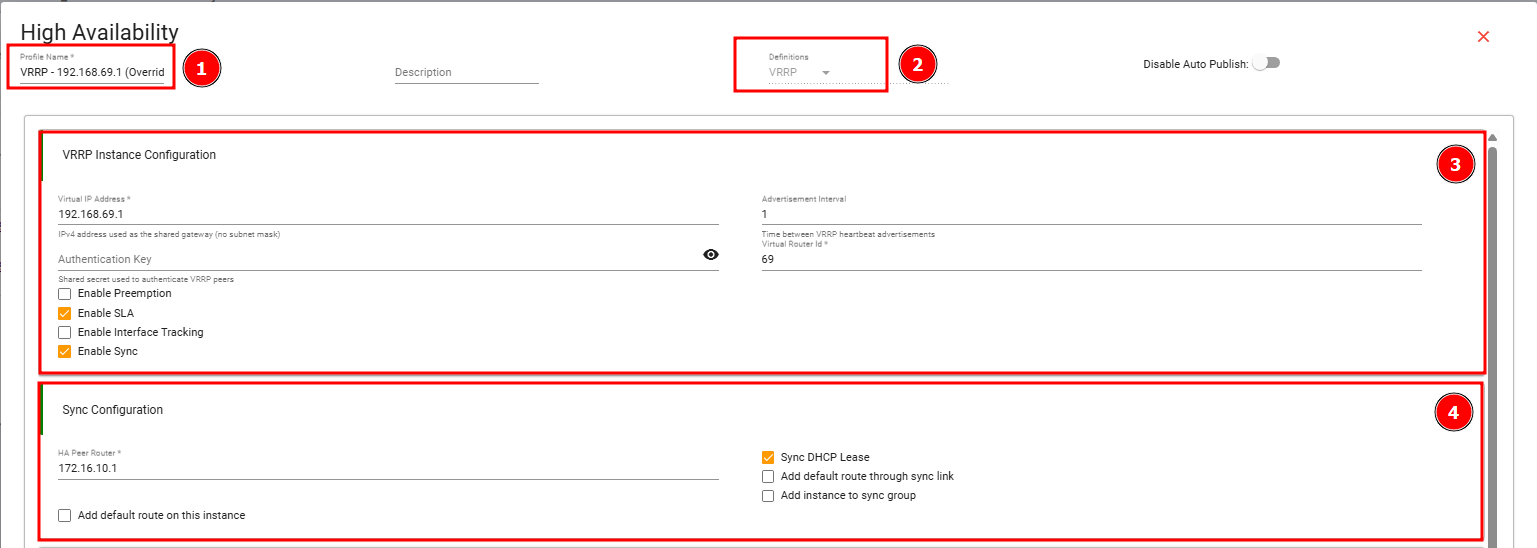
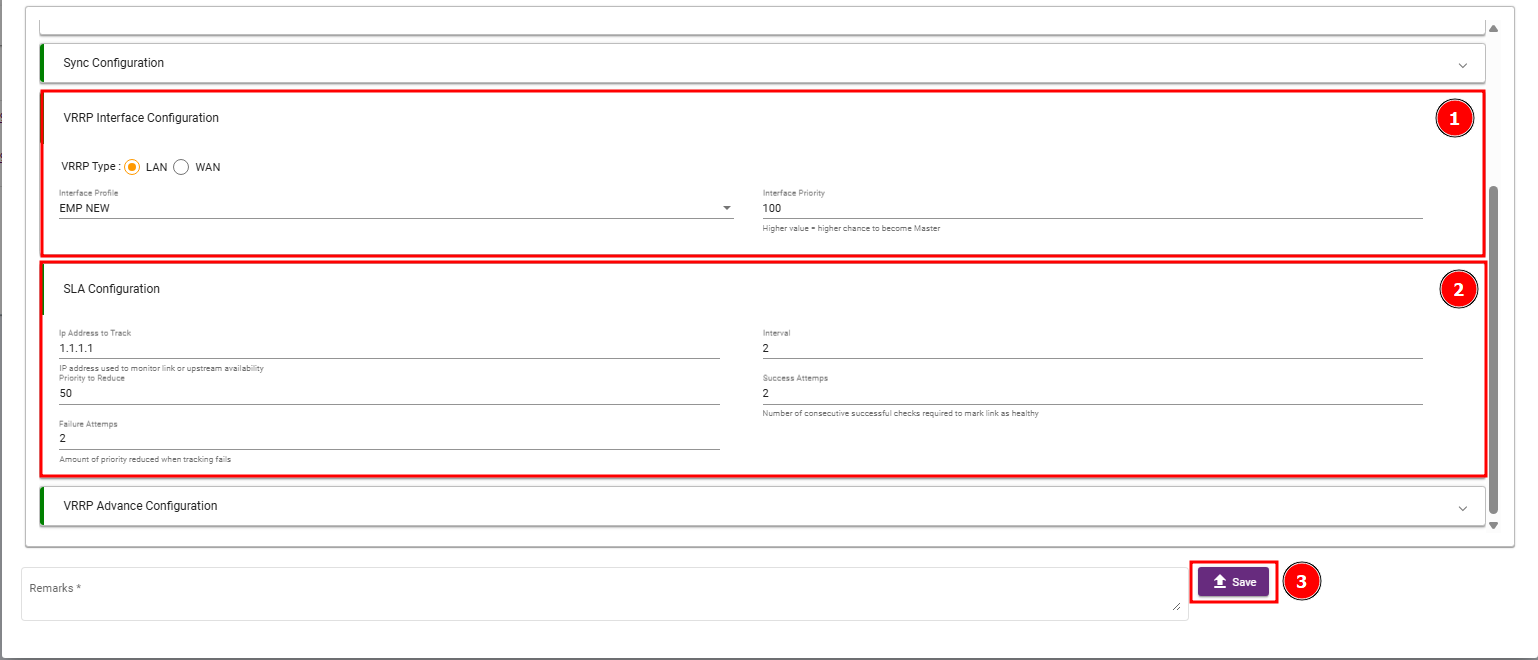
Because Primary priority is higher, Primary becomes the VRRP Master in normal condition. Secondary stays in Backup mode.
The Secondary device priority is set to 100. Since this is lower than the Primary priority of 110, the Secondary device remains in Backup state during normal operation.
Expected HA BehaviorAfter both profiles are saved and published to the respective devices, the HA pair should operate as follows:
- The Primary device has priority 110 and becomes the VRRP Master during normal operation.
- The Secondary device has priority 100 and remains in Backup state.
- The Virtual IP address 192.168.69.1 is active on the Master device.
- LAN clients use 192.168.69.1 as the default gateway.
- If the Primary device fails, the Secondary device detects the failure and takes ownership of the Virtual IP.
- If the SLA target fails on the Primary, the Primary priority is reduced from 110 to 60. The Secondary priority remains 100 and it becomes Master.
Normal State
Primary : Master | Priority 110 | VIP owner 192.168.69.1
Secondary : Backup | Priority 100
SLA Failure on Primary
Primary effective priority : 110 – 50 = 60
Secondary effective priority : 100
Result : Secondary becomes Master