
Port Forwarding Configuration Guide
Why Port Forwarding Matters
Port forwarding allows an external user to access a specific service hosted inside the LAN network through the firewall public IP address.
Instead of exposing the complete internal network, only the required service port is opened and forwarded to the correct internal server.
In this example, TCP port 8080 on the firewall public IP is forwarded to the internal web server running on 10.10.10.2:8080.
Configuration used in this guide
- NAT rule name: web_server
- NAT type: Port Forwarding
- Protocol: TCP
- Listening/external port: 8080
- Internal web server IP: 10.10.10.2
- Internal destination port: 8080
- Source interface: Default WAN for Gateway Mode
Step 1: Navigate to NAT Rules
Go to the Profiles section from the top menu. From the profile configuration menu, select NAT Rules.
Click Create NAT Rules to create a new NAT rule for the web server.

Step 2: Configure the Web Server NAT Rule
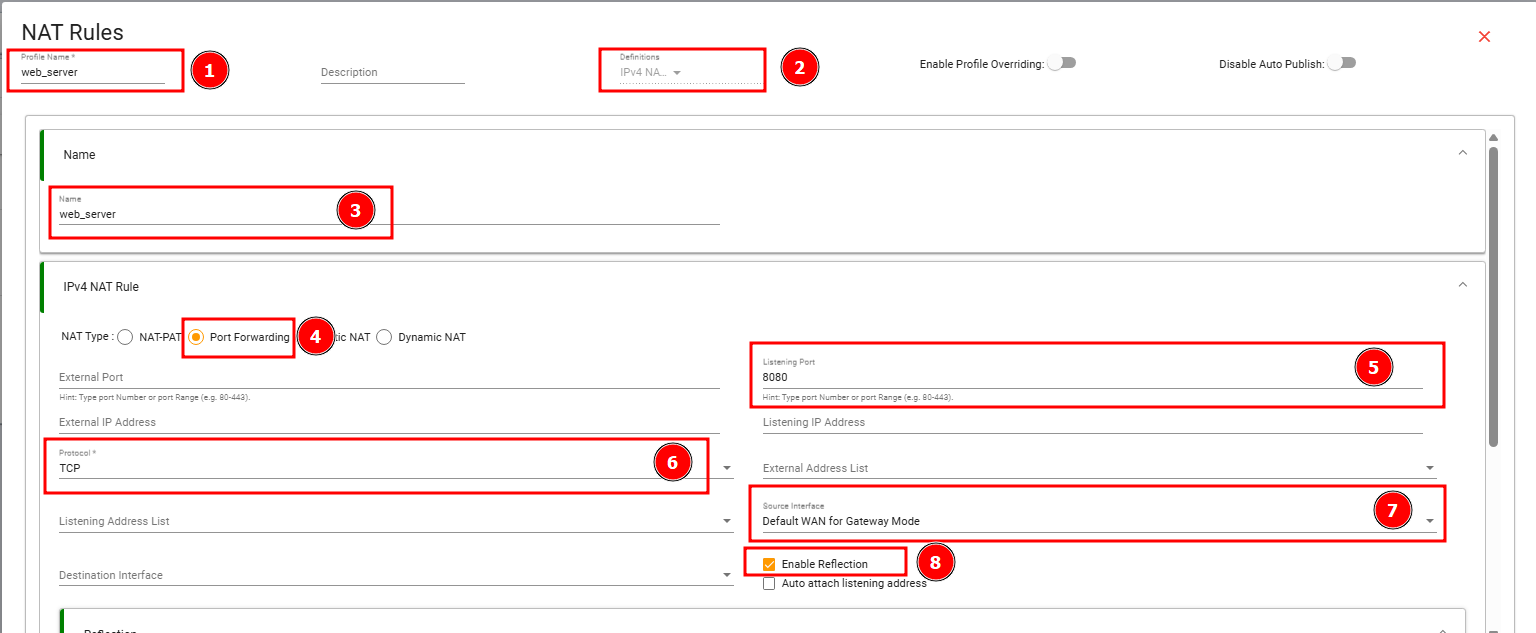
Enter the profile name as web_server and select IPv4 NAT under Definitions.
In the rule name field, enter web_server.
Under IPv4 NAT Rule, select Port Forwarding.
Set the listening port to 8080, select TCP as the protocol, choose Default WAN for Gateway Mode as the source interface, and enable reflection if LAN-side public IP or domain access is required.
Step 3: Set Reflection, Destination IP, and Save
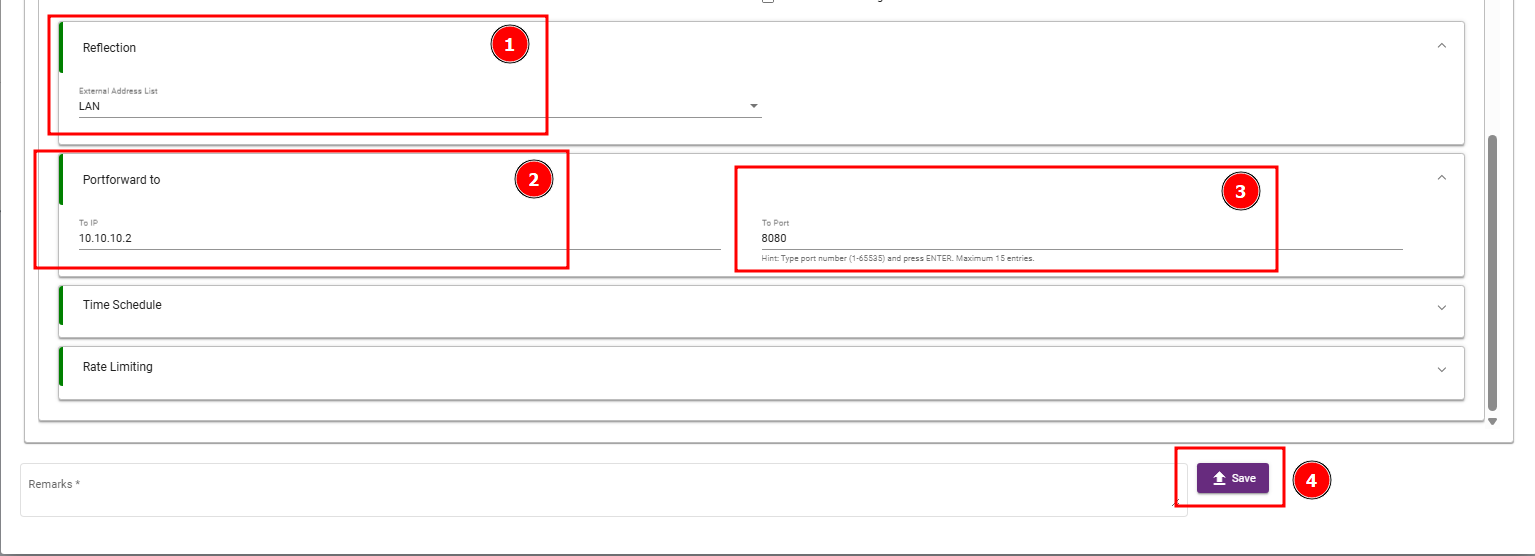
In the Reflection section, select LAN as the external address list if reflection is required.
In Portforward to, set To IP as 10.10.10.2 and To Port as 8080. After verifying the configuration, click Save.
Expected Result
After the rule is saved and published/applied, an external user should be able to access the internal web server using the firewall public IP address on port 8080.
External Client -> Firewall Public IP:8080 -> 10.10.10.2:8080
Example URL: http://PUBLIC_IP:8080