Ray Device: Official Network Readiness & Upstream Firewall Guide
When a Ray device is connected to a WAN link but fails to come online, the most common root cause is an upstream firewall, proxy, or gateway blocking required traffic.
Before troubleshooting hardware or local connectivity, verify that all required upstream services are reachable and whitelisted on your perimeter firewall or gateway. The device will only complete its registration and appear online once the following network requirements are met.
1. Upstream Verification Checklist
If your Ray device is offline despite a valid WAN connection, perform these checks first:
-
Verify Outbound Traffic: Ensure the firewall allows outbound connections from the Ray device’s VLAN/IP without SSL inspection or captive portal interception.
-
Check Port Availability: Confirm that TCP ports 443 and 8884 are open outbound to the required domains.
-
Validate NTP Reachability: Device authentication and SSL/TLS certificates require accurate system time; ensure Google NTP servers are reachable.
-
Confirm Long-Lived Sessions: Verify that network timeouts are not prematurely closing persistent MQTT TCP sessions.
2. Outbound Port Requirements
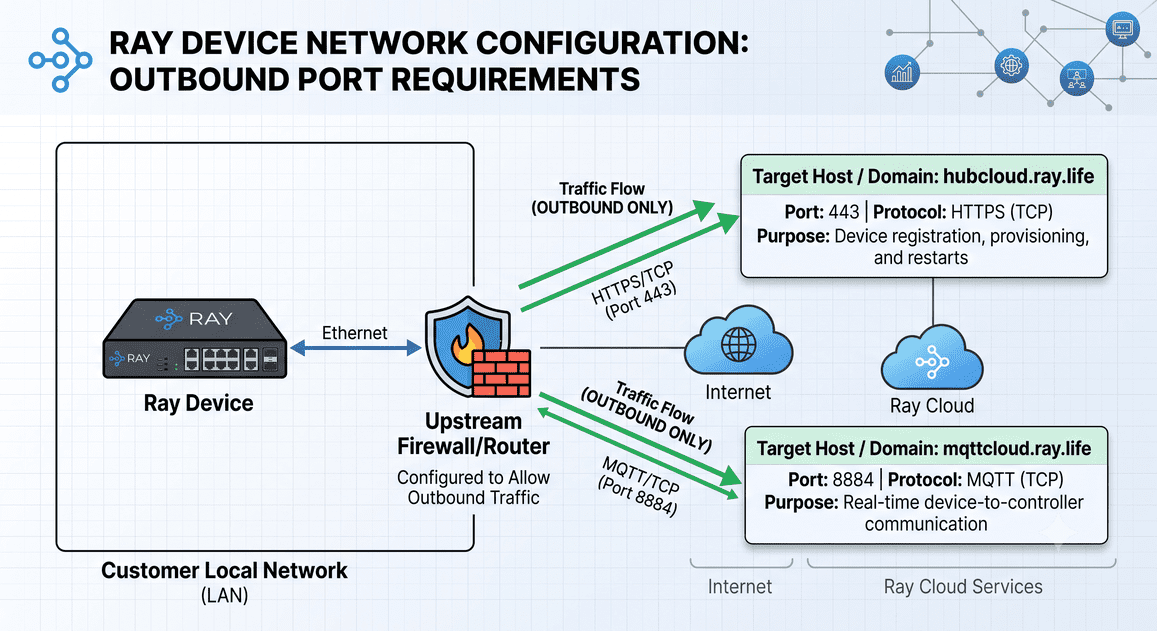
Configure your upstream firewall or router to allow outbound-only traffic on the following ports:
-
Port 443 — HTTPS (TCP)
-
Target Host / Domain:
hubcloud.ray.life -
Purpose: Device registration, provisioning, and restarts
-
-
Port 8884 — MQTT (TCP)
-
Target Host / Domain:
mqttcloud.ray.life -
Purpose: Real-time device-to-controller communication
-
3. Required Domains to Whitelist (FQDNs)
If your network uses domain-based filtering or URL whitelisting, add the following Fully Qualified Domain Names (FQDNs) to your allowlist:
-
ray.life -
captivecloud.ray.life -
s3.amazonaws.com(Required for firmware updates and asset downloads) -
time1.google.comtotime4.google.com(Required for NTP time synchronization)
4. Required Protocols
Ensure your network edge permits the following protocols for Ray device operation:
-
MQTT: Used for continuous, low-latency messaging between the device and the Ray cloud controller.
-
HTTPS: Used for initial device registration, secure authentication, and administrative restart commands.
-
Ping (ICMP): Used by the device for upstream reachability and latency performance checks.
5. Critical Firewall Requirements
Long-Lived TCP Connections
Ray devices maintain persistent MQTT connections on port 8884 to receive real-time instructions. Firewalls must allow long-lived TCP sessions; if idle session timeouts are set too aggressively, the device will repeatedly disconnect and show as offline.
Hostname vs. IP Address Whitelisting
-
Preferred Method: Always whitelist by domain name (FQDN), as cloud infrastructure IP addresses can scale or change dynamically.
-
Fallback Method (IP-Based): If your security hardware only supports IP-based rules and domain whitelisting fails, please contact Ray Support to receive the current, authoritative IP address range.
Preferred Method: Always whitelist by domain name (FQDN), as cloud infrastructure IP addresses can scale or change dynamically.
Fallback Method (IP-Based): If your security hardware only supports IP-based rules and domain whitelisting fails, please contact Ray Support to receive the current, authoritative IP address range.