
Ray VRRP HA Debugging Guide
First, verify that all required interfaces are present and in the UP state on both the Primary and Secondary Ray devices. This includes the LAN interface, HA sync interface, and WAN interface.
Run the following command on both devices:
ip -br aConfirm that the expected IP addresses are visible.
2. Check LAN Reachability Between Primary and Secondary
VRRP will not work properly if the Primary and Secondary devices cannot communicate on the same LAN subnet.
Run the following command from the Primary device and Secondary device:
ping -I source_ip destination_ipIf this test fails, check the LAN switch port, VLAN tagging, bridge membership, and physical cabling before troubleshooting VRRP settings.
The LAN interface must be in the same Layer 2 network on both devices.
3. Check HA Sync Link Reachability
The HA sync link is used for heartbeat, synchronization, and HA peer communication between the Primary and Secondary devices.
Run the following command from the Primary device and Secondary device:
ping -I source_ip destination_ip
If this test fails, verify the eth3 connectivity, /30 subnet mask, physical cable, and HA peer router configuration.
The expected sync link configuration is:
Primary Sync IP: 172.16.10.1/30
Secondary Sync IP: 172.16.10.2/30
The HA peer router configuration should be:
Primary HA Peer Router: 172.16.10.2
Secondary HA Peer Router: 172.16.10.1On OpenWrt-based Ray systems, VRRP may be handled by keepalived, ucarp, or a Ray-specific HA service. Verify which HA or VRRP process is running.
Run the following commands on both devices:
ps w | grep -Ei "keepalived|vrrp|ucarp|ha" | grep -v grepls /etc/init.d | grep -Ei "keepalived|vrrp|ucarp|ha"logread | grep -Ei "vrrp|keepalived|ucarp|ha"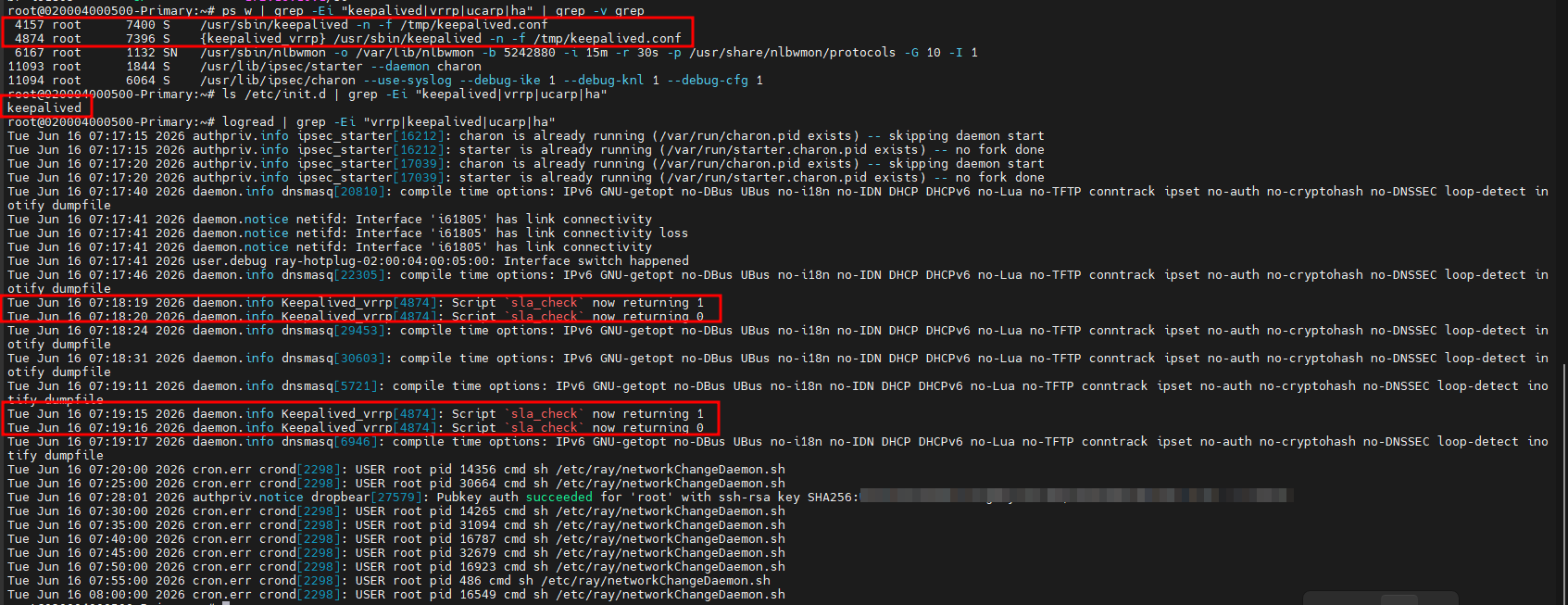
If no VRRP or HA process is running, the HA profile may not be applied correctly, or the VRRP service may have failed to start.
In that case, verify the HA profile, publish status, and service logs.
5. Check VRRP VIP Ownership
Only the current VRRP Master should own the shared virtual IP.
The shared VRRP virtual IP is:
192.168.69.1In normal condition, the Primary device should own this IP because its priority is higher.
Run the following command on both devices:
ip addr | grep 192.168.69.1

Expected normal result:
Primary device: Should show 192.168.69.1
Secondary device: Should not show 192.168.69.1
Expected failover result after Primary failure:
Secondary device: Should show 192.168.69.1If both devices show the VIP at the same time, there may be a split-brain condition.
If neither device shows the VIP, check the VRRP service, interface profile, VRID, priority, and sync configuration.
6. Capture VRRP Packets
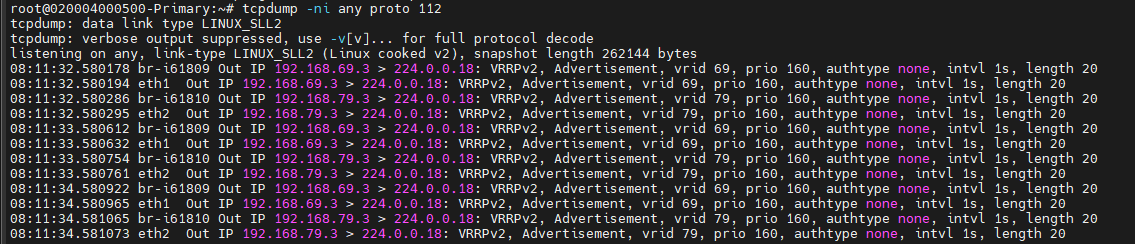
VRRP uses IP protocol 112 and multicast address 224.0.0.18. Packet capture helps confirm whether VRRP advertisements are being transmitted and received.
Run the following command on both devices:
tcpdump -ni any proto 112To capture on a specific LAN bridge, use the actual LAN bridge interface name.
Expected advertisement during normal state:
Primary device should send VRRP advertisements.
Secondary device should receive VRRP advertisements.
Example expected Primary advertisement:
Expected advertisement after Primary failure:
Secondary device should start sending VRRP advertisements.Example expected Secondary advertisement:
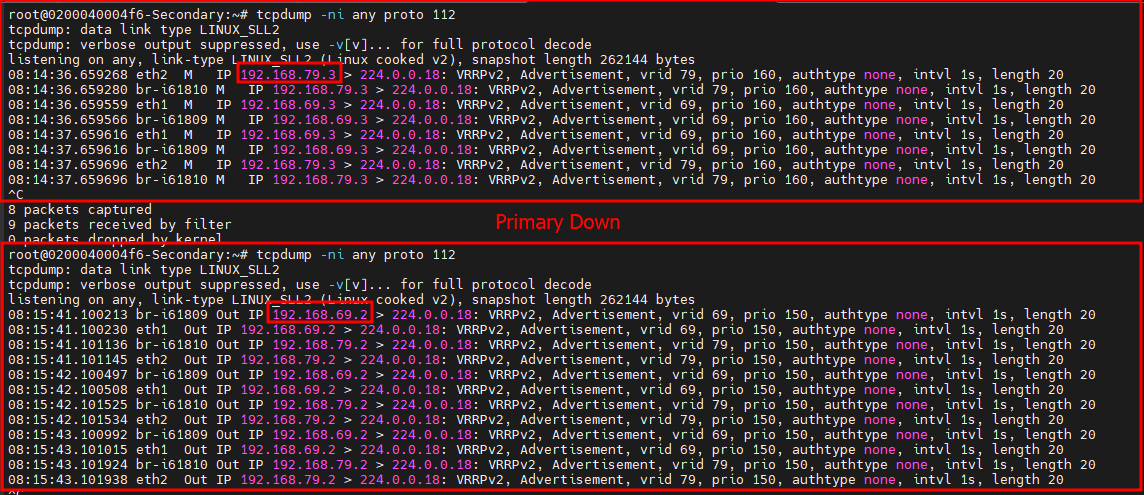
If VRRP packets are not visible, check multicast forwarding, switch connectivity, firewall rules, and bridge configuration.
7. Check VRID, Priority, and SLA Configuration
The Primary and Secondary devices must use matching VRRP parameters.
Verify the following values on both devices:
VRRP VIP: 192.168.69.1
VRID: 69
Advertisement Interval: 1 second
Authentication Key: Same on both devices, if configured
Verify the priority values:
Primary Priority: 110
Secondary Priority: 100
The Primary device has a higher priority, so it becomes the VRRP Master during normal operation.
If SLA tracking is enabled, verify the priority reduction value:
SLA Priority Reduction: 50During SLA failure on the Primary device:
Primary Effective Priority: 110 - 50 = 60
Secondary Priority: 100
Since the Secondary priority becomes higher, the Secondary device becomes the VRRP Master.
8. Common Issues and Troubleshooting Direction
If the VIP is not coming up, check whether the VRRP or HA service is running.
If the Secondary does not become Master, check whether it is receiving VRRP advertisements from the Primary.
If both devices become Master, check LAN connectivity, VRRP multicast, authentication key, and VRID mismatch.
If VRRP packets are not visible, check switch VLAN configuration, bridge membership, multicast filtering, and firewall rules.
If failover happens unexpectedly, check SLA target reachability and priority reduction settings.
If the VIP is active but clients cannot reach the gateway, check LAN bridge configuration, firewall rules, and ARP behavior.