Not getting IP on LAN interfaces
In a Network, interfaces refer to the points of connection between different devices or systems. These interfaces can be physical, such as Ethernet ports, Wi-Fi adapters, or fiber optic connections, as well as virtual interfaces like virtual LANs (VLANs) or virtual private network (VPN) connections. They enable devices to communicate and exchange data within and between networks. Each interface typically has its own unique address, such as a Media Access Control (MAC) address for physical interfaces or an IP address for virtual interfaces, which helps in identifying and routing data to the correct destination.
LAN interfaces, or Local Area Network interfaces, are the physical or virtual connections that enable devices to communicate within a local area network.
To configure the LAN interface kindly follow the below link.
https://support.ray.life/en/support/solutions/articles/81000412321-network-lan-vlan-wlan-configuration
In this article we discuss how to validate the point to troubleshoot in the network if not getting ip on the interfaces.
as a reference see the below image.
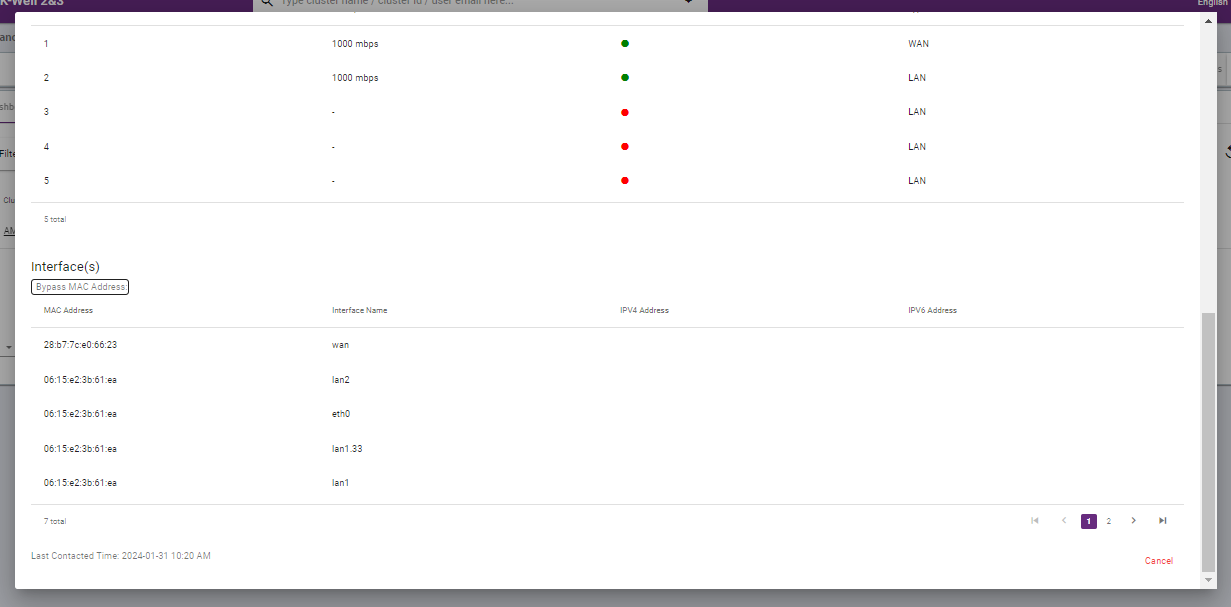
As an administrator/engineer you can check below points or validate on a RAY cloud.
1. Wan/Lan ports
Validate the link status (WAN/LAN port) is up and working properly.
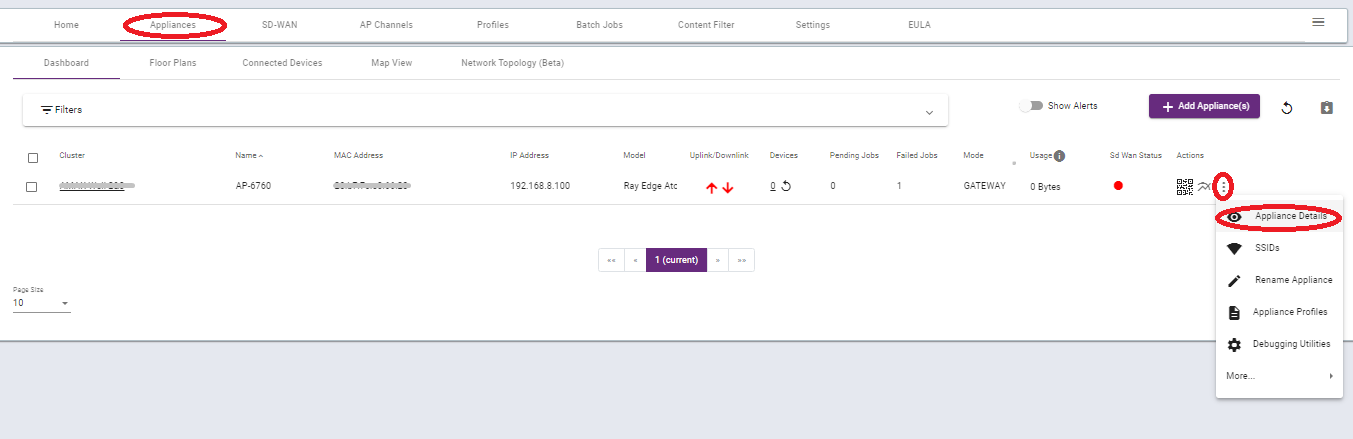
To check the appliance details follow the mention steps.
Go to Applainces > click on the three dots below the action button > Appliance details.
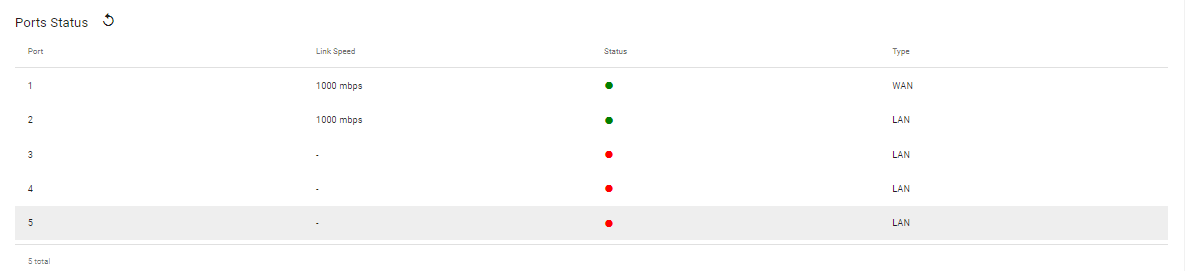
Now here, check port status should be green.
2. SD-WAN status.
In the network if sd-wan is configured, check the configuration and validate the staus.
To check sd-wan status Go to > Applainces > click on three dots > Applaince details.
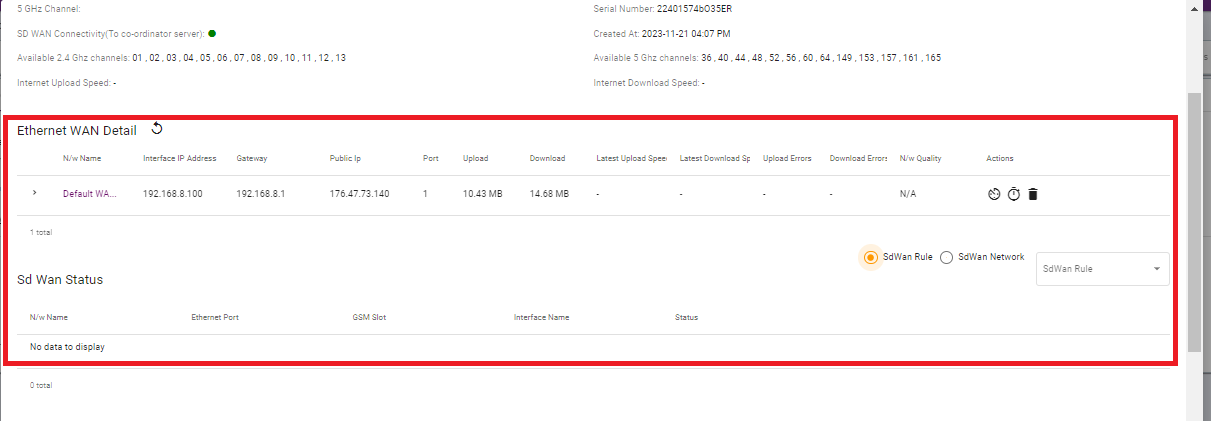
NOTE:- In SD-WAN scenerio, configuration is up-to-date and tunnel is also up but pinging is not successful between the local network. Validate the interfaces are getting ip addresses or not.
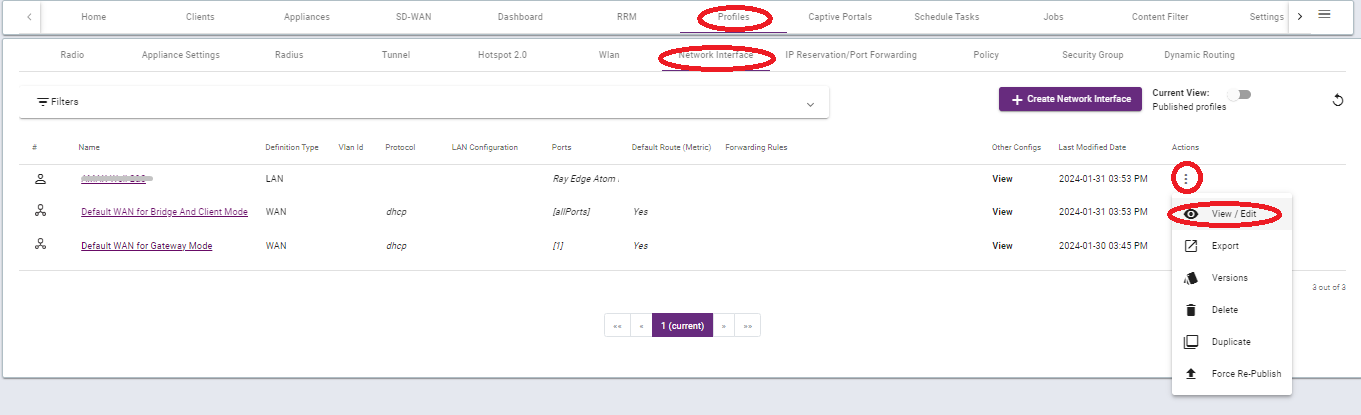
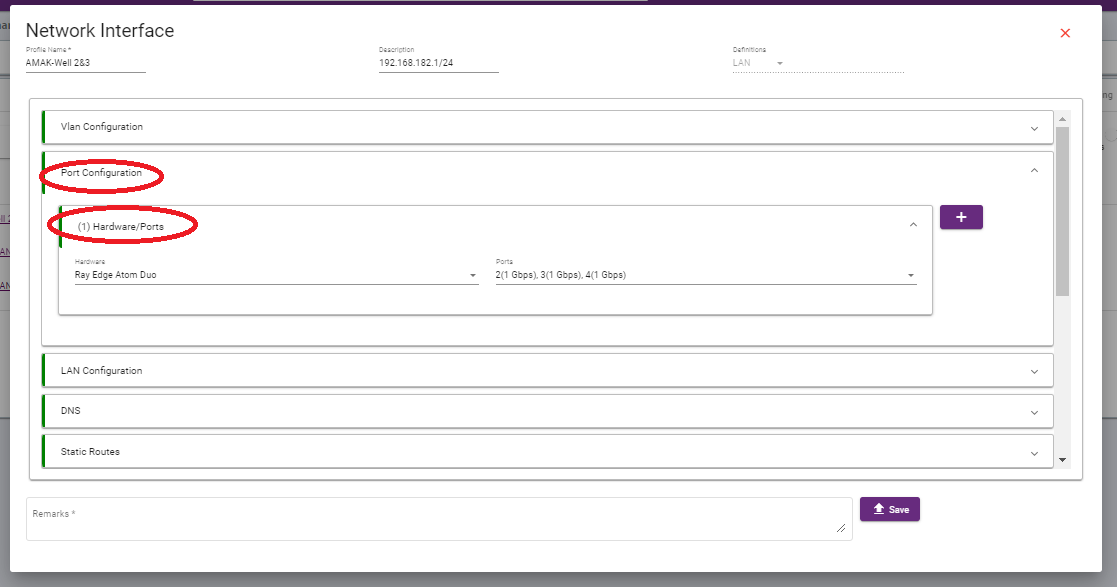
3. Hardware ports in the Network interfaces.
Validate the make model of the device in the hardware ports of a profiles.
To check the hardware ports, Go to > Profiles > Network Interfaces > port configuration > hardware ports.
4. Debugging utilities
When troubleshooting network issues on Ray devices, it’s important to follow a systematic approach to identify and resolve the problem. RAY.Life allows you to do initial troubleshooting of the network on the RAY Controller.
To learn more about Debugging utilities kindly follow the below link.
https://support.ray.life/en/support/solutions/articles/81000412686-network-troubleshooting-on-ray-devices-using-commands
Thank you,
Ray support Team