
IP Reservation (MAC Binding) Configuration Guide
IP Reservation, also known as MAC Binding, allows a specific IP address to be permanently assigned to a device based on its MAC address. Whenever the device connects to the network, the DHCP server identifies the MAC address and assigns the reserved IP address.
Benefits- Ensures consistent IP assignment for specific devices.
- Helps in device identification and network management.
- Useful for firewall rules, monitoring, and troubleshooting.
- Prevents IP address changes for important devices.
1. Login to the Ray management portal.
2. Navigate to Profiles from the top menu.
3. Select Network Interface.
4. Click + Create Network Interface.

1. Enter the required Profile Name.
2. Select DHCP Config from the Definitions option.

Step 3: Configure Static Lease (MAC Binding)
Configure the Static Lease entry with the following parameters:
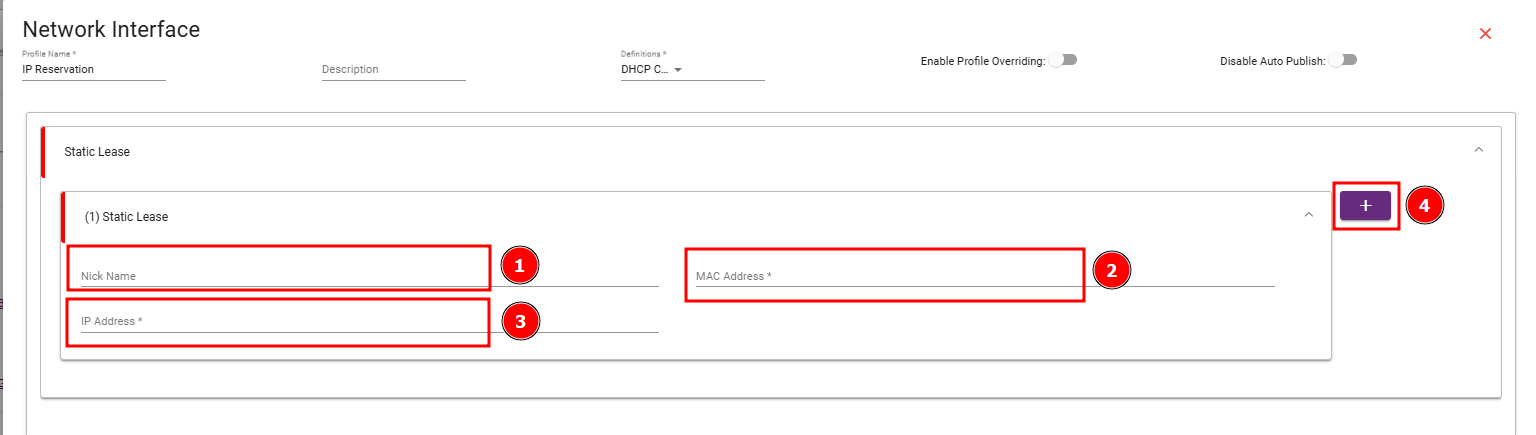
Add Multiple IP Reservations (Optional)
If additional devices require IP reservation:
- Click the “+” (Add) button.
- Create a new Static Lease entry.
Step 4: Save Configuration
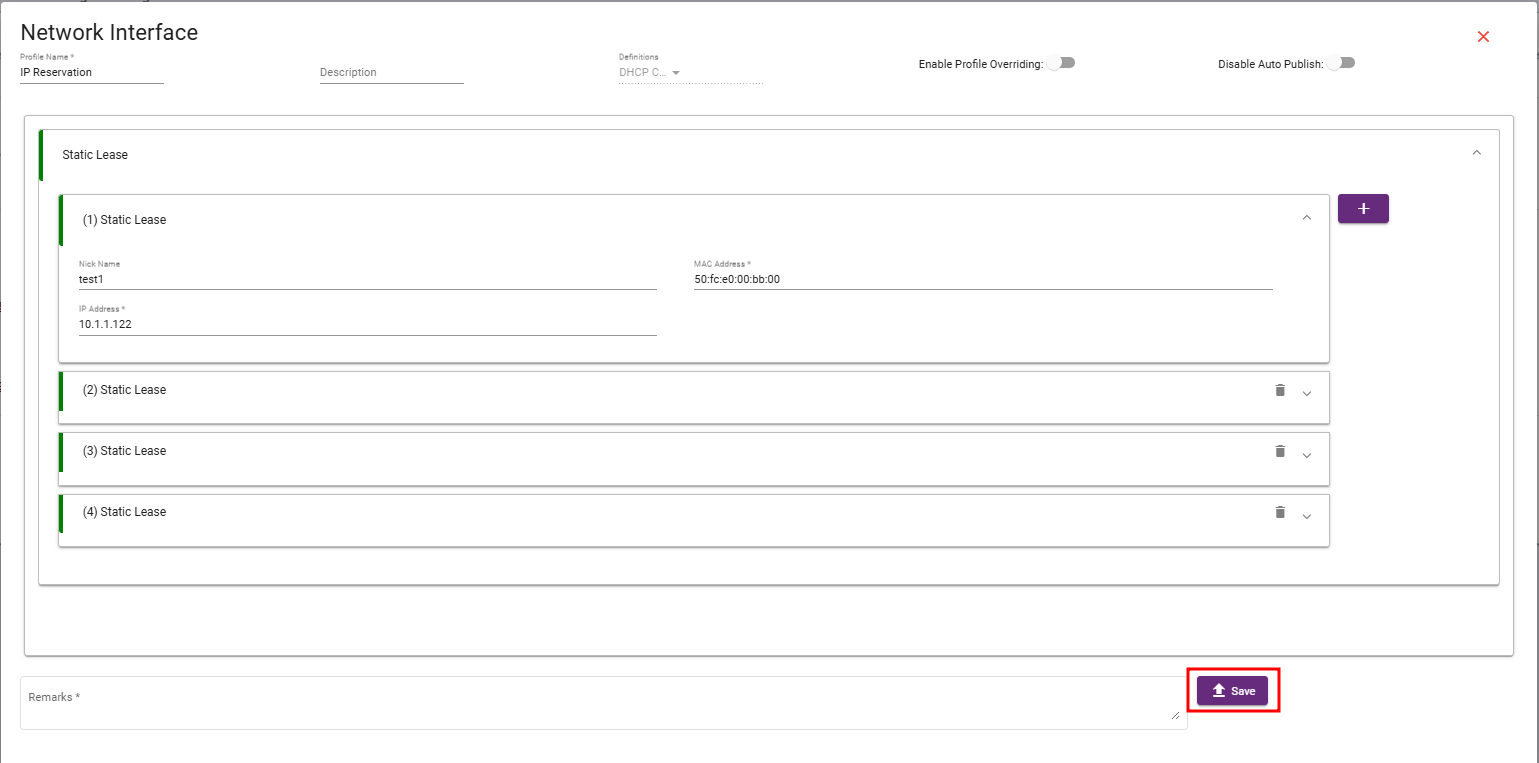
1. Verify the configured Static Lease details.
2. Confirm MAC Address and reserved IP address mapping.
3. Add remarks if required.
4. Click Save to apply the configuration.
Configuration Flow
Create Network Interface → Select DHCP Config → Add Static Lease → Configure MAC Address and Reserved IP → Save Configuration
Result
After successful configuration, the DHCP server will always assign the reserved IP address to the device with the configured MAC address. This completes the IP Reservation (MAC Binding) setup.