Configuring Active-Backup Link Aggregation (Bonding)
Overview
This configuration guide covers the deployment of a Bonding L2 Network Interface utilizing an Active-Backup policy, and its subsequent assignment to a LAN interface. The active-backup mode provides a 1:1 physical link redundancy architecture; traffic is forwarded over a single active interface while the secondary interface remains in a hot-standby state, immediately taking over if the primary link fails.
Part 1: Creating the Bonding L2 Network Interface
Navigate to Profiles > L2 Network Interface and click the + Create L2 Network Interface button located on the right side of the screen.

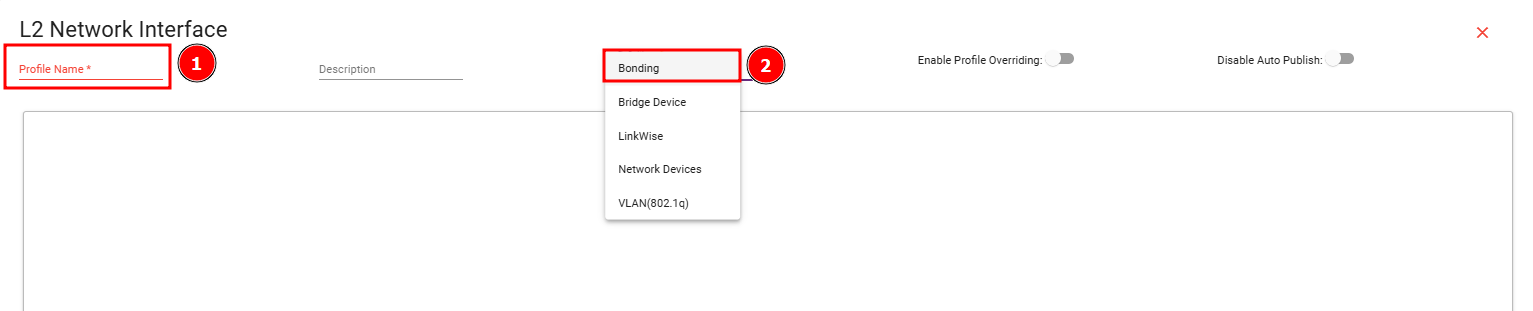
In the creation window, specify a name in the Profile Name * text field and select Bonding from the definitions dropdown menu next to the description.
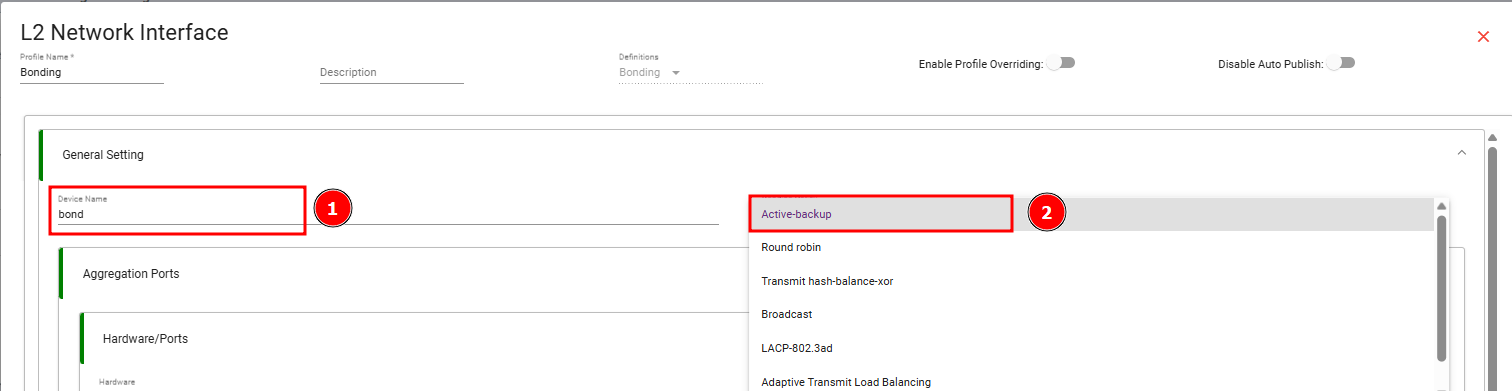
Under the General Setting section, enter a device identifier (e.g., “bond”) in the Device Name field and select Active-backup from the policy dropdown menu on the right.
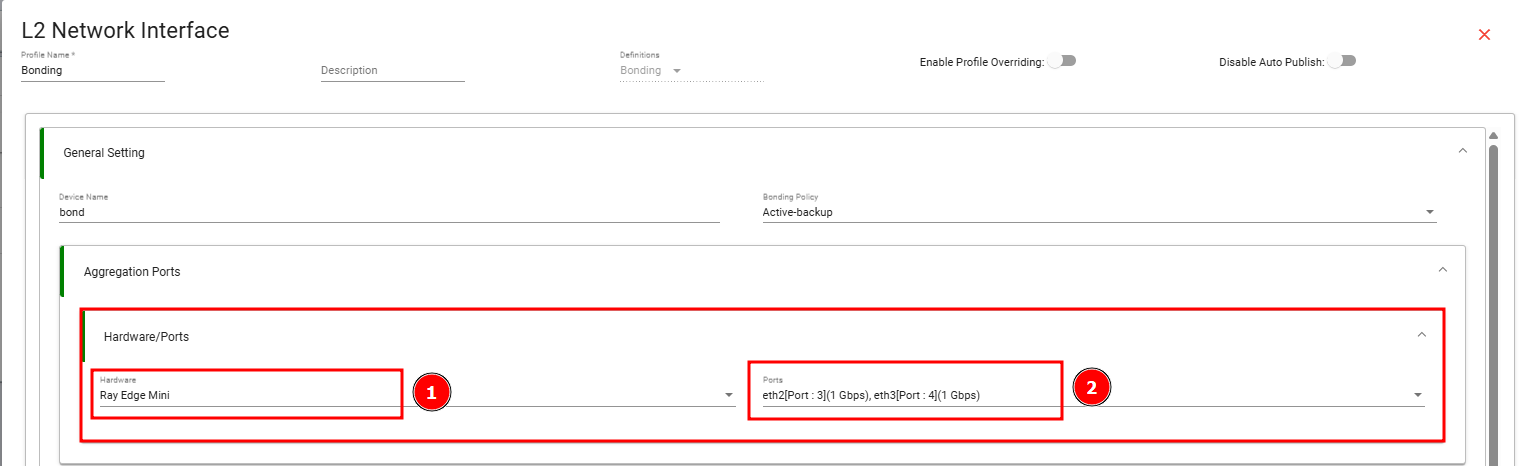
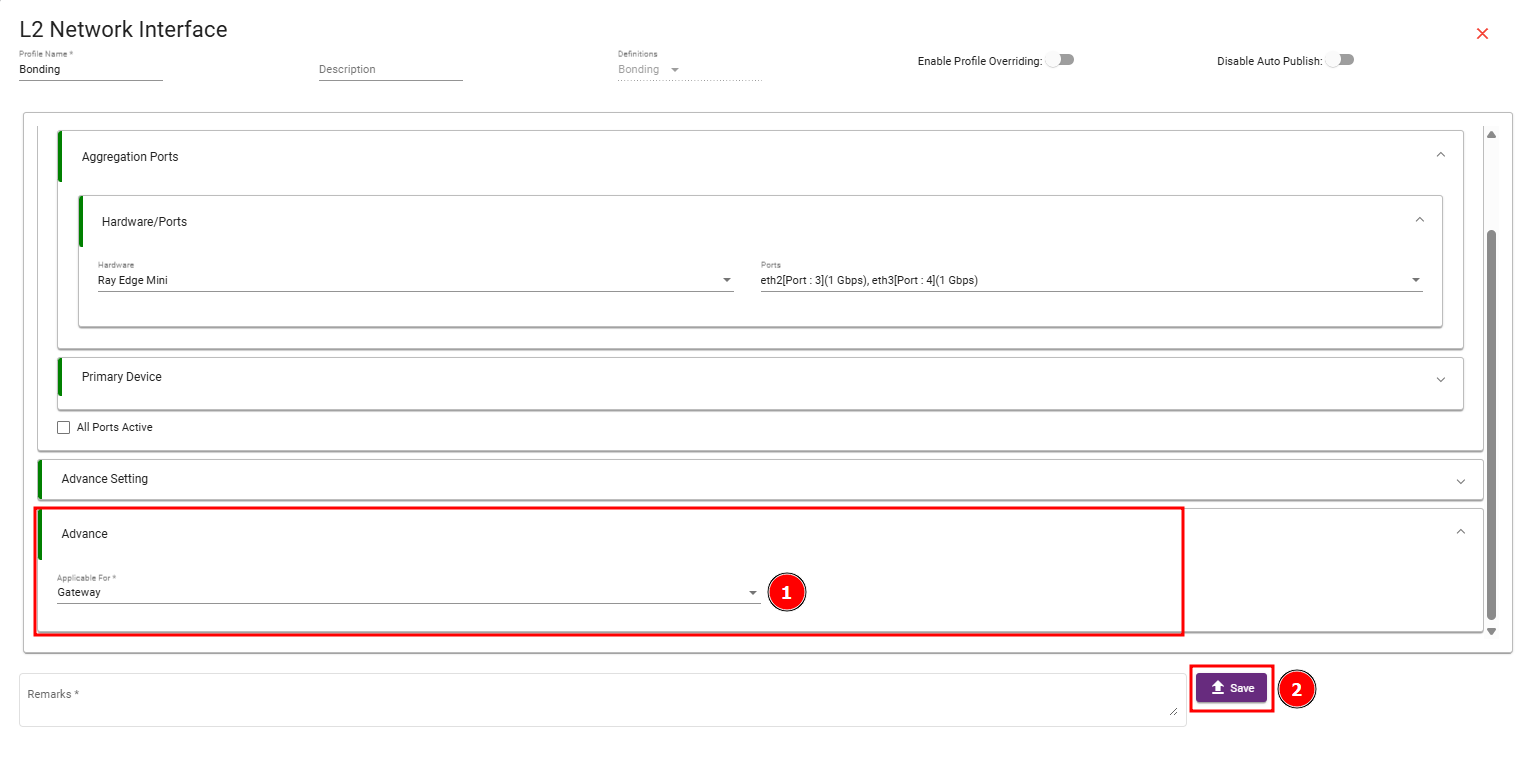
Expand the Aggregation Ports section to define the physical links, select your target appliance (e.g., Ray Edge Mini) from the Hardware dropdown within the Hardware/Ports block, and choose the interfaces you wish to bond (e.g., eth2[Port : 3](1 Gbps) and eth3[Port : 4](1 Gbps)) from the Ports dropdown.
Scroll down and expand the Advance Setting section, select Gateway from the Applicable For * dropdown menu, and click the Save button at the bottom right to apply the L2 profile configuration.
Part 2: Assigning the Bonded Interface to the LAN
Return to the secondary navigation bar under the Profiles tab, select Network Interface, and click the + Create Network Interface button on the right.

Scroll down and expand the Attach L2 Profiles section, select your newly created hardware profile (e.g., Ray Edge Mini:Bonding) from the Hardware dropdown in the hardware definition block, and select Bonding from the L2 Definations dropdown menu.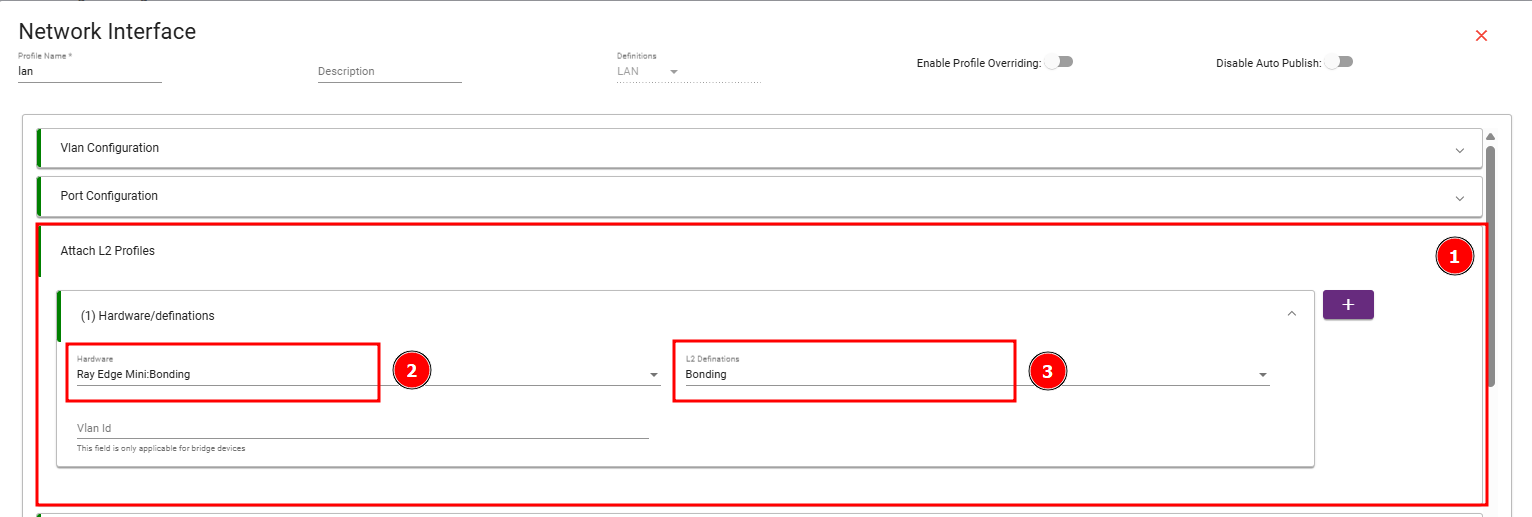
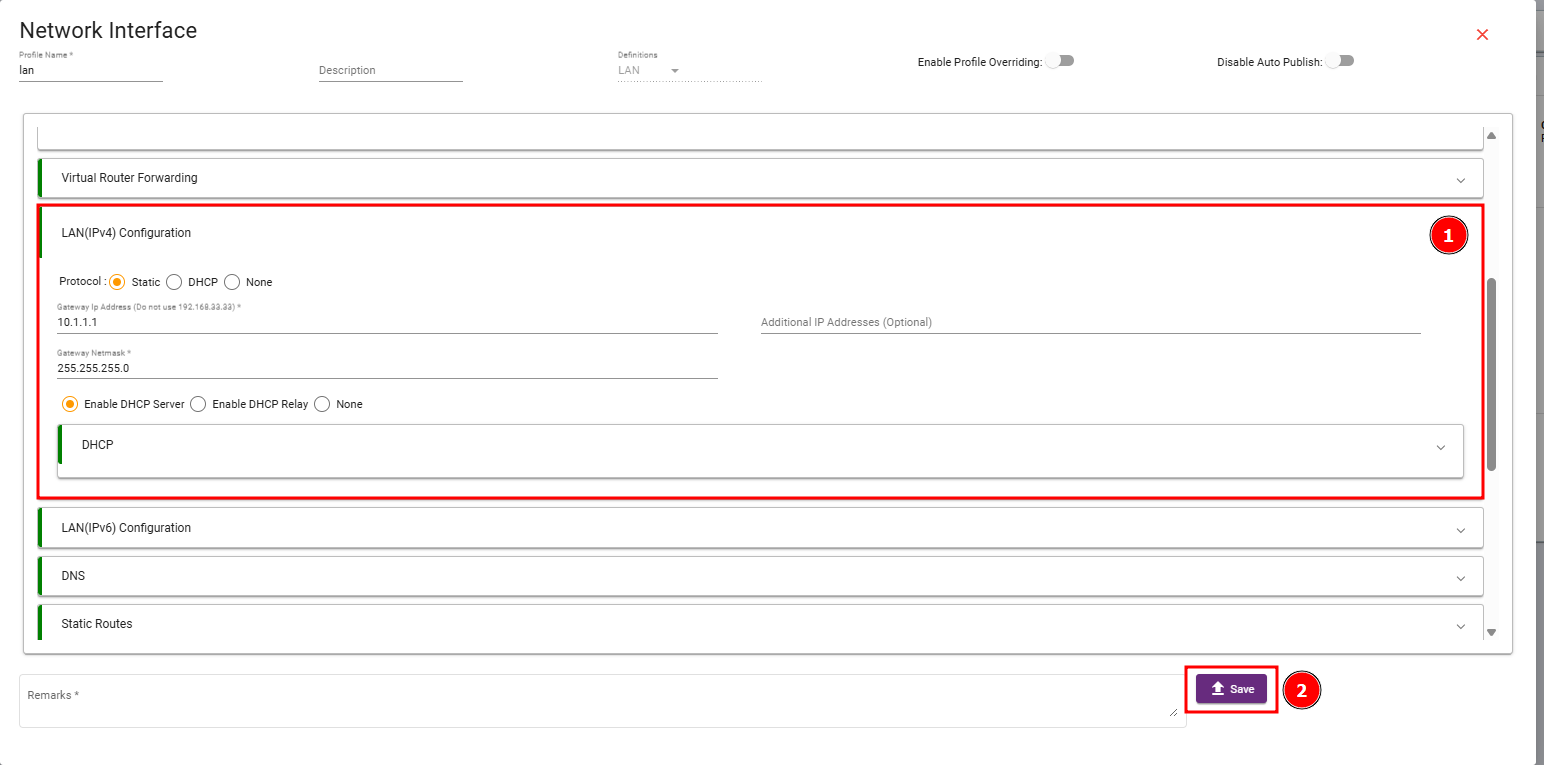
Expand the LAN(IPv4) Configuration section to define your IP routing parameters, and click the Save button at the bottom right