Configuring Speed and Duplex Settings on Devices
Understanding and manually configuring network port speeds and duplex settings is a critical troubleshooting step for resolving communication mismatches and maintaining optimal network performance across your infrastructure.
Understanding Speed and Duplex
Before modifying port configurations, it is helpful to understand how these fundamental settings dictate the flow of network traffic.
-
Speed: This dictates the maximum rate at which data travels across the physical link, typically measured in Megabits per second (Mbps) or Gigabits per second (Gbps). Both connected devices must support the configured speed to establish a stable link.
-
Half-Duplex: Devices can send and receive data, but strictly one direction at a time. If both devices attempt to transmit simultaneously, a data collision occurs, forcing a re-transmission and slowing down the network.
-
Full-Duplex: Devices can send and receive data simultaneously. This prevents data collisions entirely and effectively doubles the potential bandwidth of the connection.
Step-by-Step Configuration Guide
By default, network hardware utilizes Autonegotiation to automatically agree on the highest shared speed and full-duplex capability. If a mismatch occurs, use the following steps to manually hardcode the duplex settings on your Ray Edge hardware.
Step 1: Verify the Assigned Port
Before creating a new interface configuration, verify the exact hardware and port designation for the network you wish to modify.
-
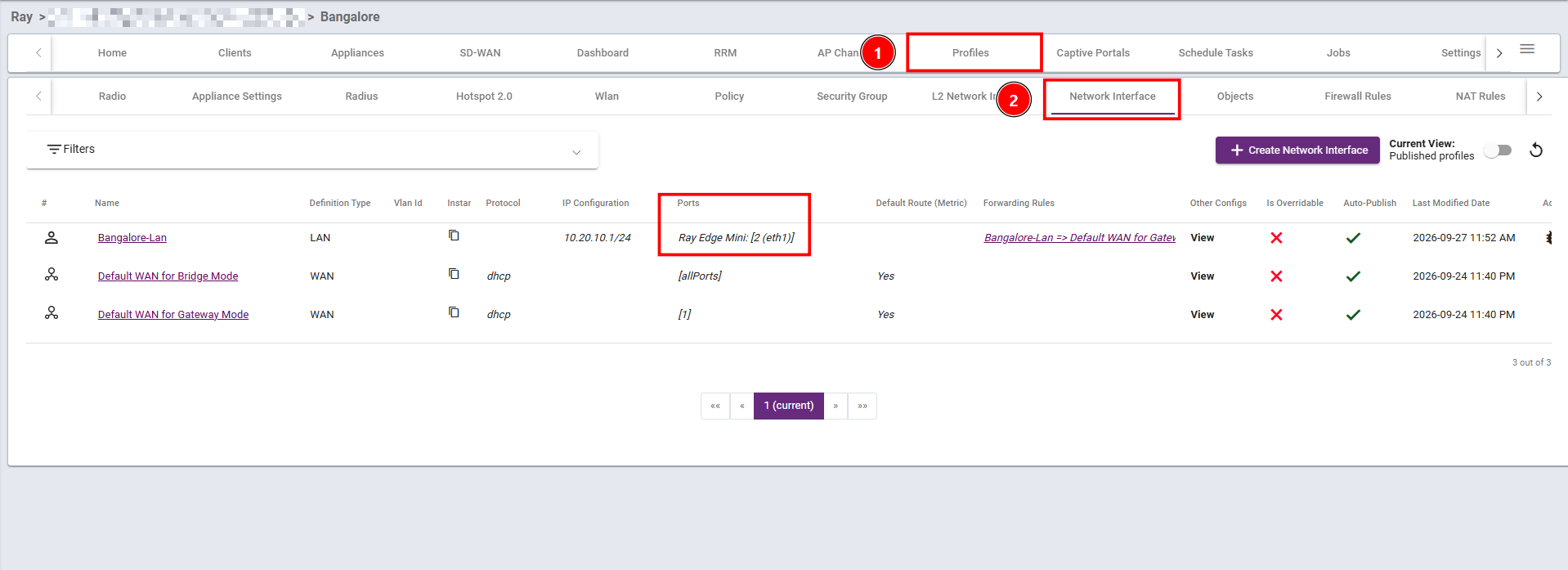
Navigate to the Profiles tab in the top menu bar.
-
Select Network Interface from the secondary menu.
-
In the list of interfaces, locate your target network.
-
Check the Ports column to note the assigned hardware and port.
Step 2: Create an L2 Network Interface
-
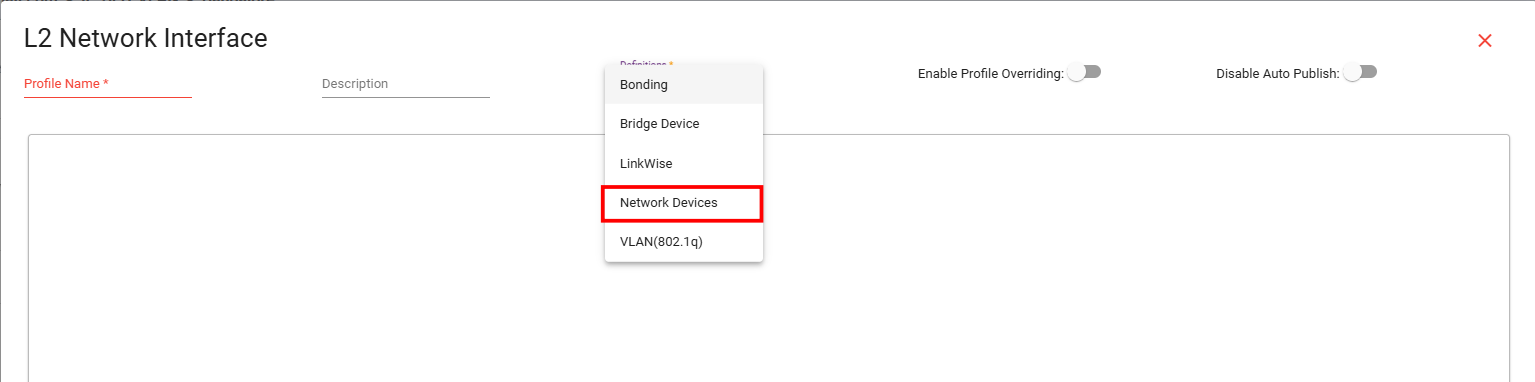
While still under the Profiles tab, select L2 Network Interface from the secondary menu.
-
Click the + Create L2 Network Interface button on the right side of the dashboard.
While still under the Profiles tab, select L2 Network Interface from the secondary menu.
Click the + Create L2 Network Interface button on the right side of the dashboard.

-
In the interface creation window, click the definitions dropdown menu in the center of the screen and select Network Devices.
Step 3: Assign Hardware and Port Settings
-
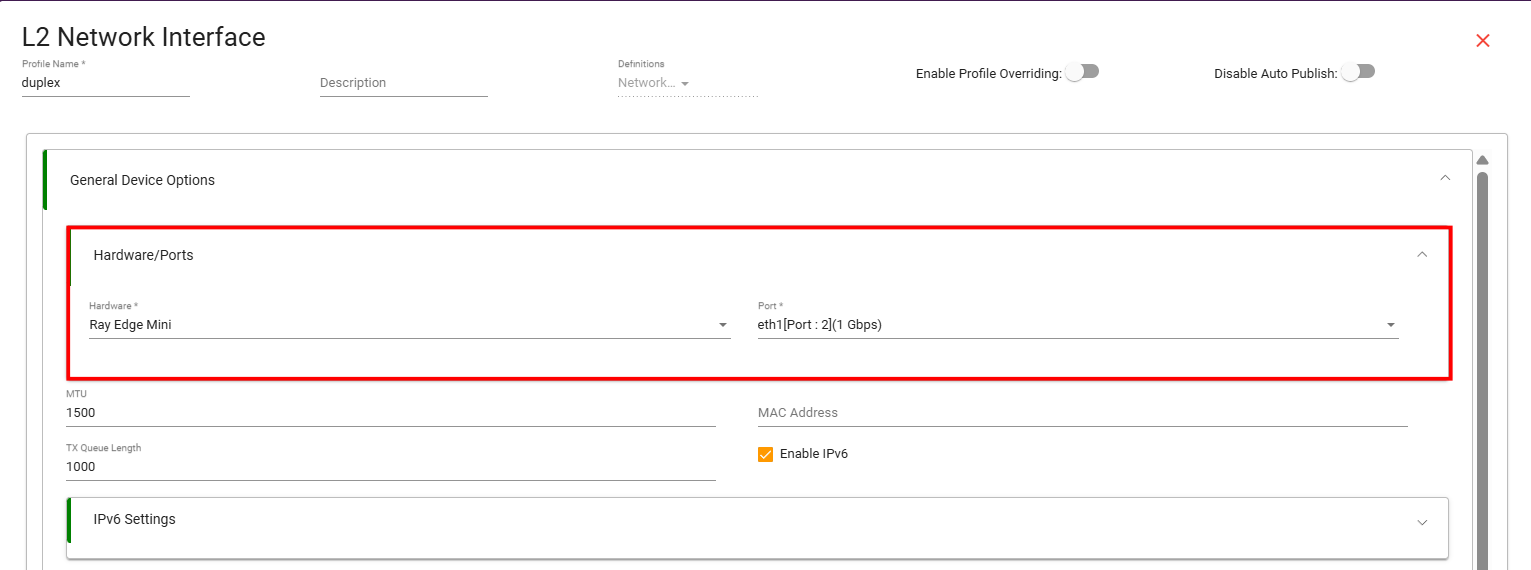
In the L2 Network Interface form, scroll down to the General Device Options section.
-
Under the Hardware/Ports header, click the Hardware dropdown and select the equipment you verified in Step 1.
-
Click the Port dropdown and select the exact port you verified in Step 1.
In the L2 Network Interface form, scroll down to the General Device Options section.
Under the Hardware/Ports header, click the Hardware dropdown and select the equipment you verified in Step 1.
Click the Port dropdown and select the exact port you verified in Step 1.
Step 4: Apply Speed and Duplex
-
Scroll further down the page to the Advanced Device Options section.
-
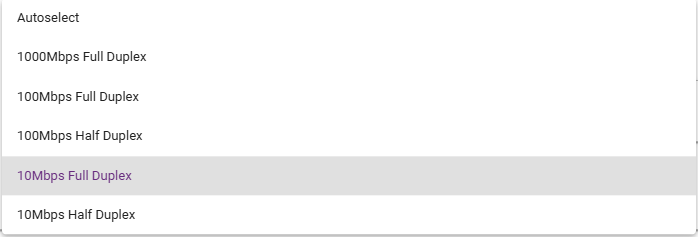
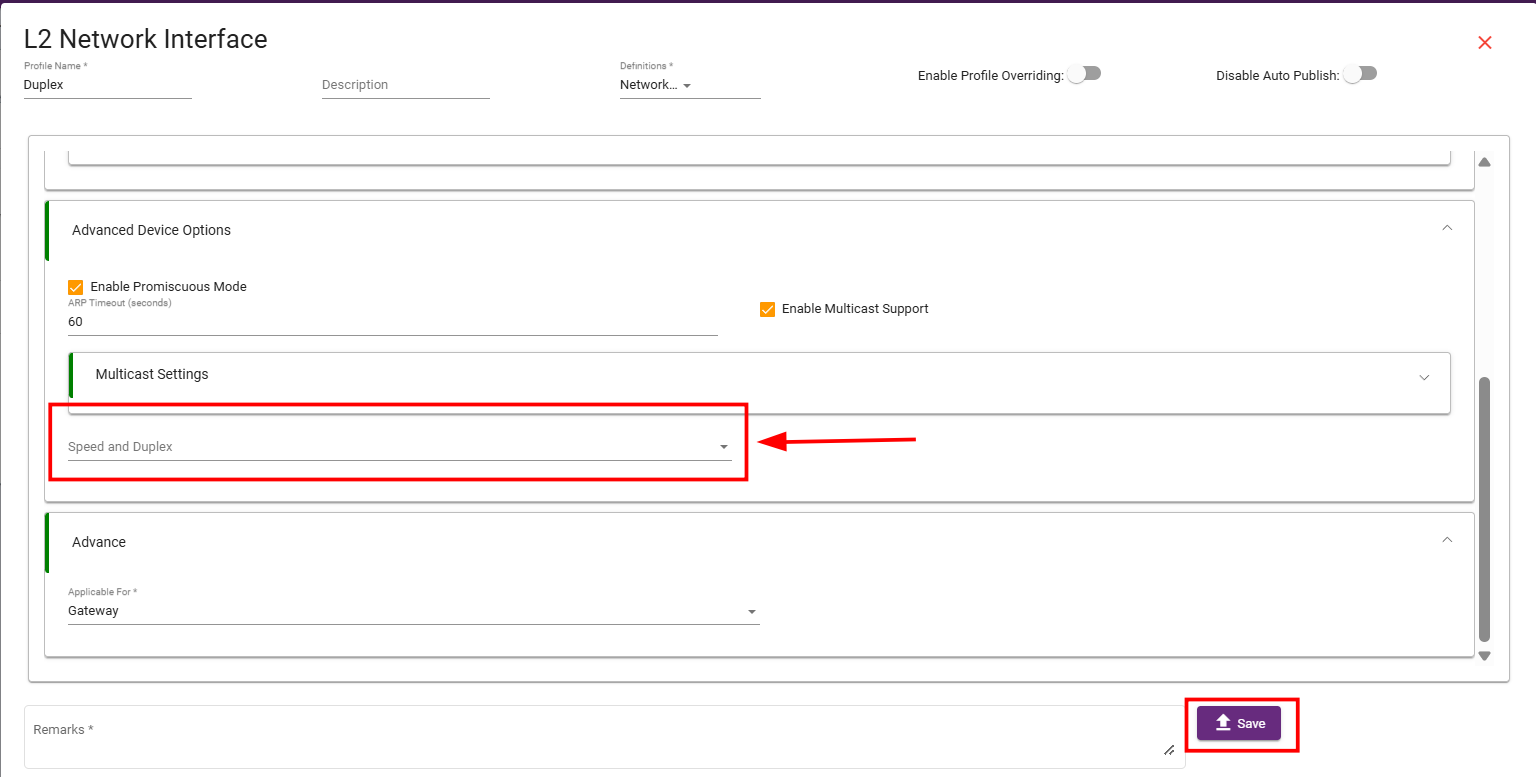
Locate and click on the Speed and Duplex dropdown menu.
Scroll further down the page to the Advanced Device Options section.
Locate and click on the Speed and Duplex dropdown menu.
-
Select your required setting and Save it.