
Enable Authenticator App in Ray Cloud
Last updated: Oct 22, 2026
Objective This document explains how to enable the Authenticator App feature in Ray Cloud to protect your account with an additional layer...
Objective
This document explains how to enable the Authenticator App feature in Ray Cloud to protect your account with an additional layer of security. Once enabled, users must enter a verification code generated by their authenticator application when logging in.
PrerequisitesBefore starting the configuration, ensure that you have:
- An active Ray Cloud account.
- An authenticator application installed on your mobile device, such as Microsoft Authenticator or Google Authenticator.
- Access to the Ray Cloud Dashboard.
- A stable internet connection.
- Log in to the Ray Cloud Dashboard using your registered account credentials.
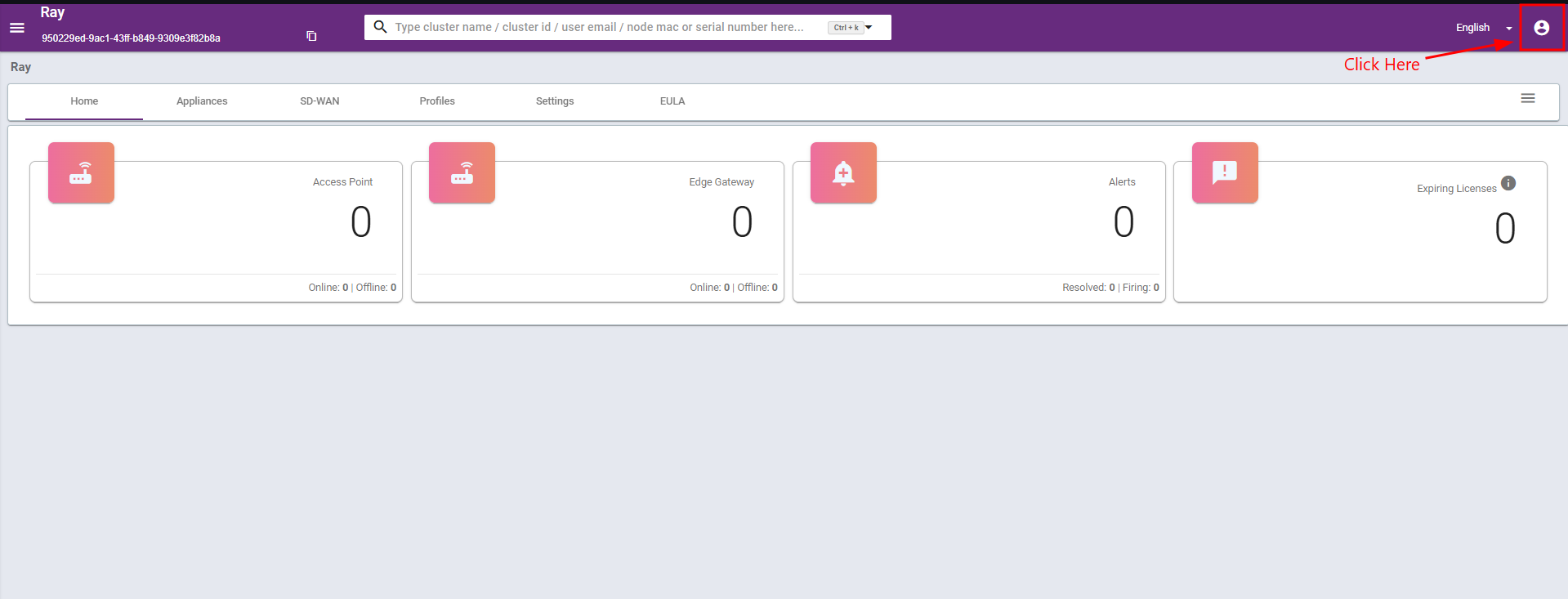
- Click the Profile icon in the top-right corner.
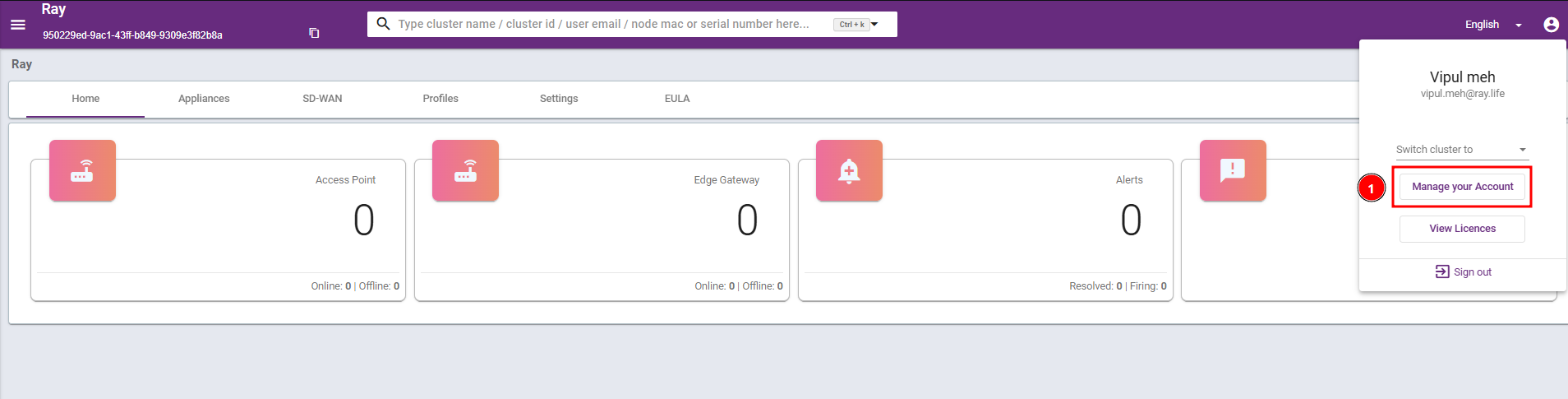
- Select Manage Your Account from the profile menu.
Step 2: Navigate to Security Settings
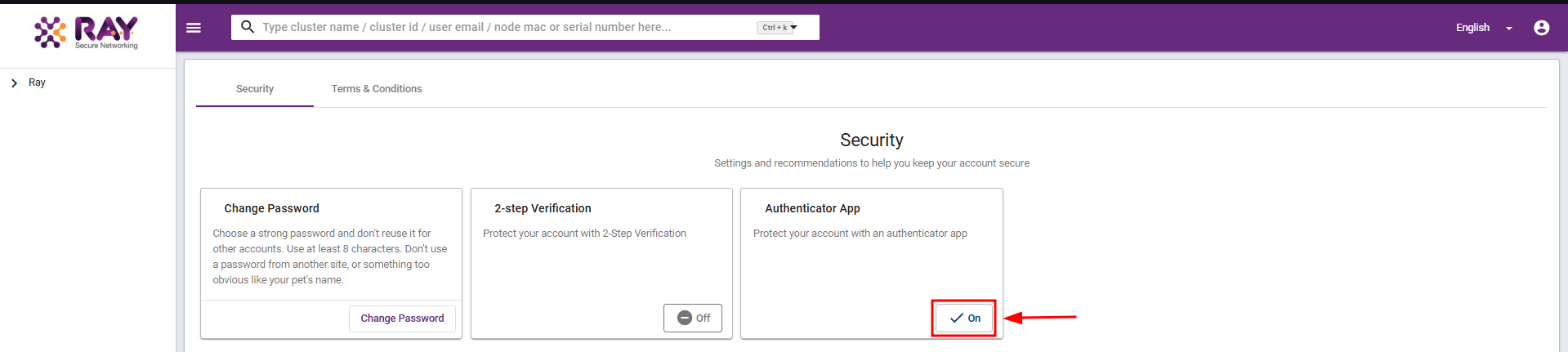
- On the account management page, open the Security tab.
- Locate the Authenticator App section.
- Review the description: “Protect your account with an authenticator app.”
- Click the Off status button to start enabling the feature.
Step 3: Configure the Authenticator App
- Open the authenticator application on your mobile device.
- Select the + (Add account) option.
- Choose the option to scan a QR code.
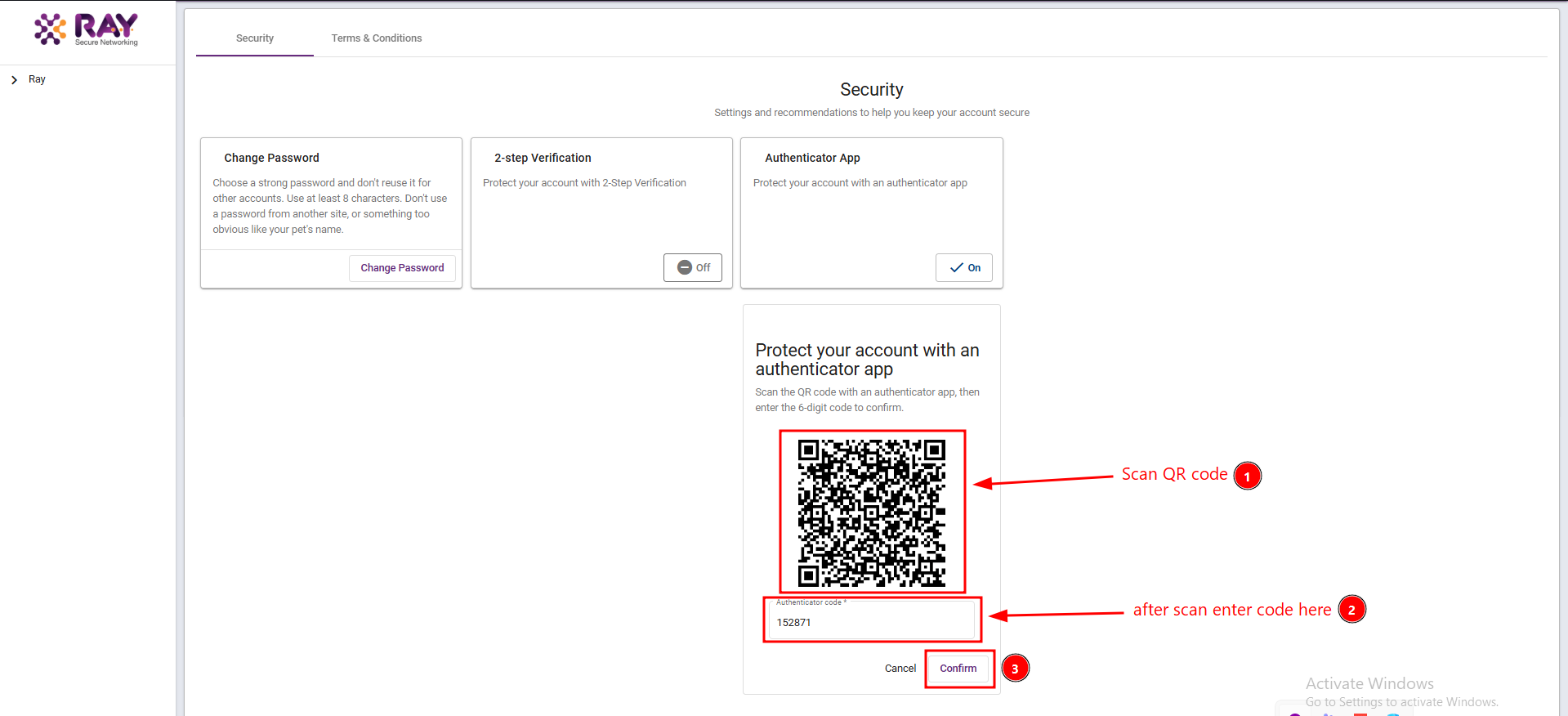
- Scan the QR code displayed in the Ray Cloud Authenticator App setup window.
- After scanning, the Ray Cloud account will be added to the authenticator application.
- Retrieve the current six-digit verification code generated by the application.
- Return to the Ray Cloud setup window.
- Enter the six-digit code in the Authenticator code field.
- Click Confirm to complete the authenticator configuration.
 Step 4: Confirm That the Authenticator App Is Enabled
- After completing the configuration, check the Authenticator App section on the Security page.
- Confirm that the status displays On.
- Verify that the authenticator application continues to generate verification codes for the Ray Cloud account.
Step 3: Configure the Authenticator App
- Open the authenticator application on your mobile device.
- Select the + (Add account) option.
- Choose the option to scan a QR code.
- Scan the QR code displayed in the Ray Cloud Authenticator App setup window.
- After scanning, the Ray Cloud account will be added to the authenticator application.
- Retrieve the current six-digit verification code generated by the application.
- Return to the Ray Cloud setup window.
- Enter the six-digit code in the Authenticator code field.
- Click Confirm to complete the authenticator configuration.
Step 4: Confirm That the Authenticator App Is Enabled
- After completing the configuration, check the Authenticator App section on the Security page.
- Confirm that the status displays On.
- Verify that the authenticator application continues to generate verification codes for the Ray Cloud account.
- Open the authenticator application on your mobile device.
- Select the + (Add account) option.
- Choose the option to scan a QR code.
- Scan the QR code displayed in the Ray Cloud Authenticator App setup window.
- After scanning, the Ray Cloud account will be added to the authenticator application.
- Retrieve the current six-digit verification code generated by the application.
- Return to the Ray Cloud setup window.
- Enter the six-digit code in the Authenticator code field.
- Click Confirm to complete the authenticator configuration.
Step 4: Confirm That the Authenticator App Is Enabled
- After completing the configuration, check the Authenticator App section on the Security page.
- Confirm that the status displays On.
- Verify that the authenticator application continues to generate verification codes for the Ray Cloud account.
The Authenticator App is now enabled for your Ray Cloud account.
Step 5: Validate the Login Process- Log out of the Ray Cloud Dashboard.
- Open the Ray Cloud login page again.
- Enter your registered account credentials.
- When the 2-Step Verification page appears, open your authenticator application.
- Enter the current six-digit verification code in the verification field.
- Click Next to complete verification.
- Confirm that you can successfully access the Ray Cloud Dashboard.
Confirm that the following checks are successful:
- The Authenticator App feature is enabled in Ray Cloud.
- The Ray Cloud account is configured in the authenticator application.
- The Authenticator App status displays On.
- The login process requests a verification code.
- The verification code is accepted.
- Login is completed successfully.
- Once Authenticator App protection is enabled, users must provide the required verification code during subsequent logins.
- Ensure that the authenticator application is configured correctly before enabling the feature.
- Keep the authenticator setup QR code and verification codes confidential.
- Ensure that you retain access to the authenticator application.
- If the authenticator device is lost or unavailable, contact the Ray support or administrator team for assistance.
- If disabling the Authenticator App requires deleting and recreating the user account under the current Ray Cloud process, consult the administrator before proceeding.
The Authenticator App feature helps protect Ray Cloud accounts by adding an extra verification step during login. Following this guide enables users to configure the authenticator application, enable account protection, and validate successful login using a six-digit verification code.
What are your feelings
🙂😐🙁