
DNS Configuration Guide for Ray Device LAN Setup
The Domain Name System (DNS) is an essential service that enables the translation of domain names into IP addresses, allowing computers to locate each other over the internet. When setting up your LAN configuration on the Ray device, you have three options for DNS settings: Default, Custom, and None.
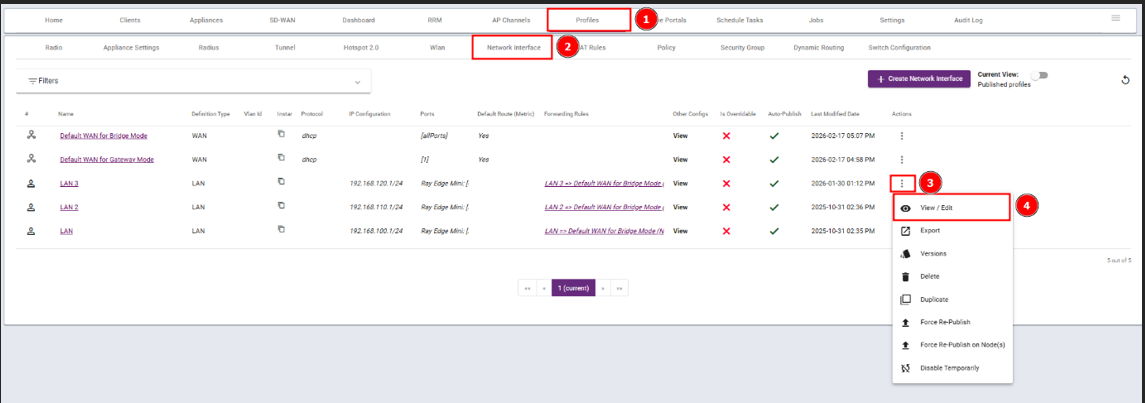
Steps 1: Navigate to the Profiles and click Network Interface and select View / Edit.
Step 2: Scroll down and click on DNS.
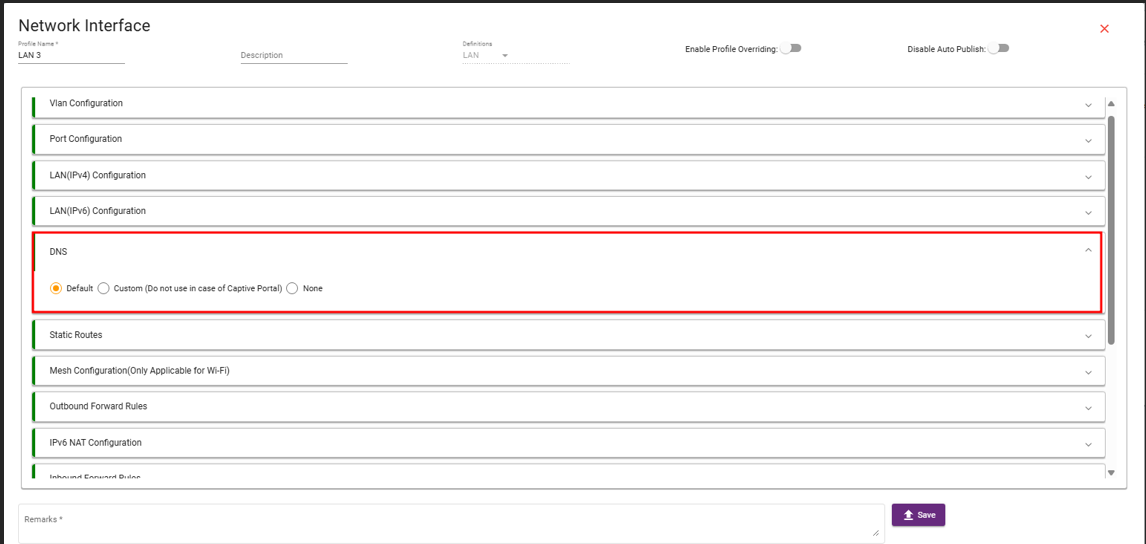
- Default DNS Configuration
When the Default option is selected, the Ray device will automatically use the DNS servers provided by the internet service provider (ISP). This is typically the simplest option and works well for most home and office networks.
- What happens: The Ray device will automatically obtain DNS settings from the ISP.
- When to use: Recommended for most users who don’t need to customize DNS settings.
- Steps:
- Access the LAN configuration page on the Ray device controller.
- Select the Default option for DNS.
- Save and apply the changes.

- Custom DNS Configuration
The Custom option allows you to specify your own DNS servers. This is useful when you want to use specific DNS providers like Google DNS, OpenDNS, or a private DNS server for better performance, security, or privacy.
- What happens: The Ray device will use the DNS servers you manually configure.
- When to use: Recommended if you prefer using third-party DNS services or need to configure DNS settings for a specific use case (e.g., faster DNS resolution or added security features).
- Steps:
- Access the LAN configuration page on the Ray device controller.
- Select the Custom option for DNS.
- Enter the preferred DNS server addresses (e.g., 8.8.8.8 for Google DNS or 1.1.1.1 for Cloudflare).
- Save and apply the changes.

- None (No DNS Configuration)
Selecting None means that the Ray device will not use a DNS server. This option is typically used in advanced setups where the device is manually configured to handle name resolution via another method or when no DNS resolution is required.
- What happens: DNS settings are left unconfigured, and domain names cannot be resolved unless another DNS service is manually set up.
- When to use: Suitable for specific advanced configurations or when you’re setting up DNS resolution through a different method.
- Steps:
- Access the LAN configuration page on the Ray device controller.
- Select the None option for DNS.
- Save and apply the changes.
