
Authenticate a Second Device Using the Authenticator App
Overview
This document explains how to log in to Ray Cloud from a second device after the Authenticator App has been enabled on the account.
When Two-Factor Authentication (2FA) is enabled, users must enter a six-digit verification code in addition to their account credentials to complete the login process.
This guide covers the login and verification process on a second device. It does not cover the initial Authenticator App setup.
PrerequisitesBefore starting, ensure that you have:
- An active Ray Cloud account with Authenticator App protection enabled. If you have not enabled it yet, please follow the Enable Authenticator App in Ray Cloud guide before proceeding.
- The registered email address and password for the Ray Cloud account.
- Access to the authenticator application linked to the Ray Cloud account.
- A second device with a supported web browser.
- A stable internet connection.
Step 1: Log In to Ray Secure Networking
- Open the Ray Secure Networking portal in your browser.
- Enter your registered email address and password.
- Complete the initial login process.
- After successful login, the Ray dashboard will appear.
Step 2: Open the User Profile Menu
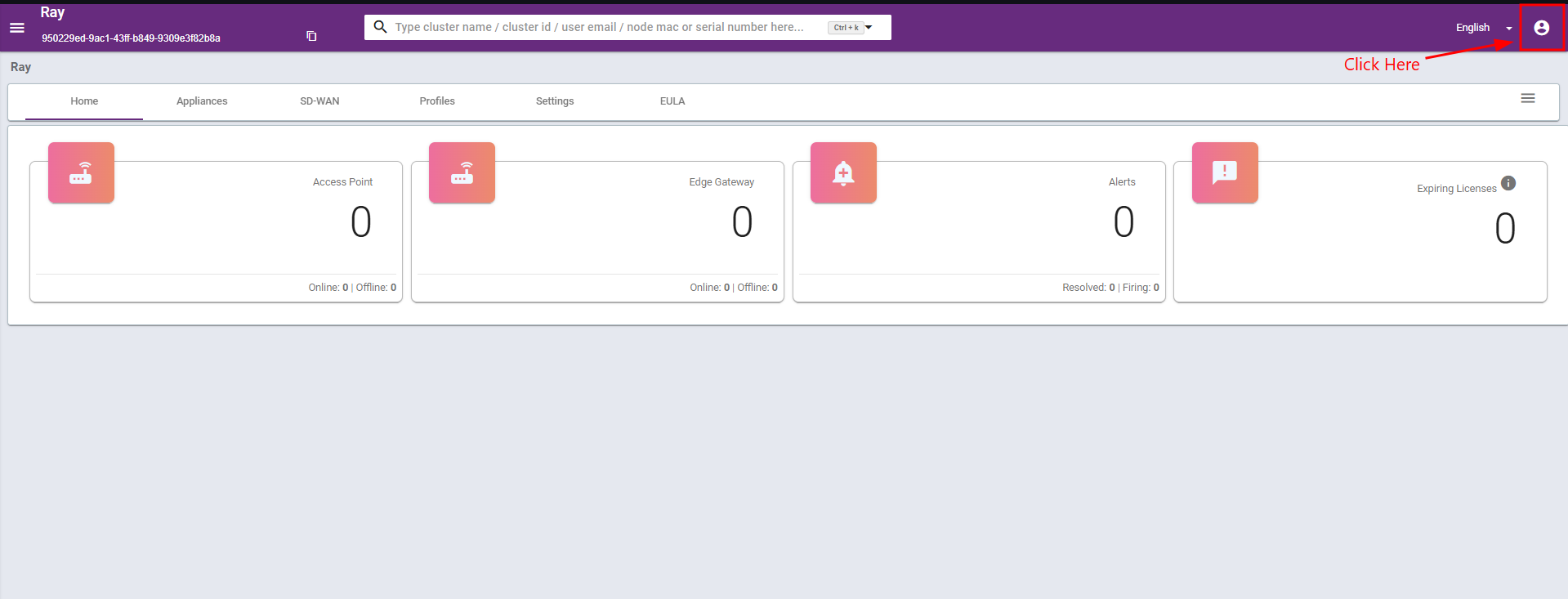
Locate the user profile icon in the top-right corner of the Ray dashboard.
Click the profile icon to open the user menu.
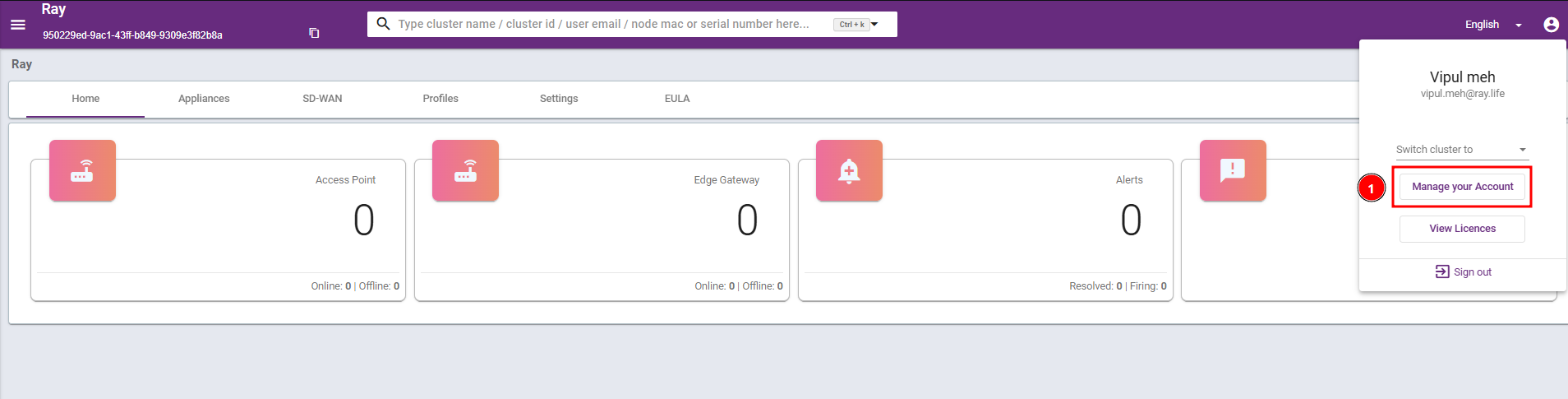
The profile menu will display your account information and available options.
Click “Manage your Account” to open the account management page.
Step 3: Open Account Security Settings
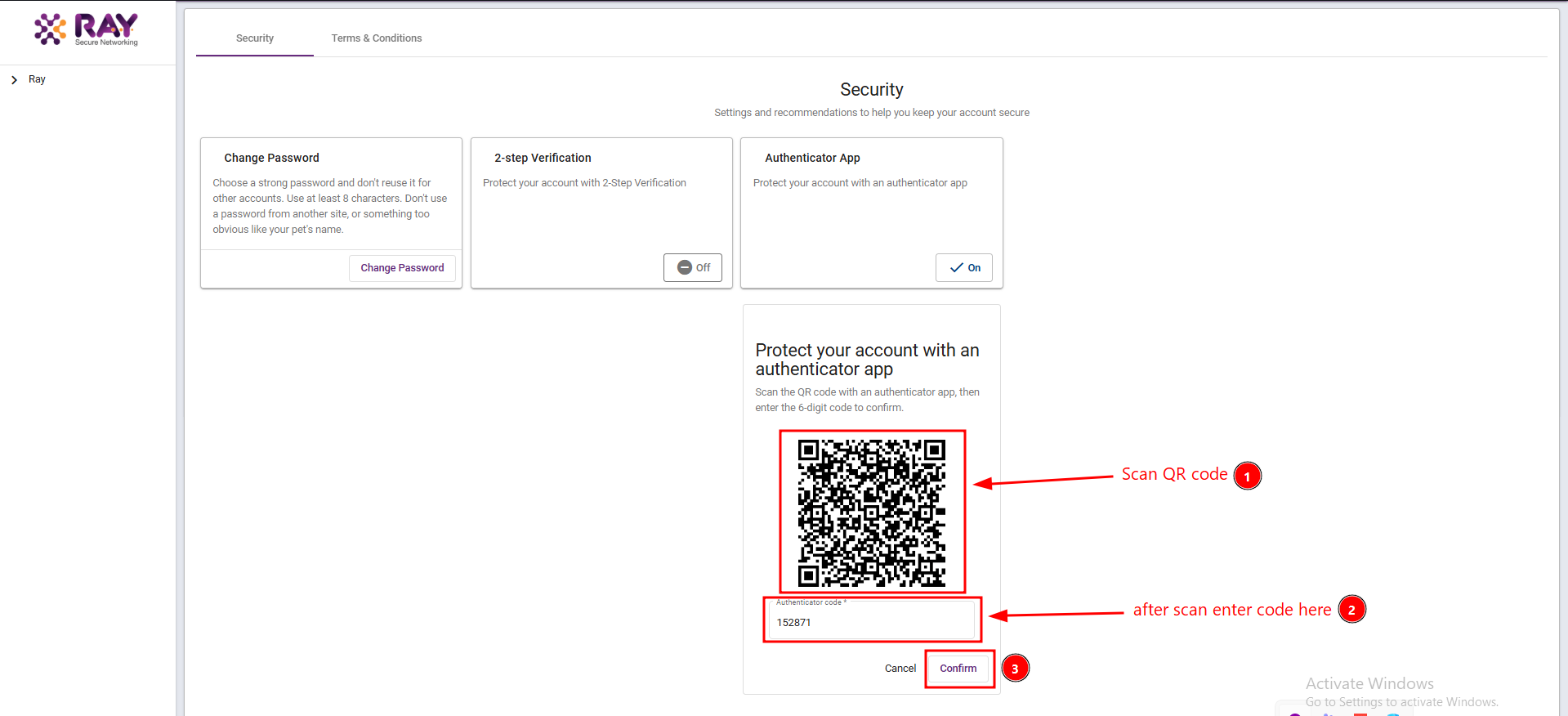
- On the account management page, open the “Security” tab.
- Locate the following security options:
- Change Password
- 2-step Verification
- Authenticator App
- Find the “Authenticator App” section.
- Make sure the Authenticator App option is enabled.
- A QR code will be displayed for authenticator configuration.
Step 4: Configure the Authenticator App on the Main Device
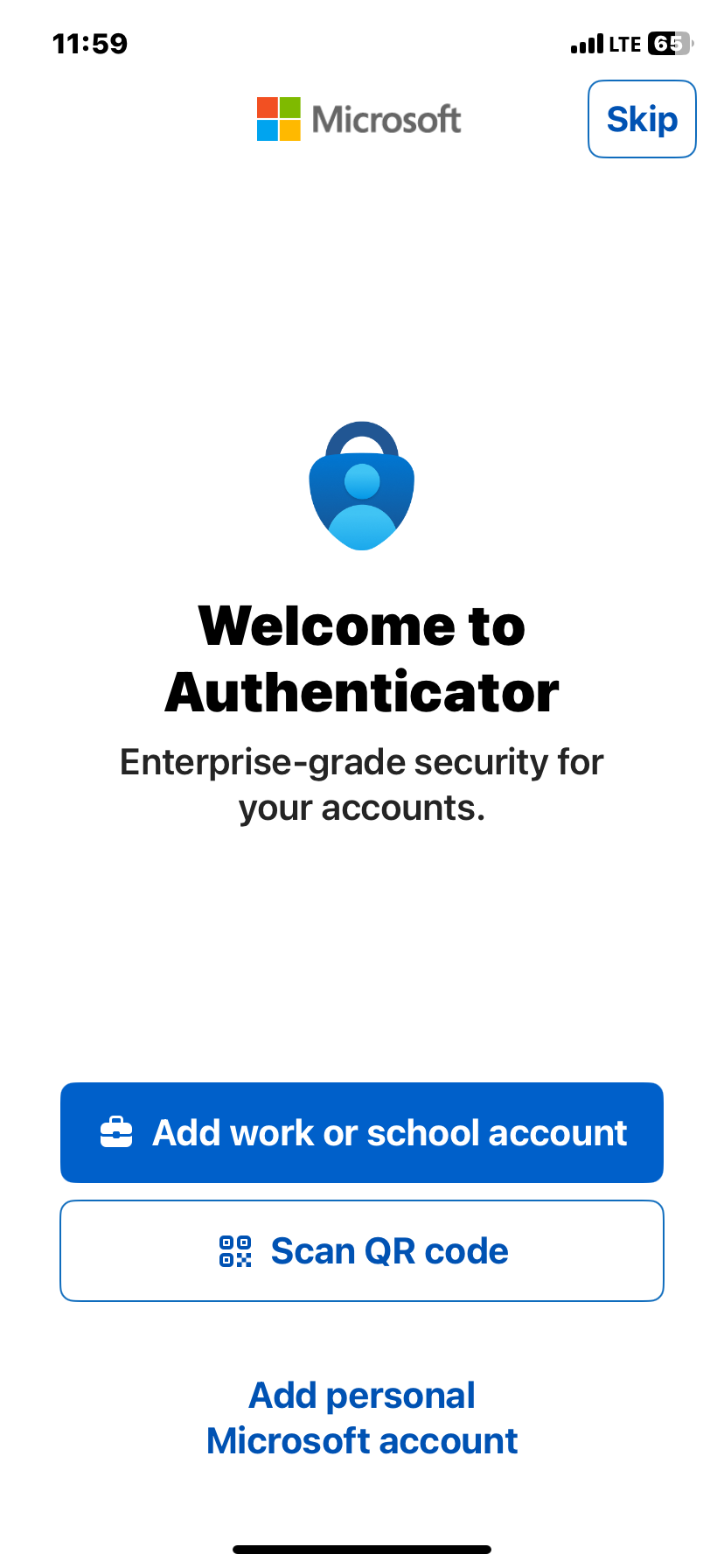
- Open the authenticator application on your main device.
- If required, complete the initial setup of the authenticator application.
- Select the option to add a new account.
- Choose “Scan a QR code”.
- Scan the QR code displayed on the Ray account security page.
- After scanning the QR code, the authenticator application will generate a 6-digit verification code.
- Return to the Ray account security page.
- Enter the 6-digit code in the “Authenticator code” field.
- Click “Confirm” to complete the configuration.
- Verify that the authenticator setup is successful.
The authenticator application is now linked to the Ray account.
Important: Keep the QR code and authenticator setup information secure. Do not share them with unauthorized users.
Validation
Verify the following after completing the login process:
- The correct Ray Cloud account credentials were used.
- The 2-Step Verification screen appeared after submitting the login credentials.
- The authenticator verification code was accepted.
- The Ray Cloud Dashboard opened successfully on the second device.
Troubleshooting Invalid Verification Code
If the verification code is rejected:
- Make sure you are using the authenticator application linked to the correct Ray account.
- Enter the latest 6-digit code displayed in the application.
- Make sure the code has not expired.
- If the issue persists, verify that the authenticator application and device time are synchronized.
- Make sure the authenticator application supports QR-code enrollment.
- Check that the QR code is fully visible on the screen.
- Ensure the camera has permission to access the QR code.
- If the QR code has expired or is no longer available, reopen the supported authenticator setup process.
Unable to Log In from the Second Device
- Verify that the correct Ray account credentials are being used.
- Ensure the authenticator code is generated by the authenticator linked to that account.
- Confirm that the code is entered before it expires.
- If the issue continues, contact the Ray support or administrator team.
Security Recommendations
- Never share your password, QR code, or verification code.
- Use only an authenticator application that you trust.
- Keep your main device secure.
- Configure the authenticator on another device only through the supported enrollment or recovery process.
- If your authenticator device is lost or compromised, contact your administrator or support team to recover access securely.
Conclusion
The Authenticator App provides an additional layer of security for Ray Secure Networking accounts.
By following this guide, users can configure the authenticator application, complete 2-Step Verification, and log in to Ray Secure Networking from a second device using a valid verification code.
Successful login confirms that the account credentials and authenticator verification process are working correctly.