
How to Configure a Static IP on an Access Point
Prerequisites & Login Credentials
To log in to the console page using either method, use the following default credentials:
URL / Gateway IP: [http://192.168.33.33/](http://192.168.33.33/)
Username: root (or ray)
Password: The device’s MAC address in lowercase without colons (e.g., a1b2c3d4e5f6)
Method 1: Wired Connection (via LAN Cable)
Use this method if you are physically connected to the Access Point using an Ethernet cable.
Connect your PC or laptop directly to the LAN port of the Access Point using a LAN cable.
If your computer does not automatically receive an IP address, manually set a static IP on your PC’s network adapter:
IP Address: 192.168.33.XX (choose any number from 1–254 except 33)
Subnet Mask: 255.255.255.0
Default Gateway: 192.168.33.33
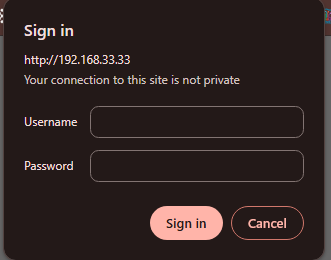
Open a web browser and navigate to [http://192.168.33.33/](http://192.168.33.33/).
Enter the login credentials:
Username: root or ray
Password: Device MAC address (lowercase, no colons)
Navigate to Configure WAN Settings.
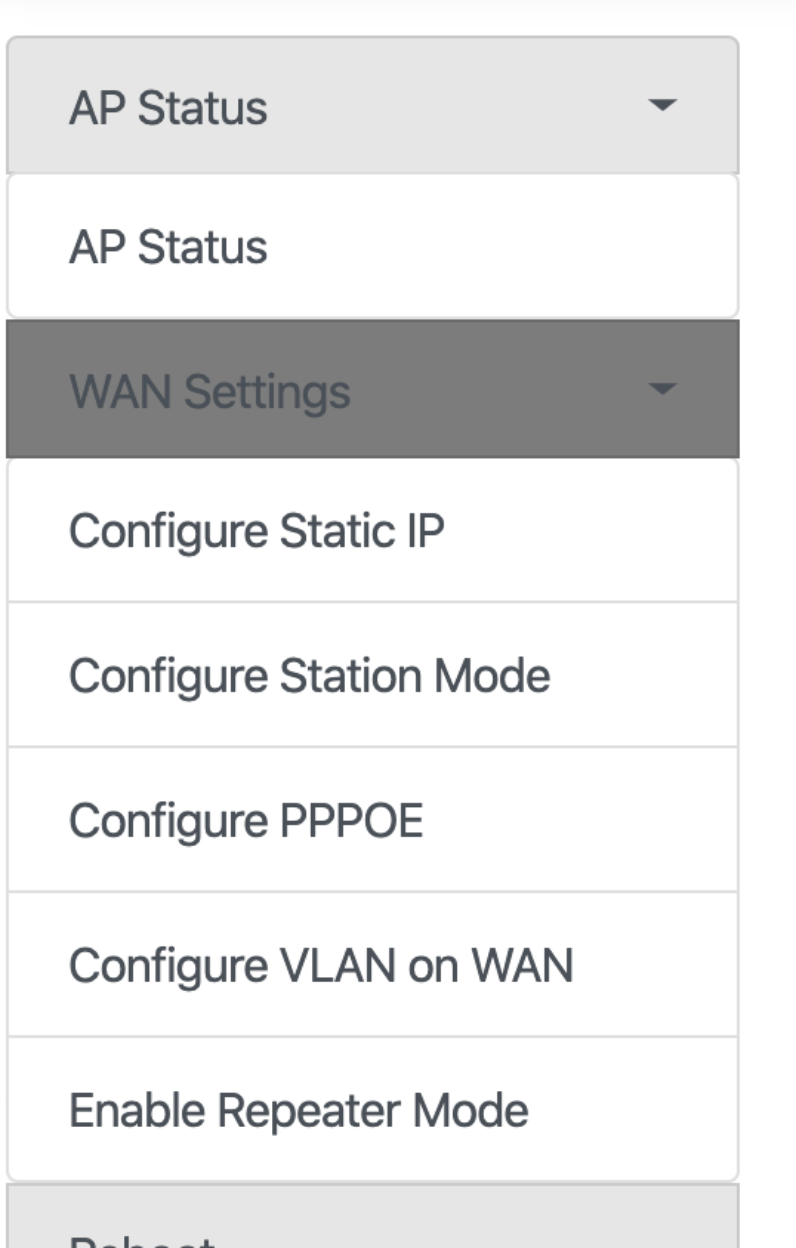
Change the WAN connection type to Static IP.
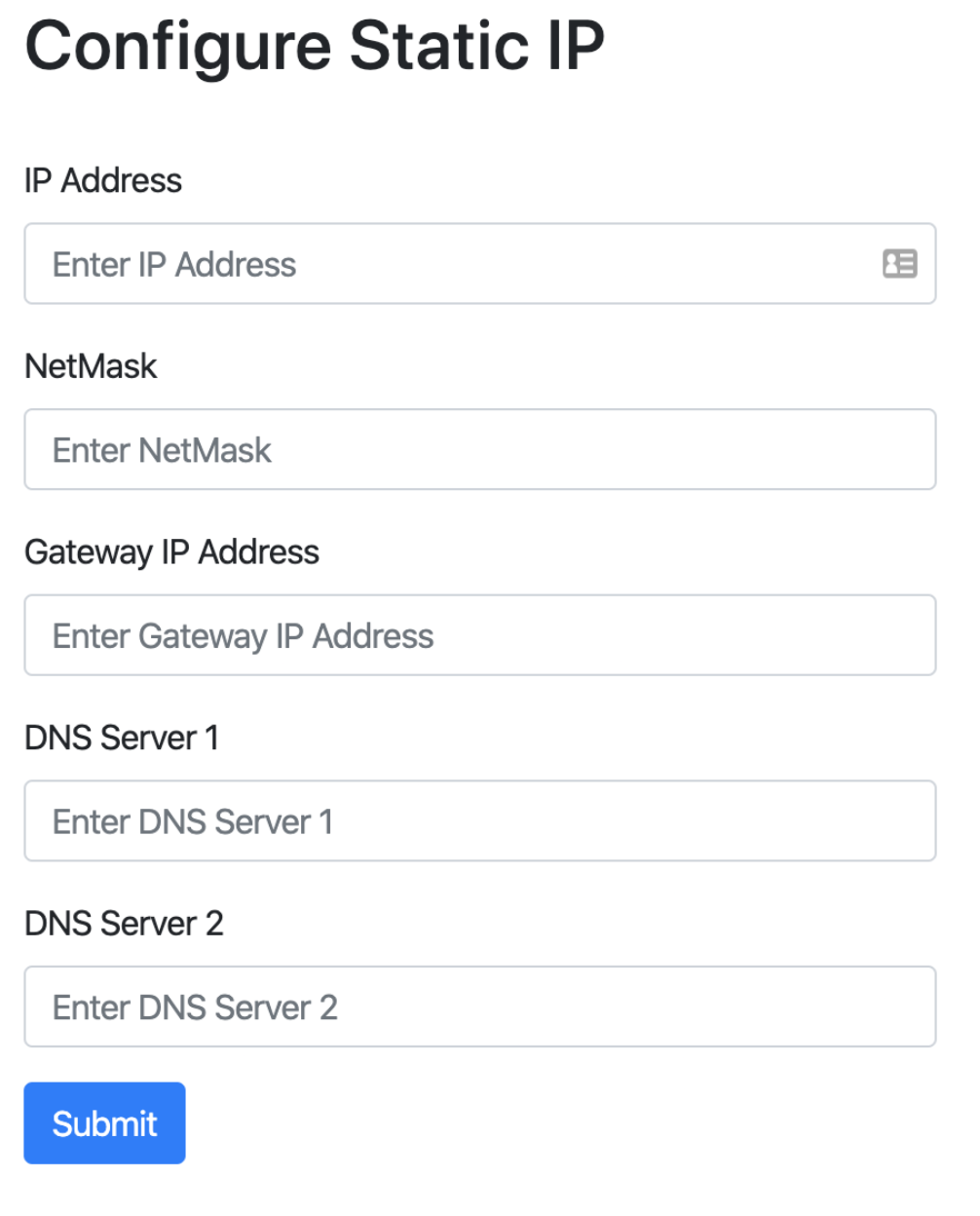
Enter your network’s required IP address, subnet mask, gateway, and DNS details.
Click Submit to save your changes.
Method 2: Wireless Connection (via Wi-Fi)
Use this method if you prefer to connect wirelessly without using an Ethernet cable.
When not receiving an IP via DHCP, the Access Point broadcasts a default SSID in the format WiFiXXXXXXXXXXXX (where XXXXXXXXXXXX is the device’s MAC address).
SSID: WiFi<MAC_Address>
Password: <MAC_Address> (lowercase, no colons)
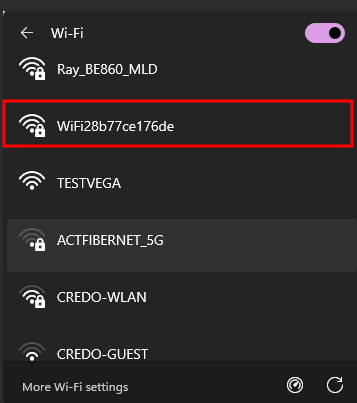
Once connected to the Wi-Fi network, open your web browser and go to [http://192.168.33.33/](http://192.168.33.33/).
Enter the credentials on the sign-in portal:
Username: root
Password: Device MAC address (lowercase, no colons)
Click on Configure WAN Settings.
Select Static IP as the WAN type.
Fill in the required IP address, subnet mask, gateway, and DNS settings.
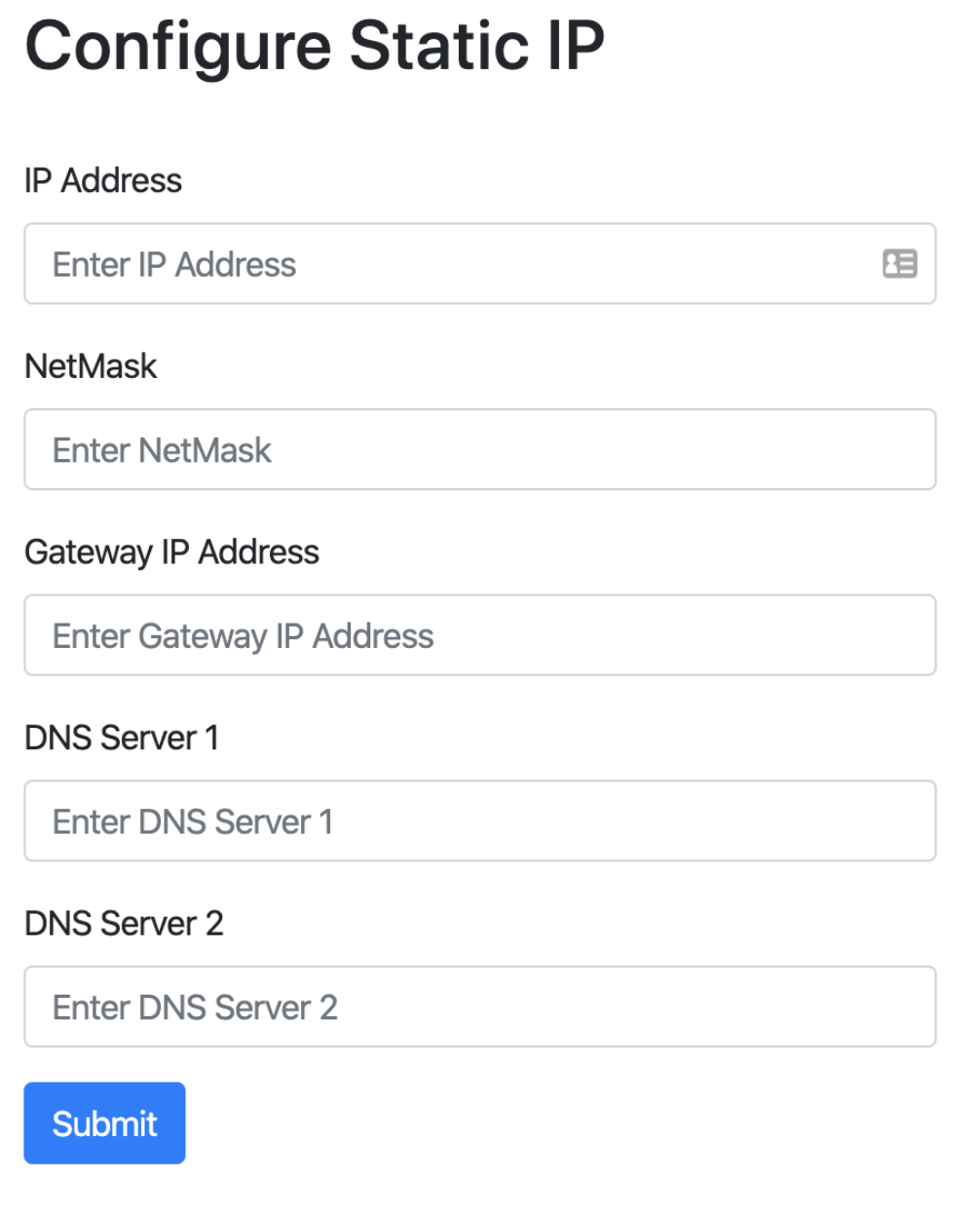
Click Submit to apply the configuration.