
How to Set Up Two-Factor Authentication (2FA) for Ray Cloud Portal
Enhancing your account security with Two-Factor Authentication (2FA) adds an essential extra layer of protection to your Ray Cloud Controller. Follow the steps below to enable 2FA for users in your account.
Important Prerequisite: Only users with Admin rights have the necessary permissions to configure and enable Two-Factor Authentication (2FA) for the account. Ensure you are logged in as an Administrator before proceeding.
Step 1: Navigate to User Settings
-
Log in to the Ray Cloud Controller website.
-
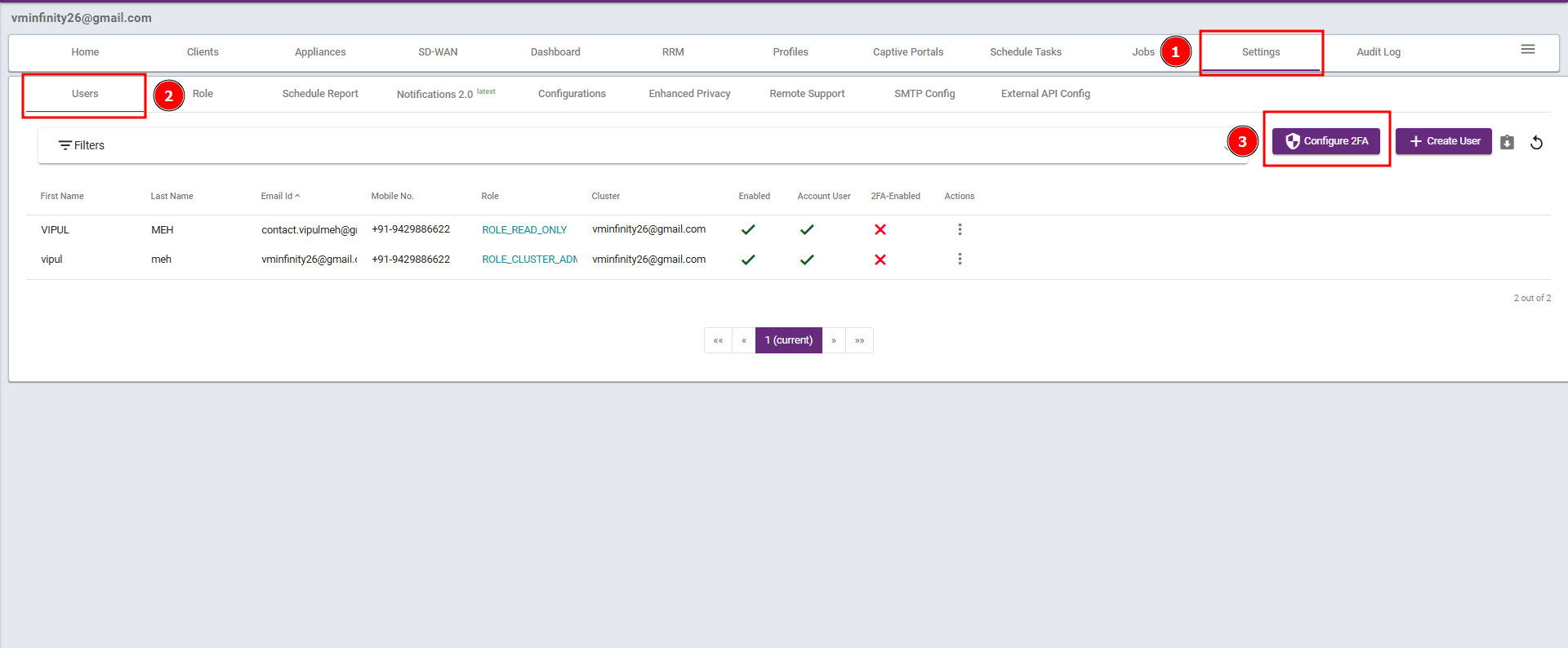
From the top navigation bar, click on Settings.
-
Select the Users tab to view all users associated with the account.
Log in to the Ray Cloud Controller website.
From the top navigation bar, click on Settings.
Select the Users tab to view all users associated with the account.
Step 2: Open the 2FA Configuration Window
-
On the Users page, click the Configure 2FA button located on the right side above the user list.
-
A new configuration pop-up window will appear.
On the Users page, click the Configure 2FA button located on the right side above the user list.
A new configuration pop-up window will appear.
Step 3: Enable 2-Factor Authentication
-
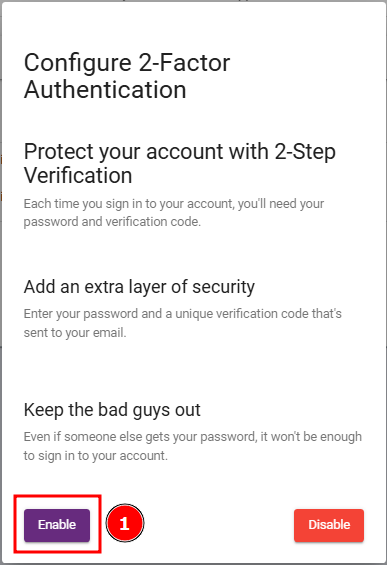
In the Configure 2-Factor Authentication pop-up, click the purple Enable button.
-
To disable 2FA, you can open this same pop-up window at any time and click the red Disable button.
Step 3: Enable 2-Factor Authentication
-
In the Configure 2-Factor Authentication pop-up, click the purple Enable button.
-
To disable 2FA, you can open this same pop-up window at any time and click the red Disable button.
In the Configure 2-Factor Authentication pop-up, click the purple Enable button.
To disable 2FA, you can open this same pop-up window at any time and click the red Disable button.
Step 4: Verify 2FA is Enabled
-
Once enabled, return to the Users table.
-
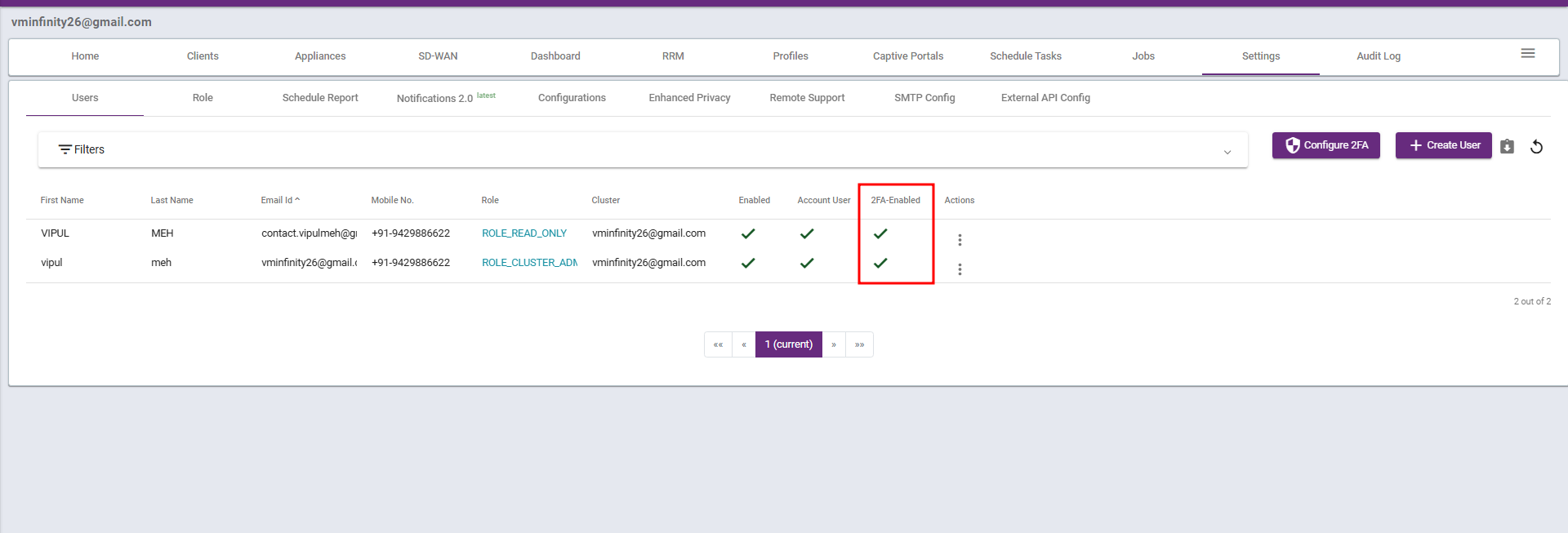
Under the 2FA-Enabled column, you will now see a green checkmark (✓) confirming that Two-Factor Authentication is active for your users.
Once enabled, return to the Users table.
Under the 2FA-Enabled column, you will now see a green checkmark (✓) confirming that Two-Factor Authentication is active for your users.
Step 5: Congratulations!
You have successfully enhanced your account security with multi-factor authentication.