
Setting Channel Per Ray
The channel is a very important parameter when it comes to Radio Resource Management.
By default the Channel Selection is set to Auto in the Radio Profile and is applicable to all the Ray AP. There could be scenarios in which the user might want to set the channel manually for each AP.
Note: Updating the channel is shall break the existing connections. It is advisable to perform this activity during maintenance windows.
Please follow the below steps for the same.
Step 1. Login to Cloud Controller using your username & password on https://cloud.ray.life/
Step 2. Click on Access Points

Step 3. Select the Access Point in which you want to set the PPPOE/Static IP/VLAN. Go To column Actions. Click on overflow Menu and select “AP Profiles”.

Step 4. Click on Radio & Click on Create Radio.
Input the below details.
1. Profile Name. Put a logical name to the AP Profile.
2. Profile Description. Put a description to the task being done.
3. Select “Two Radio” from the dropdown.
4. Select the Radio 2.4. Select the channel that you want to set.
5. Select the Radio 5 Ghz. Select the channel that you want to set.
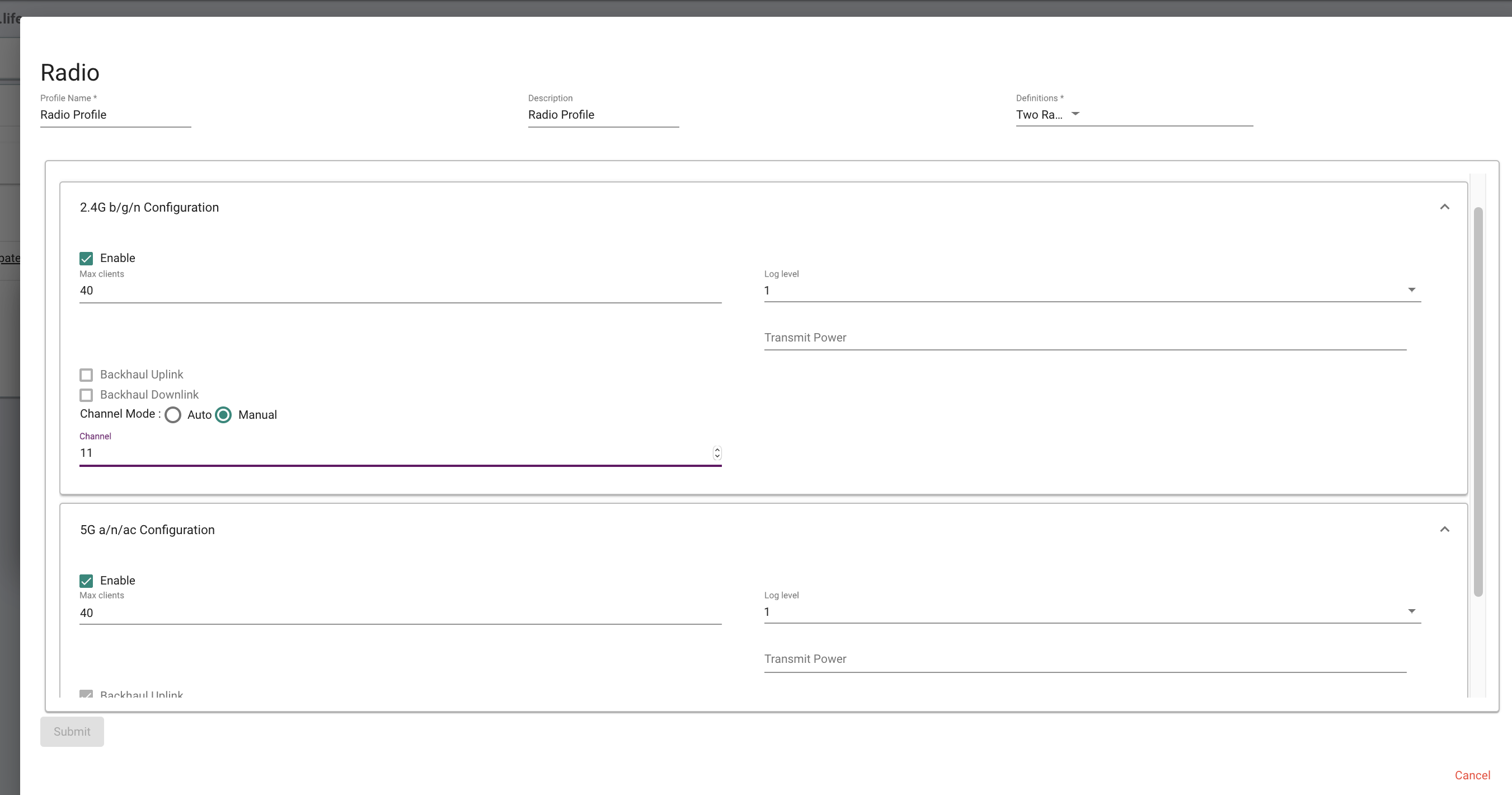
6. Press Submit.
Thank You
Ray Support