
Overview of JOBS
Last updated: Jul 07, 2026
This tab provides information about the changes made to the network. You can filter and view the status of jobs based on...
This tab provides information about the changes made to the network. You can filter and view the status of jobs based on various criteria.
- Go to Jobs,
- To filter jobs, select the following categories:
MAC Address, Description, Date (From-To), Operation, Status, License Status
After selecting the desired filters, click Apply.
Reload Jobs: You can reload jobs by clicking the provided button.
Cancel Jobs: To cancel a job, click on the cancel tab, as shown in the picture.
The results will be displayed in table format, as shown in the picture below.
- Go to the Action Tab.

Click on View History to see detailed status information of the jobs.
- Job Status Stages:
When making changes to the network, jobs pass through the following stages:
- Pending: The change is in the pending stage (still in a queue) and has not yet been processed.
- Reciving: A job is ready to be attended
- Running: The changes are being processed and are working towards publishing.
- Published: The changes have been successfully published to the desired port (status changes from Running to Published).
- Finished: The task is completed, and the job shows a Finished status (status changes from Published to Finished).
- Failed: If there any missing parameter settings or the job is having any error then the job will fail with a proper error message which can lead you to fix the issue.
- Canceled: If you want to cancel the job if you think it is unnecessary then you can cancel it, and the status will remain “Cancelled” in the job queue.
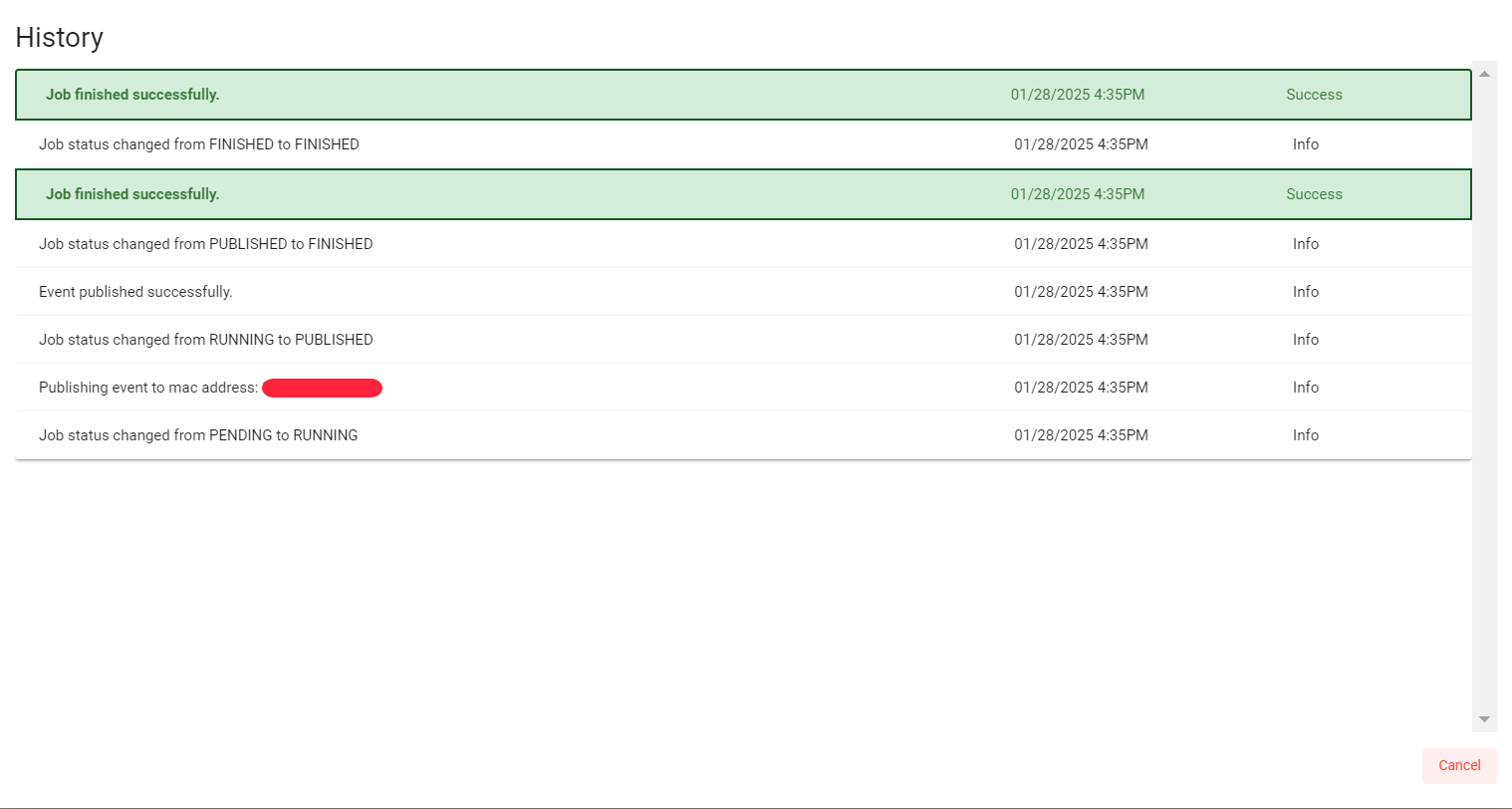
Once the job is completed successfully, it will display “Job finished successfully”.
What are your feelings
🙂😐🙁